How to Stop Startup Apps on Windows 11
Go to Start > Settings > Apps > Startup and turn Off the apps you do not want launching when you sign in. Or open Task Manager > Startup apps, select an entry, then choose Disable.
Quick answer: Go to Start > Settings > Apps > Startup and turn Off the apps you do not want launching when you sign in. Or open Task Manager > Startup apps, select an entry, then choose Disable.
Startup apps are programs that open automatically when you sign in. Some make work easier; others delay reaching a usable desktop. Disabling an app’s startup registration is usually reversible and is not the same as uninstalling it. Take care with security software, backup utilities and work-managed components that protect the PC.
Disable an app from Windows Settings
- Open Start > Settings or press Windows + I.
- Select Apps > Startup.
- Review the list of registered startup apps. If Windows displays an impact label, treat it as an approximate performance clue rather than a direct measure of what an app is “worth.”
- For a nonessential app—for example, a chat app you prefer to open manually—switch its toggle to Off.
- Restart or sign out and sign back in when convenient to confirm the app no longer opens automatically.
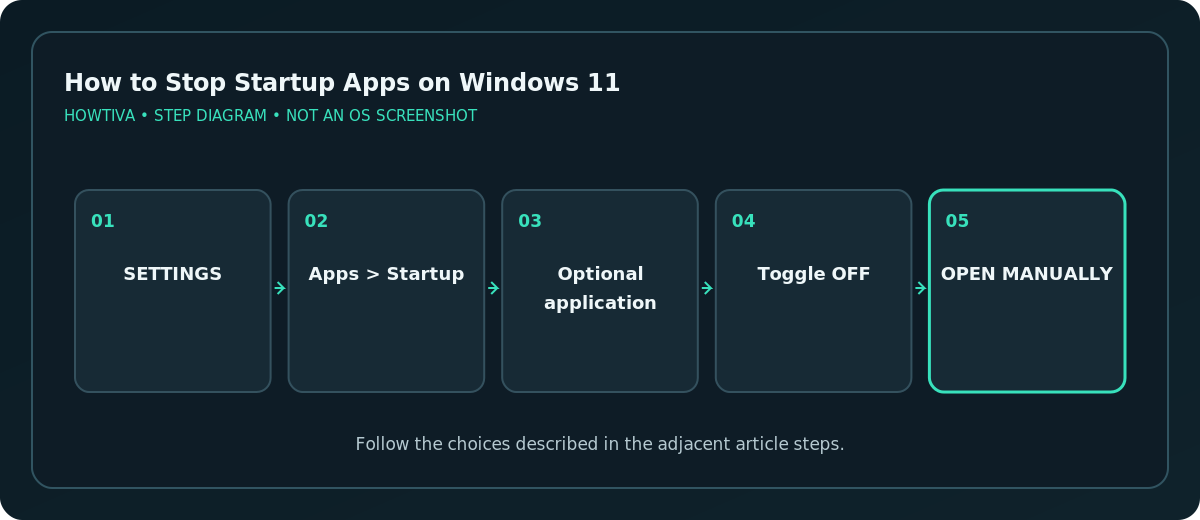
You can still launch a disabled startup app from Start when you need it. The change does not delete the app or its data.
Use Task Manager for impact information
- Right-click Start and choose Task Manager, or use Ctrl + Shift + Esc.
- Open Startup apps in its navigation list.
- Inspect the Status, Publisher, and available Startup impact details.
- Select an app you recognize and choose Disable. If you change your mind, return and choose Enable.
- Check that its status changes before closing Task Manager.
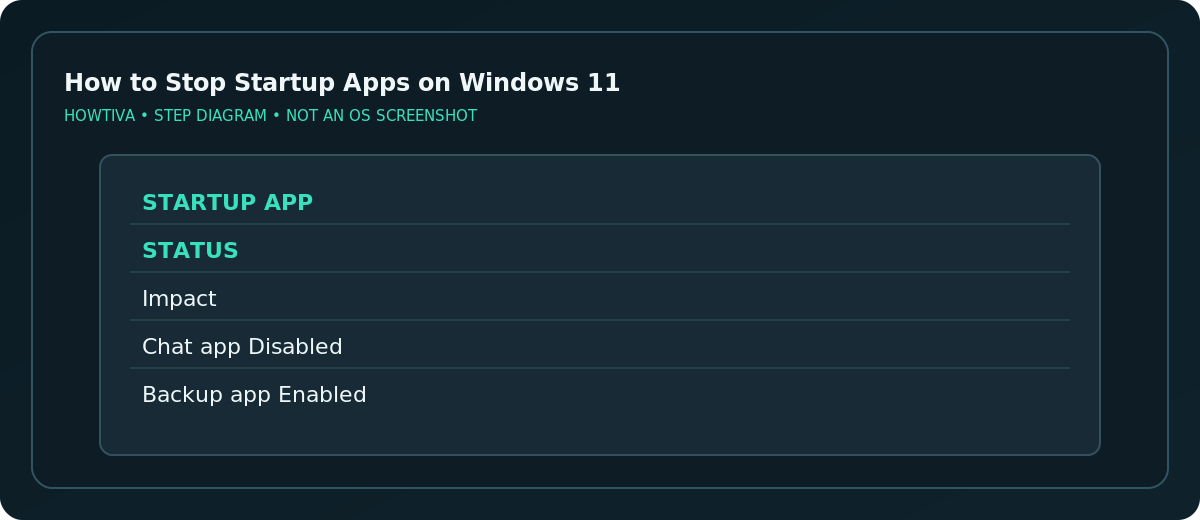
Microsoft explains that the Task Manager view covers registered startup apps similarly to Settings but presents impact details differently. High impact is not necessarily a sign of a harmful program; a legitimate sync or backup app can consume resources while performing necessary work.
When an app is missing from the Startup list
Some programs start through their own settings, a startup-folder shortcut or an organization-managed task. Open the application and look for options such as Launch at login, Start with Windows, or Run in background. Microsoft also documents File Explorer-based startup configuration for certain applications.
Do not disable unknown Windows services or Scheduled Tasks to chase small boot-time gains. These are different mechanisms with more potential to disrupt updates, device drivers, security and synchronization. If the PC is managed by work or school, use the organization’s support process.
Decide what should remain enabled
Keep security and backup features running when their vendor or administrator requires them. Consider leaving cloud synchronization enabled if it protects working files; disabling it may delay uploads. On the other hand, games, launchers and secondary messaging clients often do not need to start until you open them. Adjust one or two apps at a time so you can connect a behavioral change with the correct setting.
An app that starts at login is not necessarily the cause of all slow performance. Low disk space, updates, disk problems and too many simultaneously running programs can have separate causes. Avoid disabling critical components without identifying them.
Troubleshooting startup apps that keep returning
- The app still opens after sign-in: Check its internal Launch at login setting and the other registered startup configuration methods.
- It is absent from both lists: Confirm whether the opening window belongs to that app or a browser startup session instead.
- An entry has an unknown publisher: Inspect its file location and signature. Do not disable it solely because of its name.
- Your toggle reverses itself: A program update, policy or its own settings may be restoring the registration.
- You see a blank or disabled control: Your account may be restricted by administrative policy.
- Sign-in feels slow even after changes: Review Task Manager and Microsoft’s PC-performance checks rather than repeatedly disabling unrelated services.
Frequently asked questions
Does Disable uninstall a startup app?
No. The app stays installed. You are only changing how it launches when you sign in.
Can I turn startup back on later?
Yes, return to Settings or Task Manager and enable the registered startup entry.
Will I miss notifications if I disable a messaging app?
Possibly. An app that is not running may not deliver its normal desktop notifications until you launch it; behavior depends on the program.
Sources & Further Reading
- Microsoft — Configure Startup applications in Windows — Settings, Task Manager, startup registration and impacts.
- Microsoft — Tips to improve PC performance in Windows — Performance troubleshooting context.
Use the checklists as you go, and confirm the result before moving on to a more involved repair.