How to Find Your Computer’s Specifications on Windows
On Windows 11, open Settings > System > About to see the processor, installed RAM, device type, Windows edition and version. To inspect your graphics card and live hardware details, use Task Manager > Performance.
Quick answer: On Windows 11, open Settings > System > About to see the processor, installed RAM, device type, Windows edition and version. To inspect your graphics card and live hardware details, use Task Manager > Performance.
You might need your PC specifications to check an application’s requirements, prepare a support request or compare hardware upgrades. There is no single screen showing every component; the built-in tools emphasize different details. Start with Settings for basic facts, then use Task Manager or System Information if you need a more technical inventory.
Check your processor, RAM and Windows version
- Press Windows + I to open Settings.
- Open System > About.
- In Device specifications, read Processor, Installed RAM, and System type. Copy only the fields needed for your question.
- Under Windows specifications, note Edition, Version and OS build if support asks for them.
- If you need to share a screenshot, redact the Device name, Device ID, Product ID, serial numbers and other identifiers where unnecessary.
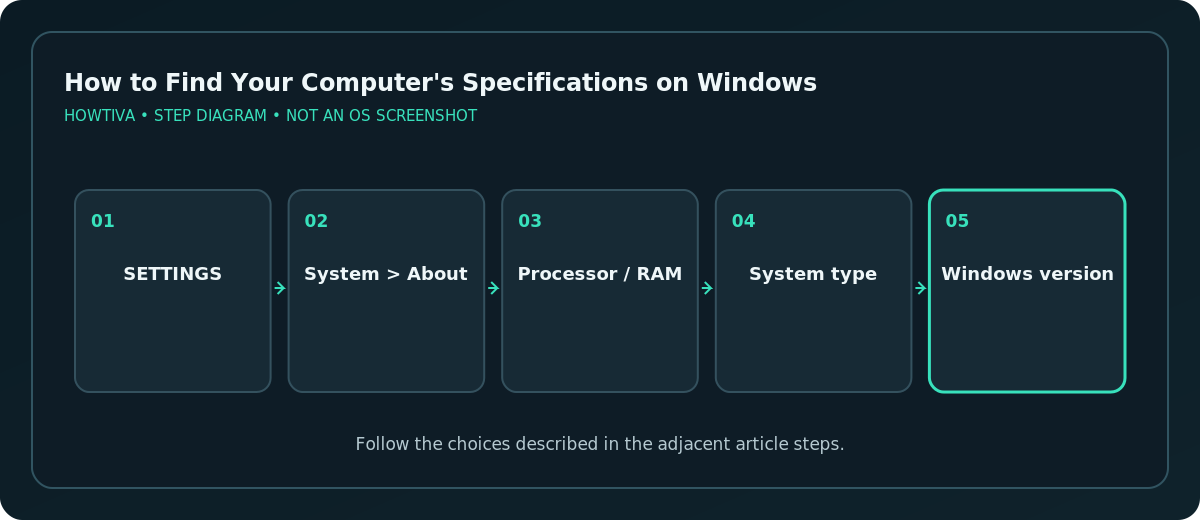
The Device specifications panel tells you the processor model and the amount of installed memory; it does not reliably explain memory-slot availability, motherboard compatibility or whether a future upgrade is possible. Confirm those details with the PC maker before buying parts.
See your GPU, CPU and memory activity in Task Manager
- Right-click Start and choose Task Manager, or press Ctrl + Shift + Esc.
- Choose Performance in the navigation menu.
- Select CPU, Memory, Disk, or GPU for the corresponding performance panel. The GPU section appears when supported graphics hardware and drivers report it.
- Read the device model and available metrics. These can include processor speed, RAM usage, disk activity or GPU model.
- Note that the percentages shown are live utilization, not hardware benchmark scores. A 90% reading only describes what was happening during that moment.
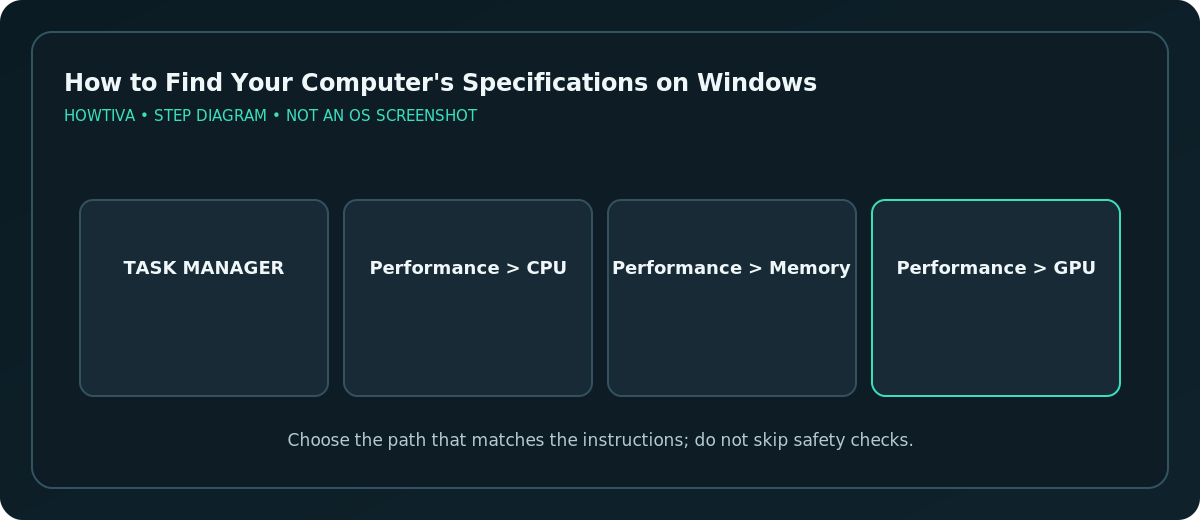
If multiple graphics adapters are present—such as integrated and discrete graphics—check each GPU pane rather than assuming the first entry is the graphics processor used by every application.
Inspect storage capacity and free space
Use Settings > System > Storage to see usage on the Windows system drive. For additional drives, visit Advanced storage settings > Storage used on other drives, when available. You can also open File Explorer > This PC for drive free-space information. The displayed capacity of a drive should not be confused with available space or the amount of memory (RAM).
For software requirements, compare the required free disk space with available capacity, not the headline drive size. Installers may also need temporary workspace beyond the final program size.
Use System Information for technical details
Press Windows + R, type msinfo32, and press Enter to open System Information on supported Windows builds. Look in System Summary for the manufacturer, model, processor and other reported system details. The sections available depend on the hardware, firmware and device drivers.
Do not assume that every item is complete or current—some fields are manufacturer-supplied, and virtual machines can report virtual hardware instead of the host computer’s components. For exact model numbers or upgrade options, compare with the manufacturer’s product page.
Check graphics and DirectX details
Open Run with Windows + R, type dxdiag, and select OK. The DirectX Diagnostic Tool can show system and display information, including reported graphics device and driver details. Use it when technical support requests graphics or DirectX data. If you export its report, inspect it for identifiers before sharing it publicly.
This tool describes installed and reported components; it does not prove that a particular game will run smoothly. Performance depends on drivers, thermals, application settings, available memory and other factors.
Troubleshoot missing or confusing specifications
- GPU is absent from Task Manager: Graphics drivers or hardware reporting may differ. Check Device Manager and the PC manufacturer’s supported driver instructions.
- Installed RAM differs from usable RAM: Hardware-reserved memory and platform configuration can affect available RAM. Check Settings and firmware documentation.
- Storage shows one drive but you have two: Review Storage used on other drives or File Explorer’s This PC view.
- You see different names in different tools: One may report a board, another a retail laptop model, and another a GPU driver label. Record the exact field and tool for comparison.
- A software installer asks for architecture: Use System type from Settings, rather than guessing based on the device’s age.
- A seller claims a particular upgrade is supported: Confirm slots, power, firmware and compatibility with the manufacturer before purchase.
Frequently asked questions
Where do I find CPU and RAM fastest?
Settings > System > About lists both under Device specifications.
Where is the graphics card model?
Try Task Manager > Performance > GPU; use dxdiag for additional reported display-driver information.
Can Windows show the exact motherboard or upgrade limit?
System Information may show some board data, but manufacturer specifications are needed to verify upgrade compatibility reliably.
Sources & Further Reading
- Microsoft — Find information about your Windows device — About page, memory, system type, Windows version, storage.
- Microsoft — System configuration tools in Windows — System Information msinfo32 and diagnostic tools.
- Microsoft — Storage settings in Windows — Drive capacity and storage overview.
Use the checklists as you go, and confirm the result before moving on to a more involved repair.