How to Create a Restore Point in Windows 11
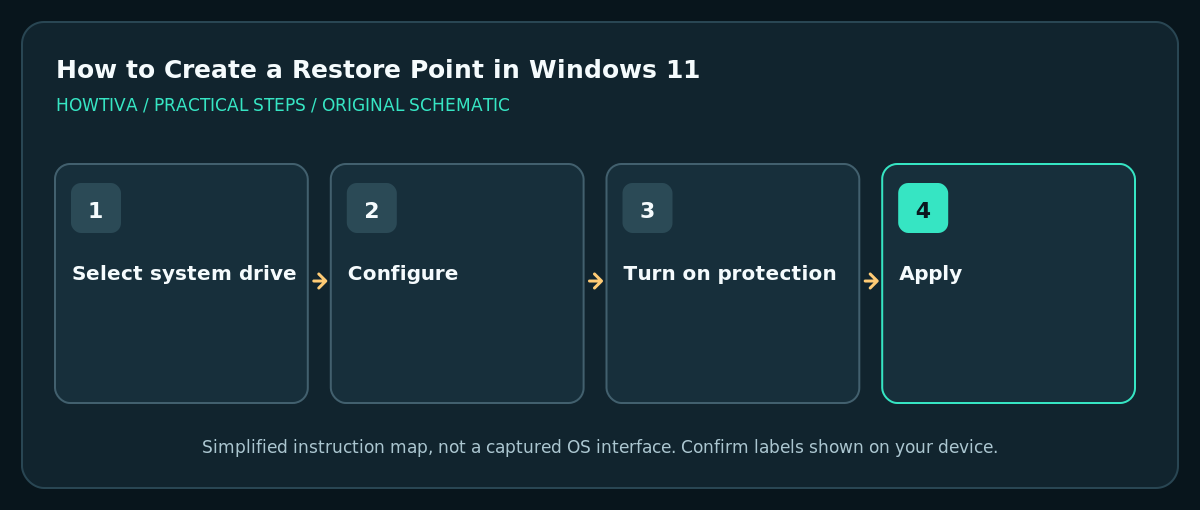
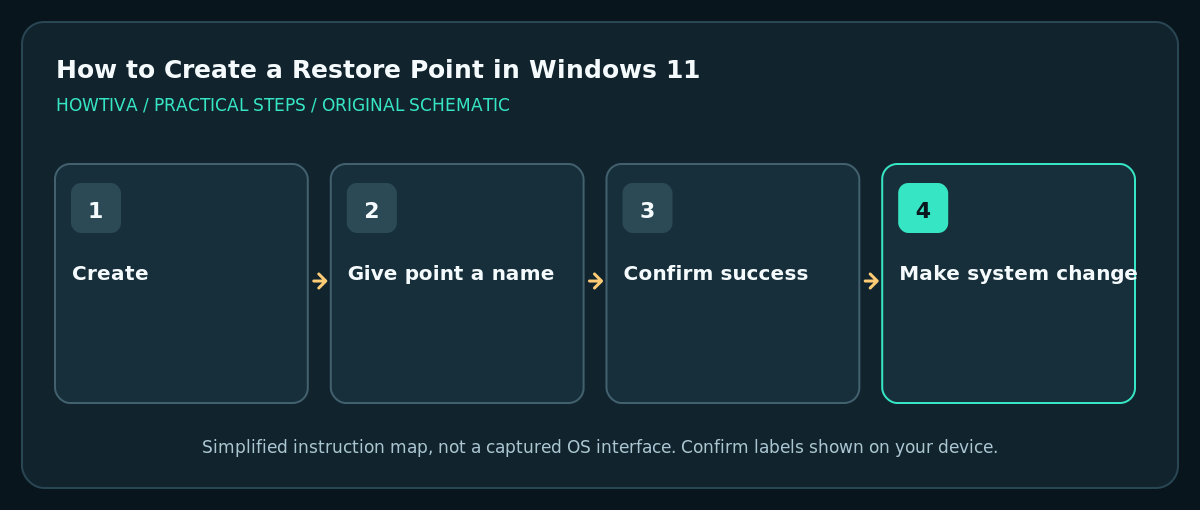
Type Create a restore point in Windows Search and open the result. In System Protection, choose your system drive, select Configure > Turn on system protection, then select Create and give the restore point a recognizable name.
Quick answer: Type Create a restore point in Windows Search and open the result. In System Protection, choose your system drive, select Configure > Turn on system protection, then select Create and give the restore point a recognizable name.
A restore point is a snapshot of Windows system files, installed programs, Registry data and selected system settings. It can help after a troublesome driver or software change, but it is not a backup of personal photos, documents, project folders or external drives. Microsoft notes that System Protection may be disabled by default.
Turn on System Protection
- Save your work and sign into an account with appropriate permissions. Work-managed PCs may require administrator approval.
- Select Start and type Create a restore point. Open the result; the System Properties window should show the System Protection tab.
- In Protection Settings, select the Windows system drive, usually C:, and look at its protection status.
- If it is Off, select Configure. Choose Turn on system protection.
- Set a reasonable maximum disk-use allocation using the available slider, then select Apply and OK. Too little space may result in older restore points being removed as new ones are added.
- Return to the System Protection tab and confirm protection is now On for the intended drive.
Create your manual restore point
- On the System Protection tab, select Create.
- Enter a descriptive name such as Before display-driver change. Windows records the date and time for the restore point.
- Select Create again and wait for the confirmation message. Do not assume it worked simply because you clicked the button.
- Record which installation or configuration change you are about to make. If that change later causes a problem, the name helps you select a relevant earlier state.
- Keep your separate file backup. Creating this restore point does not copy your photo or document library to safe external storage.
When to make a restore point
Useful examples include before installing a driver from a trusted manufacturer, making a major configuration change or troubleshooting an app installer that modifies Windows components. A restore point cannot guarantee recovery from hardware failure, ransomware, a deleted document or full-disk damage.
How to use a point later without guessing
In System Protection, select System Restore and review the available points and effects before accepting the wizard. Restoring can remove apps, drivers and updates installed after the point. It is intended to preserve personal files, but you should still have a verified backup. Avoid starting a restore simply to recover a deleted photograph: use Recycle Bin, OneDrive or File History instead.
Troubleshooting
The Create button is disabled
Make sure you selected the correct system drive and turned on protection for it. If the option is managed by your organization, contact IT instead of trying to bypass security restrictions.
I cannot find an older point
Restore points can be removed by space limits and system maintenance. A point only helps if it still exists and belongs to the appropriate system state. A Windows reset is a different and potentially destructive process.
There is not enough disk space
Review Settings > System > Storage and reclaim safe space first. Do not delete Windows system folders manually. Recheck the System Protection space allocation afterwards.
Should I create a point every day?
System Protection can create points automatically when necessary. Manually creating one before an important system change is more useful than treating it as a daily substitute for real backups.
Frequently asked questions
Does a restore point save personal files?
No. Use File History, a separate external backup or another genuine file backup for personal data.
Can I restore to any date?
No. Only available restore points can be chosen, and there is no guarantee a point will be present for every day.
Are System Restore and a full reset the same?
No. System Restore rolls back system changes; Reset this PC reinstalls Windows and can remove apps and data, depending on the option selected.
Sources & Further Reading
- Microsoft — System Protection — Protection default, enabling, configuring and creating a point.
- Microsoft — Recovery options in Windows — System Restore and resetting distinctions.
Use the checklists as you go, and confirm the result before moving on to a more involved repair.