How to Show File Extensions in Windows 11
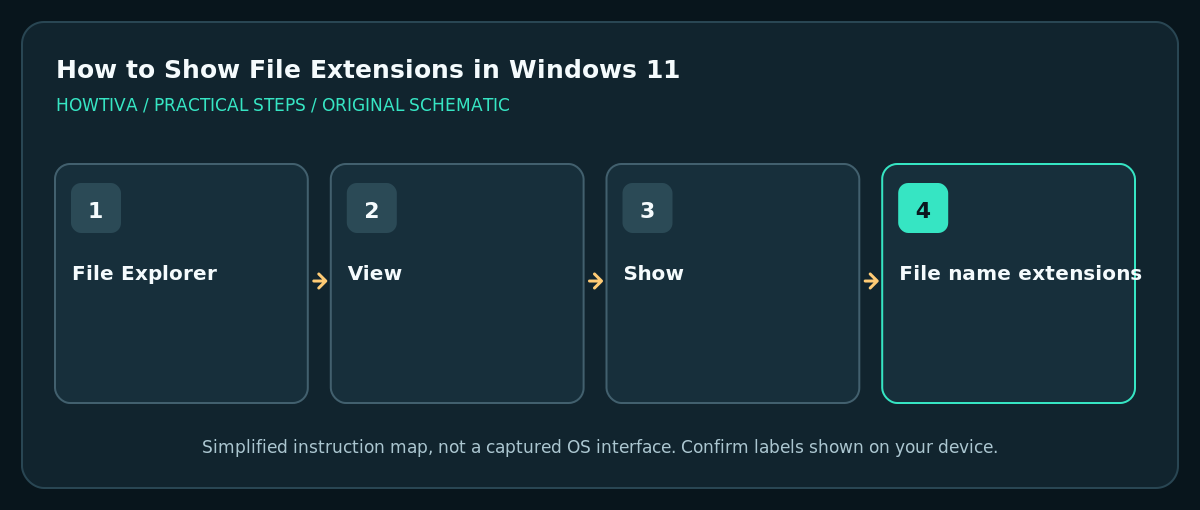
Open File Explorer with Windows + E, choose View > Show > File name extensions and make sure the option is selected. Files should now display suffixes such as `.pdf`, `.docx` and `.jpg` where applicable.
Quick answer: Open File Explorer with Windows + E, choose View > Show > File name extensions and make sure the option is selected. Files should now display suffixes such as .pdf, .docx and .jpg where applicable.
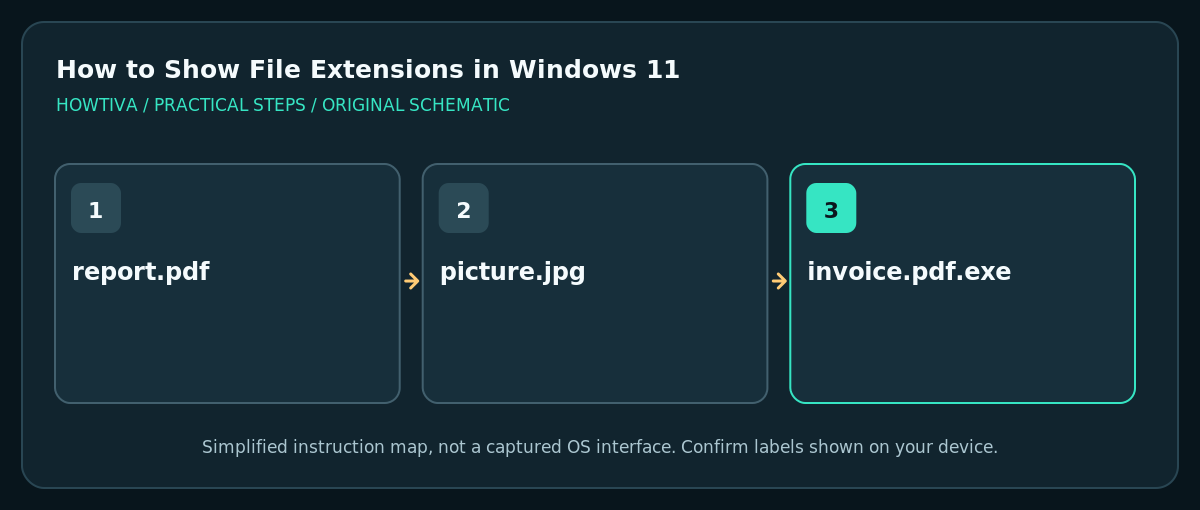
Windows can hide familiar filename extensions, making different file types look similar. Showing them helps when identifying downloads, diagnosing file association problems or spotting misleading names such as invoice.pdf.exe. Displaying an extension does not itself scan the file for malware, and changing the letters after the dot does not convert the document into another format.
Show extensions using File Explorer
- Press Windows + E or open File Explorer from Start.
- Open a folder with familiar items, such as Documents or Downloads, so you can see the change immediately.
- In the File Explorer command bar, select View.
- Choose Show, then select File name extensions. In some Windows builds it appears as an on/off item with a checkmark.
- Look at the displayed filenames.
report.docx,photo.jpgandarchive.zipnow reveal their suffixes when those files have standard names. - Leave the extension visible if you frequently handle email attachments or downloaded documents. The setting changes how names are displayed; it does not alter any file’s contents.
Understand what the suffix tells you
.pdftypically indicates a PDF document;.docxis a Word document format;.xlsxis an Excel workbook format..jpgand.pngindicate common image formats;.zipindicates a compressed archive..exeoften identifies a Windows executable program. Treat unexpected programs in a Downloads folder cautiously, particularly if a filename pretends to be a document.- Some files have multiple dots in their names. Windows generally interprets the last extension as the file type indicator:
invoice.pdf.exeis not safely identified as a PDF just because the earlier text sayspdf.
Alternative path: Folder Options
Some Windows builds also expose extension visibility through File Explorer Options > View and the Hide extensions for known file types checkbox. This is a traditional alternative, not a reason to change other hidden-file or protected-system settings. Use the simpler View > Show path first.
Be careful when renaming files
- When changing a name, select only the part before the final dot if you are not deliberately changing file type labels.
- If Windows warns that changing an extension may make a file unusable, stop and review the filename. A rename from
.pngto.jpgdoes not transform the actual image data. - To convert a file, use the source application or a reputable tool that exports the desired format. Save a separate output, then verify it opens.
- If you receive a document with a surprising double extension or unexpected executable suffix, do not open it until you have verified the source and intent.
Troubleshooting
Extensions still do not show
Ensure you enabled File name extensions, not Hidden items. Reopen File Explorer or check another folder with recognizable files. Some special system items can behave differently from ordinary documents.
A file opens in the wrong program
The extension may be correct while the default app association is wrong. Use Settings > Apps > Default apps to choose the intended handler; renaming the extension is not the right first fix.
The file became unreadable after I renamed it
Undo the rename immediately if possible, or restore the accurate original extension from a verified copy. Renaming changes the filename, not the encoded data. If the file content was corrupted independently, a backup may be needed.
I cannot find View > Show
Confirm you are in Windows 11 File Explorer and expand the window. Older Windows and third-party file managers may organize settings differently. Use File Explorer Options if your build provides the legacy checkbox.
Frequently asked questions
Does showing extensions affect all folders?
It is a File Explorer display preference, not a conversion of each item. The change is normally reflected across ordinary folders in File Explorer.
Is an extension proof that a file is safe?
No. Filenames can be misleading. Use normal download and security precautions.
How do I hide them again?
Return to View > Show > File name extensions and turn the option off.
Sources & Further Reading
- Microsoft — Common file name extensions in Windows — View Show File name extensions and rename versus conversion.
- Microsoft — File Explorer in Windows — File Explorer extension and hidden-item menu locations.
Use the checklists as you go, and confirm the result before moving on to a more involved repair.