How to Show Hidden Files on a Mac
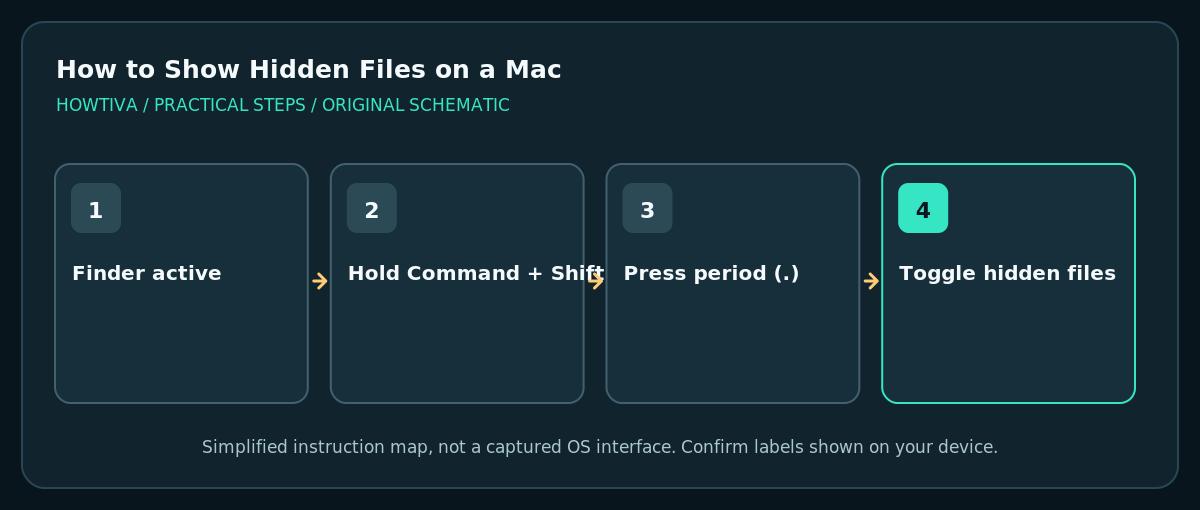
Open Finder and press Command + Shift + Period (.) to toggle the display of hidden files and folders. Press the same shortcut again to hide them.
Quick answer: Open Finder and press Command + Shift + Period (.) to toggle the display of hidden files and folders. Press the same shortcut again to hide them. For your user Library folder specifically, open Finder > Go > Go to Folder and enter ~/Library.
macOS hides many configuration files and folders to keep Finder manageable and to prevent accidental changes to important settings. You might need to see hidden items while following a trusted developer’s instructions or locating a configuration file. Making them visible does not make them safe to modify, delete or rename.
Reveal hidden items in Finder
- Open a Finder window using the Dock icon or Spotlight.
- Navigate to a relevant ordinary folder, such as your home folder. Do not begin in a protected system location.
- Hold Command and Shift, then press the period (.) key. Finder toggles the display of many normally hidden files and folders.
- Hidden items generally appear more subdued than normal files. On some keyboard layouts, reaching the period key may require a different physical key; use the key that types a period with your input layout.
- When finished, press Command + Shift + Period again to hide the extra entries. This toggles their visibility in Finder; it does not erase them.
Open your user Library directly
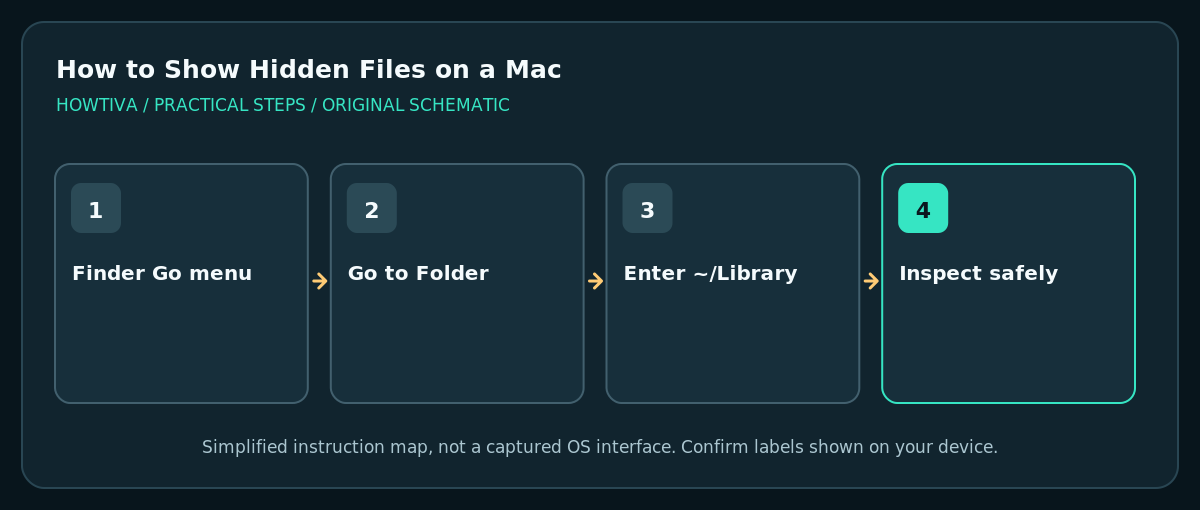
- With Finder active, open the Go menu and choose Go to Folder, or press Shift + Command + G.
- Type
~/Libraryand press Return. The tilde points to your own home directory rather than the computer-wide/Libraryfolder. - Browse only the specific subfolder required by trusted instructions. Before changing any preferences or app data, quit the app and create a relevant backup.
- Do not confuse
~/Library(user account data) with/Library(computer-wide resources) or/System/Library(system-managed files). Their contents and permissions are different. - If your goal is just to inspect a file, copy the relevant information without moving or deleting the original.
Hidden is not the same as protected
A leading dot (.zshrc, .config) commonly signals an item that Finder hides. Other hidden items use metadata rather than a name starting with a dot. The Finder shortcut changes visibility only. FileVault, account permissions and file encryption provide different protections; hiding a file does not make confidential data secure against someone with appropriate access.
Avoid common mistakes
- Do not mass-delete files that appear after using the shortcut. Some are required by applications or macOS.
- Do not change system permissions just because Finder refuses access to a folder. macOS protects certain locations on purpose.
- Do not use unverified Terminal cleanup commands found in comments or videos. They can remove personal or system data beyond the folder you intended.
- Do not confuse filename extensions with hidden files. Finder’s Settings > Advanced > Show all filename extensions is a separate feature.
Troubleshooting
Command-Shift-Period seems to do nothing
Click the Finder window to ensure Finder has focus and try the key combination again. Keyboard layouts vary. Test in your home folder where hidden configuration items may be present; some folders legitimately contain none.
I still cannot open a hidden system folder
Visibility is not permission. If a protected directory denies access, stop and find a supported way to accomplish the task. Modifying system files can prevent apps or macOS from working.
I can see files beginning with a dot but no Library folder
The user Library folder can be opened directly with Go to Folder and ~/Library. This avoids navigating broad protected parts of the system.
Finder now looks cluttered
Press the same shortcut to hide the extra files again. The visibility toggle does not reverse any changes already made to those files.
Frequently asked questions
Does showing hidden files cause data loss?
No; simply viewing them does not delete data. Editing, moving or deleting hidden items can cause serious problems.
Is ~/Library the same as the system Library?
No. ~/Library is inside your own account’s home directory. /Library is shared more broadly, and /System/Library is managed by macOS.
Is the Finder shortcut a documented menu setting?
It is a Finder keyboard toggle rather than the same checkbox used for filename extensions. Apple documents Finder’s Go to Folder shortcut, and the hidden-file toggle is corroborated by Apple Community discussions and independent macOS guidance. Individual macOS versions and keyboards can vary.
Sources & Further Reading
- Apple — Mac keyboard shortcuts — Finder Go to Folder shortcut Shift Command G.
- Apple Community — Show hidden files shortcut — User-reported Command Shift Period Finder hidden-file toggle; community rather than vendor manual.
- The Verge — How to hide files and folders on macOS — Independent description of Finder hidden file toggle and limitations.
- Apple — Show or hide filename extensions — Extension visibility differs from hidden-file visibility.
Use the checklists as you go, and confirm the result before moving on to a more involved repair.