How to Reset Network Settings on Windows 11
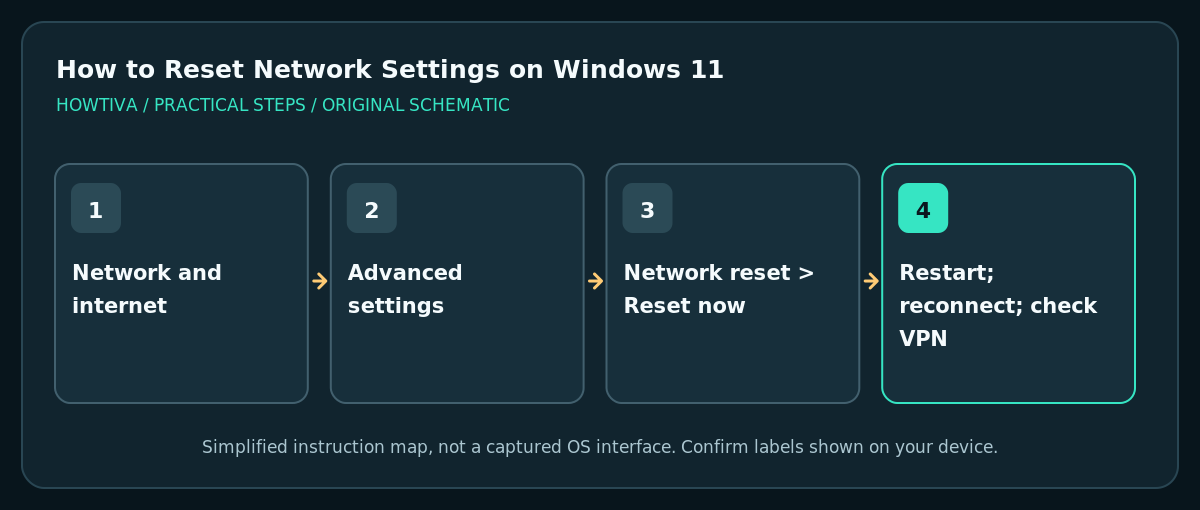
Open Settings > Network & internet > Advanced network settings > Network reset, choose Reset now, and confirm only after saving your work and recording any VPN, static IP, or specialized adapter settings.
Quick answer: Open Settings > Network & internet > Advanced network settings > Network reset, choose Reset now, and confirm only after saving your work and recording any VPN, static IP, or specialized adapter settings. Windows restarts and reinstalls network adapters with their default settings.
A network reset is a last-resort connectivity repair, not the first response to a slow website. It removes and reinstalls network adapters and returns their settings to defaults. Microsoft warns that VPN software or Hyper-V virtual switches may need reconfiguration afterward. Start with smaller, reversible checks; use the full reset only when several connections have stopped behaving normally.
Decide whether a full network reset is justified
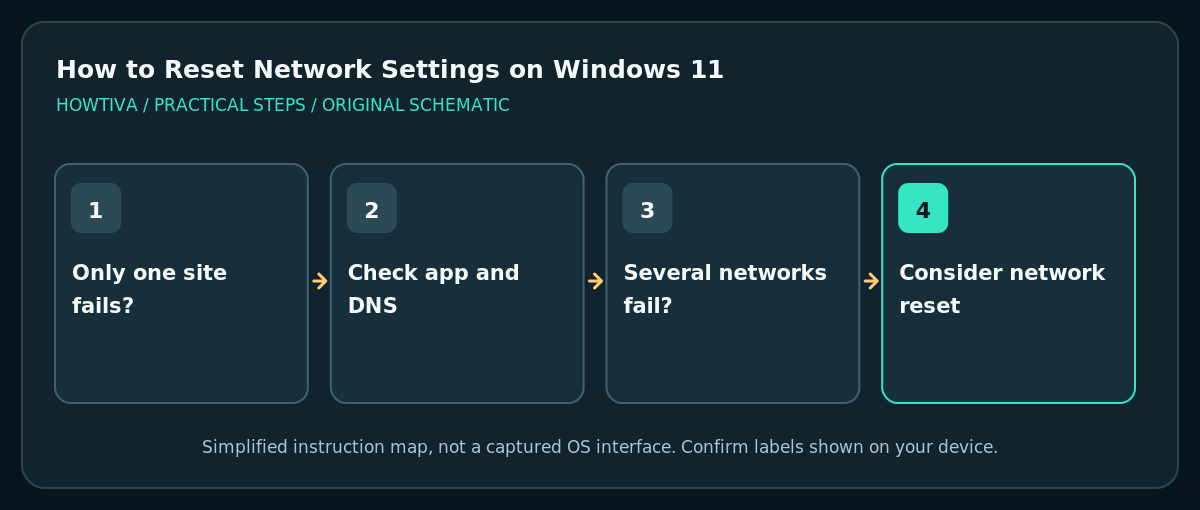
- First check whether only one website or app fails. If the computer reaches other services, investigate that app, DNS, firewall rules or the remote service rather than resetting every adapter.
- If only Wi-Fi is affected, verify that airplane mode is off, Wi-Fi is enabled and the chosen network is correct. Restart the computer and router if you control it and doing so will not disrupt other users.
- If Ethernet and Wi-Fi are both unreliable, or an adapter configuration has become corrupted after a driver change, a network reset may be appropriate. On work or school PCs, ask IT first: VPN certificates, static routes and managed network profiles may be required for access.
- Record any static IPv4 address, DNS server, proxy, VPN account/configuration or custom network adapter settings that you understand. Do not take photos showing private passwords or authentication tokens.
Reset adapters using Windows 11 Settings
- Save open documents and pause large transfers. Resetting connectivity can interrupt downloads, remote sessions and cloud synchronization.
- Open Start > Settings, then select Network & internet.
- Open Advanced network settings, scroll to Network reset, then read Windows’ description of the change. This option affects more than the currently selected Wi-Fi network.
- Select Reset now and confirm Yes. Windows schedules a restart; follow the on-screen countdown or restart instructions. Do not initiate the reset during an unsaved remote support session.
- After Windows restarts, reconnect to the correct Wi-Fi network if prompted. Check Ethernet, browser access and any VPN or virtual switch you rely on. Windows may classify a known connection as a Public profile; review network discovery and sharing expectations before changing it to Private.
What changes, and what does not
A full Windows network reset removes and reinstalls network adapters with default settings. It is not a factory reset of your router, a deletion of personal files, or a guaranteed cure for an ISP outage. Existing VPN client software, virtual switches and manual network settings may need to be set up again. Reinstall only legitimate drivers or networking applications from your device or software vendor.
If the Reset now option is missing, confirm that you are using Windows 11 and have the necessary permissions; managed computers can restrict network administration. Do not substitute copied registry deletion commands from an unverified forum.
Lower-impact alternatives to try first
- To fix a single Wi-Fi profile, select Settings > Network & internet > Wi-Fi > Manage known networks, choose that network, and use Forget only if you know the password and can reconnect. This removes that saved profile rather than resetting all adapters.
- Run Windows’ Network and Internet troubleshooter from the Get Help experience, and review messages before allowing proposed changes. Windows interface wording may vary with updates.
- In an elevated Command Prompt,
ipconfig /flushdnsclears the local DNS resolver cache; it does not reset network adapters. Only do this when name-resolution behavior points to cached DNS information. - If a driver update triggered the problem, review the adapter under Device Manager > Network adapters and use the computer manufacturer’s documented driver or rollback process when available.
Troubleshooting after reset
No network appears: check the Wi-Fi switch and airplane mode. Open Device Manager and verify that a wireless adapter exists without a warning symbol. If it is missing, use the PC maker’s trusted driver package, potentially transferred on another device.
Connected but no internet: compare another device on the same network. A captive portal, DNS failure, expired ISP service or router problem will not automatically disappear because Windows reset its adapters. See the companion Wi-Fi guide for targeted isolation.
VPN no longer connects: consult the VPN application’s setup guide or your administrator. Recreate the virtual switch or VPN connection only from known configuration details.
Shared folders vanished: inspect the network’s Public/Private profile and sharing settings; do not turn on broad sharing on an unfamiliar public network.
Frequently asked questions
Will my documents be deleted?
Network reset targets network adapters and their settings, not ordinary personal document storage. Still save files first because the resulting restart interrupts running programs.
Is network reset the same as resetting the router?
No. This action runs on the Windows PC. It does not log into or change the Wi-Fi router or ISP equipment.
Should I reset whenever Wi-Fi is slow?
No. First measure whether the problem also affects other devices, then investigate signal strength, congestion, driver issues and the internet service itself.
Sources & Further Reading
- Microsoft — Fix Wi-Fi connection issues in Windows — Windows 11 reset menu, adapter reinstalls, VPN and virtual-switch implications, Public profile.
- Microsoft — Essential network settings and tasks — Wi-Fi options, network profiles and connection settings.
- Microsoft Learn — ipconfig — DNS cache flush is distinct from network adapter reset.
Use the checklists as you go, and confirm the result before moving on to a more involved repair.