How to Fix a Mac That Won’t Connect to Wi-Fi
Open System Settings > Wi-Fi, confirm Wi-Fi is enabled, choose the correct network and enter its current password.
Quick answer: Open System Settings > Wi-Fi, confirm Wi-Fi is enabled, choose the correct network and enter its current password. If the Mac joins Wi-Fi but still cannot reach the internet, compare another device, restart your Mac, check VPN/date settings and follow Apple’s built-in Wi-Fi recommendations or Wireless Diagnostics.
A Mac that cannot see a network needs different checks from a Mac that joins the network but cannot browse. Apple recommends checking the Wi-Fi connection, restarting, checking date and time, keeping macOS updated, inspecting VPN or security software, and using the built-in diagnostics. Work from observations rather than deleting network configuration files or running terminal commands from old forum posts.
Identify which Wi-Fi problem you have
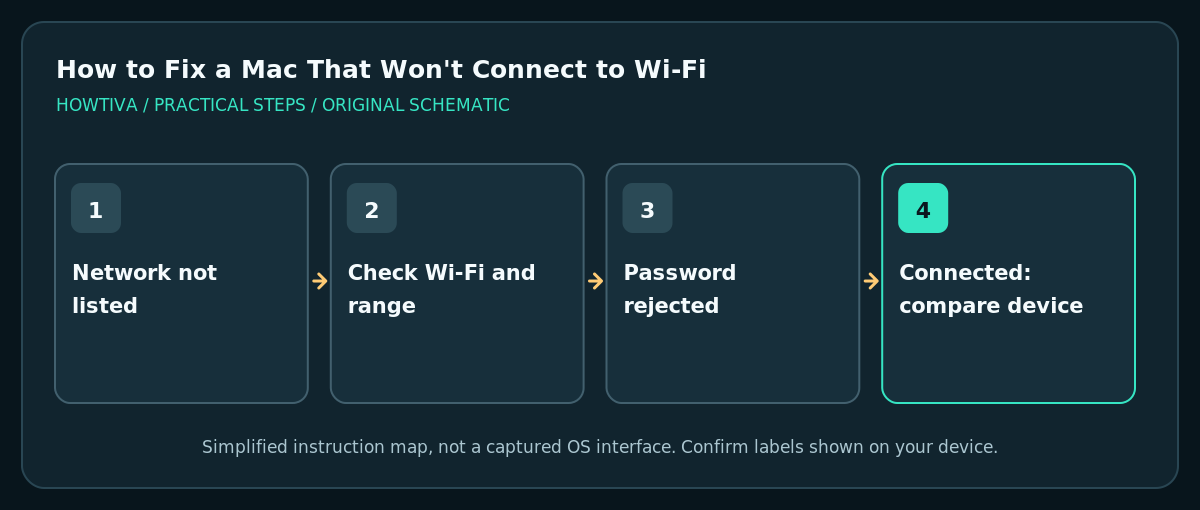
- Click the Wi-Fi status menu or open Apple menu > System Settings > Wi-Fi. Confirm the Wi-Fi switch is on. Select the intended network rather than a neighbor’s or a similarly named guest network.
- If the network is not listed, move closer to the router and verify on another device that the network actually broadcasts. Hidden networks may require the exact network name and security method; obtain these from the owner.
- If a password is rejected, verify capitalization, keyboard language and whether the router’s password was recently changed. Do not repeatedly try passwords on a managed network; contact the administrator.
- If the Mac says it is connected but sites do not load, test the same Wi-Fi on a phone with cellular data disabled. This distinguishes a whole-network outage from a Mac-only problem.
- On a hotel, campus or café network, a web sign-in page might be required. Treat unexpected certificate or payment prompts cautiously; do not disable security protections to force login.
Repair the Mac’s connection safely
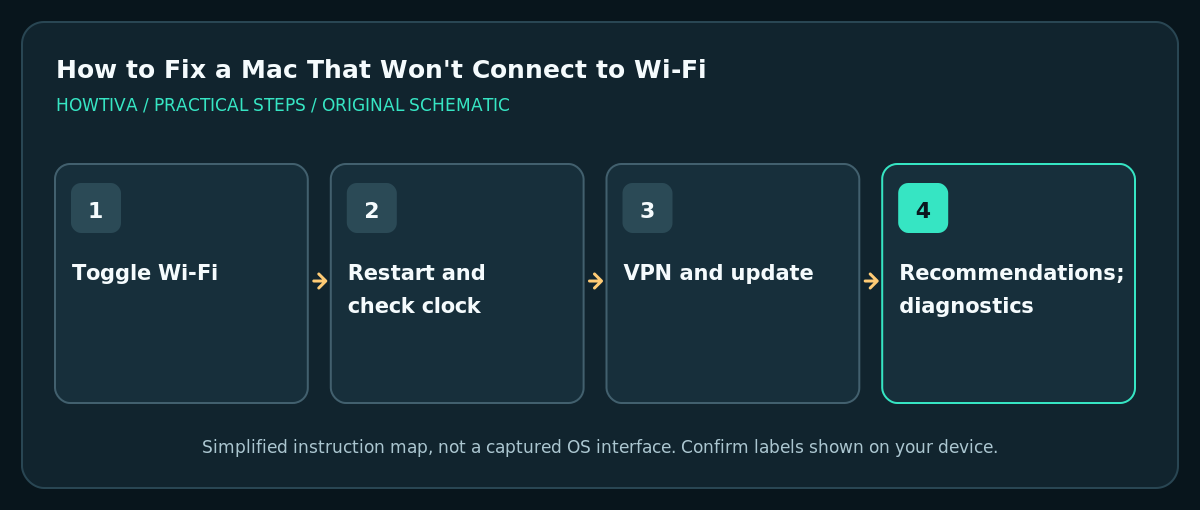
- Turn Wi-Fi off, wait briefly and turn it back on in the Wi-Fi menu. Retry the right network and a couple of unrelated websites.
- Save work, then select Apple menu > Restart. Apple lists restarting the Mac as a first-line step because it can renew networking state.
- Check System Settings > General > Date & Time. Incorrect time can interfere with secure websites. Choose automatic time if appropriate and allowed by your organization.
- Look at the status of any VPN or content-filter app. If the Mac belongs to an organization, ask IT before altering required configuration or removing profiles.
- Update macOS through System Settings > General > Software Update if you have a working connection or an approved alternative. Install only suitable updates for the Mac after allowing time for a restart and ensuring important documents are backed up.
- Review Apple’s Wi-Fi Recommendations from the Wi-Fi status menu when available; recommendations may not appear for some enterprise networks or personal hotspots.
Use Wireless Diagnostics when simpler fixes fail
Apple includes Wireless Diagnostics to inspect network and wireless conditions. Open it using the system’s built-in search or Apple’s documented launch flow, then follow the displayed steps. Diagnostics can help identify possible Wi-Fi issues but cannot fix a broken ISP connection or guarantee that router hardware is healthy. Save any report privately: it may include network names and technical details that should not be published.
If Wi-Fi works on a different network, the first router’s settings or signal environment deserve attention. If the Mac fails on several independent networks, investigate its network configuration, macOS updates or hardware with Apple Support. Avoid deleting macOS configuration files without a specific current Apple instruction.
Troubleshooting specific symptoms
Mac cannot find any networks: verify Wi-Fi hardware is recognized, airplane-related controls on external peripherals are not involved, and nearby devices see the expected SSID. If the Wi-Fi control is missing, Apple’s diagnostics/support path is preferable to a speculative Terminal reset.
Mac connects but only certain sites fail: investigate browser, DNS, VPN and website status instead of repeatedly forgetting the network.
Connection works close to the router but not in another room: this points toward signal, interference or access-point placement, not necessarily a Mac software issue.
Works after restart but later breaks: note whether waking from sleep, changing networks or launching a VPN triggers it. That timing helps support teams isolate the cause.
Frequently asked questions
Is there a universal network-reset button on a Mac?
Do not assume Windows’ network-reset procedure exists on macOS. Apple’s supported troubleshooting flow focuses on Wi-Fi settings, diagnostics, updates and router/service isolation.
Will updating macOS fix every Wi-Fi fault?
No. Updates address certain software issues but cannot repair an ISP outage or weak radio coverage.
Can I test using my phone hotspot?
Yes, if your plan permits it. A second independent network helps distinguish a router-specific problem from a Mac-wide one; avoid unexpected mobile data charges.
Sources & Further Reading
- Apple — If your Mac is not connecting over Wi-Fi — Connection, restart, date/time, updates, VPN, router and diagnostics.
- Apple — Solve internet connection problems on Mac — Wi-Fi Recommendations and Wireless Diagnostics applicability.
- Apple — Wi-Fi settings on Mac — Connecting to visible and hidden networks and Wi-Fi settings.
Use the checklists as you go, and confirm the result before moving on to a more involved repair.