How to Fix Bluetooth Not Working on Windows 11
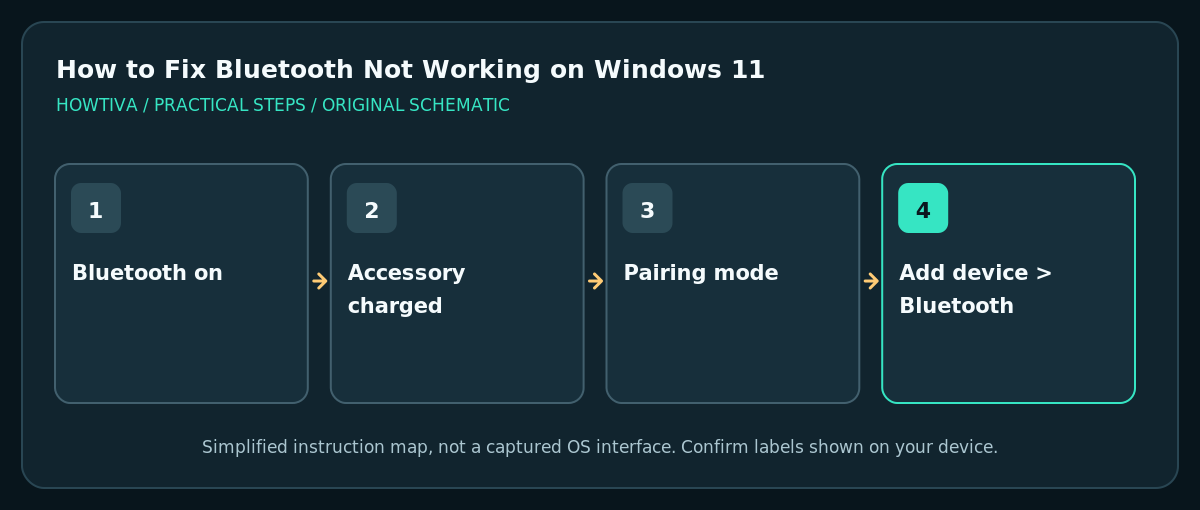
Open Settings > Bluetooth & devices and turn Bluetooth on. Charge the accessory, put it in pairing mode and try Add device.
Quick answer: Open Settings > Bluetooth & devices and turn Bluetooth on. Charge the accessory, put it in pairing mode and try Add device. If Bluetooth is missing or pairing still fails, run the Bluetooth troubleshooter in Get Help, review drivers and only then consider removing and re-pairing the device.
Bluetooth failures can involve a radio that is switched off, an accessory that is paired elsewhere, low battery, interference, a missing driver or a broken audio profile. Microsoft recommends starting with the Windows 11 Get Help troubleshooter and simple hardware checks. Choose the branch that matches the symptom rather than uninstalling every driver first.
Check Bluetooth and the accessory
- Open Start > Settings > Bluetooth & devices and look for the Bluetooth toggle. If a laptop has a physical wireless switch or function key, verify it is enabled.
- Check Quick Settings and confirm Airplane mode is off. Some PCs have no Bluetooth radio at all; verify the manufacturer specifications before assuming the control is merely hidden.
- Charge the headphones, mouse, keyboard or other accessory, or replace its batteries. Follow that device’s manual to enter pairing mode; merely turning it on may not make it discoverable.
- Move close to the PC. If the accessory is actively connected to a phone, disconnect it from the other device according to its instructions before pairing to Windows.
- Open Bluetooth & devices > Add device > Bluetooth and select the correct accessory. Accept any matching pairing code only when it is shown on your own device.
If the device does not appear or will not connect
- In Settings > Bluetooth & devices > Devices, look for Bluetooth device discovery options. Microsoft documents a discovery setting that may include a more comprehensive Advanced option; this varies by Windows build and hardware.
- Toggle Bluetooth off and back on, then restart the accessory. Restart Windows if the pairing service appears stuck.
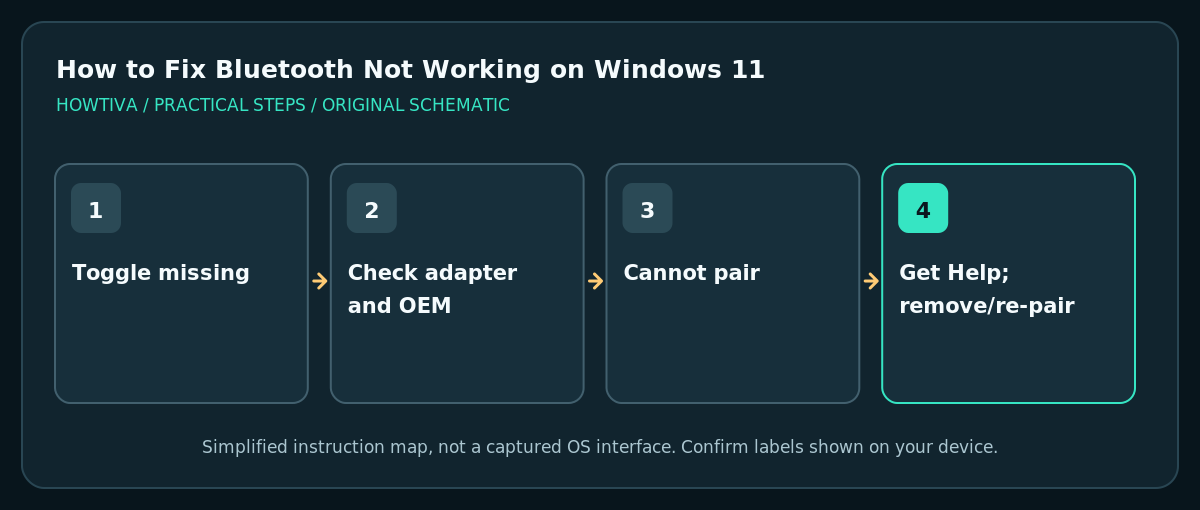
- Use the Bluetooth troubleshooter in Windows Get Help. It may check the adapter and service state; review any proposed actions.
- For an accessory with a stale pairing, select it under Bluetooth & devices > Devices and choose Remove device, then pair it again. You may lose the connection until the accessory is ready to pair; do not remove the only accessible input device without a wired or touchpad fallback.
- If problems began after a Windows update, look in Device Manager > Bluetooth for your adapter and check the manufacturer’s current driver. Microsoft recommends official device-manufacturer drivers when Windows cannot find an update.
Bluetooth toggle missing altogether
A missing toggle is not the same as a headset that is connected but silent. Check hardware specifications, airplane mode and Device Manager. If Device Manager has no Bluetooth category, inspect View > Show hidden devices only for diagnosis; a physically absent or disabled adapter needs a different remedy than a bad paired accessory.
Microsoft also documents uninstalling a Bluetooth adapter and allowing Windows to reinstall it, but this is a disruptive later step. Do not uninstall a driver on a work PC or a machine using Bluetooth-only keyboard and mouse without a recovery path. Use genuine manufacturer support when Windows cannot restore the driver.
Bluetooth connected but no audio
Open Settings > System > Sound and select the intended Bluetooth output device. Check the headset’s volume and whether a call app is using a microphone/audio mode that changes quality. Re-pair only if normal output selection and application settings do not resolve the issue. Bluetooth audio problems are separate from general discovery failures.
Troubleshooting by symptom
Device is paired but will not reconnect: charge it, bring it near the PC, confirm it is not actively linked to a different host, then reconnect from Devices.
Mouse lags or disconnects: check batteries and local radio interference. Microsoft notes that nearby unshielded USB 3.0 devices can interfere with Bluetooth under some conditions.
Driver reports an error: copy the exact Device Manager error code and check the OEM site. Avoid paid “driver updater” installers of unknown origin.
Bluetooth vanished after sleep: restart Windows and inspect updates and OEM power-management guidance before making system-wide changes.
Frequently asked questions
Do I need to buy a Bluetooth adapter?
Only if your PC genuinely lacks compatible Bluetooth hardware or the built-in radio cannot be repaired. Verify its specifications first.
Does removing a Bluetooth device delete documents?
No. It removes a pairing relationship; the accessory must be paired again to use it.
Does Bluetooth require internet?
Ordinary Bluetooth pairing does not require internet access. A vendor app, firmware update or cloud service may need it separately.
Sources & Further Reading
- Microsoft — Fix Bluetooth problems in Windows — Get Help, toggle, accessory checks, discovery, adapter drivers.
- Microsoft — Troubleshoot Bluetooth not connecting — Pairing mode, range, battery and reconnection.
Use the checklists as you go, and confirm the result before moving on to a more involved repair.