How to Review App Permissions on Android
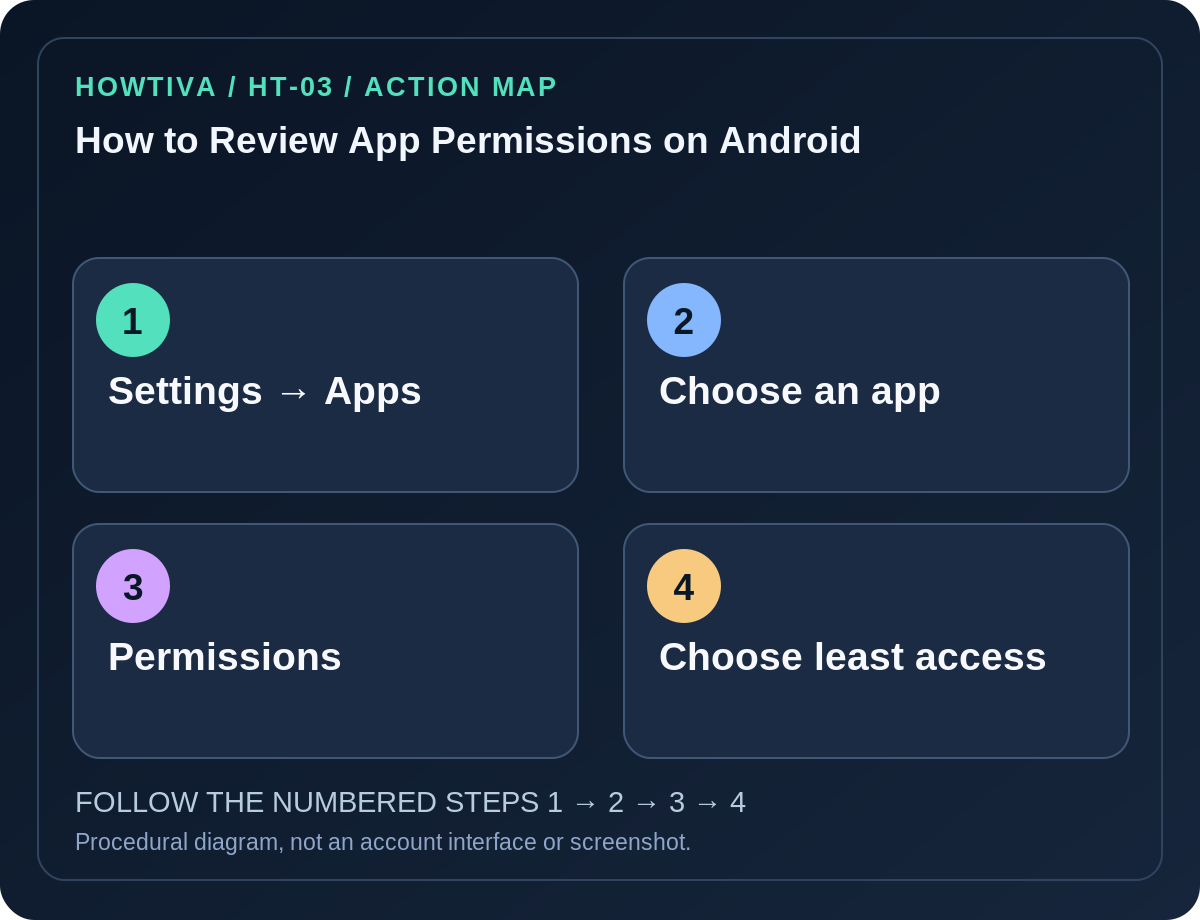
On most Android phones, open Settings → Apps → [app] → Permissions, choose a permission such as Camera, Microphone, Contacts or Location, and select an appropriate access level, often Don't allow, Ask every time or Allow only while using the app.
Quick answer: On most Android phones, open Settings → Apps → [app] → Permissions, choose a permission such as Camera, Microphone, Contacts or Location, and select an appropriate access level, often Don’t allow, Ask every time or Allow only while using the app. To inspect one permission across many apps, use Settings → Security & privacy → Privacy → Permission manager where available.
Android labels vary by manufacturer and version. The instructions below follow Google’s current Android Help reference; Samsung Galaxy, Pixel and other devices may reorganize the same controls. Do not install a third-party permissions cleaner to perform this basic review.
Review permissions for an individual app
- Open your phone’s Settings app.
- Tap Apps. If the target app is not listed, choose See all apps (or your phone’s equivalent) and select it.
- Tap Permissions. The view separates allowed and denied permissions when the platform provides that grouping.
- Select each sensitive permission, starting with Location, Camera, Microphone, Contacts, Phone and SMS.
- Choose the smallest access needed. For a map, consider While using the app; for a photo editor, camera or media access might be essential only when importing content.
- Return to the app and test the function you actually use. If it breaks, restore one justified permission instead of turning everything on reflexively.
Review one permission across all apps
On supported Android versions, open Settings → Security & privacy → Privacy → Permission manager. Choose Camera, Microphone, Location or another permission category to see which apps have access. Tap an app to adjust it.
This perspective is useful if a surprise permission prompt appears and you want to compare other installed apps. Depending on the version, certain permissions allow All the time (location), While using, Ask every time or Don’t allow. An app might not expose every level; do not assume a missing option is a software fault.
Device-wide controls: Some Android versions offer Privacy controls to disable camera or microphone access globally. That can affect multiple apps, including video calls and accessibility-related features. It is a different action from denying just one app.
Adjust location precision and background access
Open Settings → Location → App location permissions on supported Android devices. Review apps in groups such as Allowed all the time, Allowed only while in use and Not allowed. Open an app and reduce access when it is not necessary in the background. If your Android build offers Use precise location, disable it for an app that can function with approximate location.
Apps that depend on geofencing, navigation, safety alerts or delivery tracking may lose features when denied background or precise location. Choose settings according to your actual use, and re-check when the app asks for access again.
Unused applications and automatic revocation
Google documents an Unused app settings option (sometimes Pause app activity if unused) for apps on supported phones. It can help limit permissions for applications you have not opened for a while. Availability varies by Android version, and it is not a substitute for uninstalling an unwanted app.
Some devices include additional vendor-specific privacy dashboards. Use those built-in features as a supplement, not as grounds for assuming the same menu is on every model.
Troubleshooting
- A permission option is missing: The app may never have requested it or the device release may group it differently. Search Settings for ‘Permission manager’.
- The permission seems locked: Device administrator or work-profile policies may control it. Ask the responsible administrator rather than bypassing controls.
- The app still shows uploaded photos: Revoking storage/photos access is not a request to delete already uploaded files on the vendor’s server.
- The app repeatedly asks again: Choosing ‘Ask every time’ is expected to prompt frequently. Consider whether a narrower persistent permission is appropriate.
- Accessibility or notification access: These are often under separate special-access menus. Ordinary Camera/Contacts permission review will not cover every elevated capability.
Frequently asked questions
Does denying a permission uninstall the app? No. It restricts access and may affect features that rely on it.
Will revocation delete information the app already collected? No guarantee. For data already sent to a service, review that service’s account deletion and privacy options separately.
Is there a universal Android menu path? No. Google documents a baseline; OEMs, work profiles and Android versions can move labels or change available controls.
Sources & Further Reading
- Change app permissions on Android — Google Android.
- Manage location permissions for apps — Google Android.
Use the checklists as you go, and confirm the result before moving on to a more involved repair.