How to Reset Your Android Advertising ID
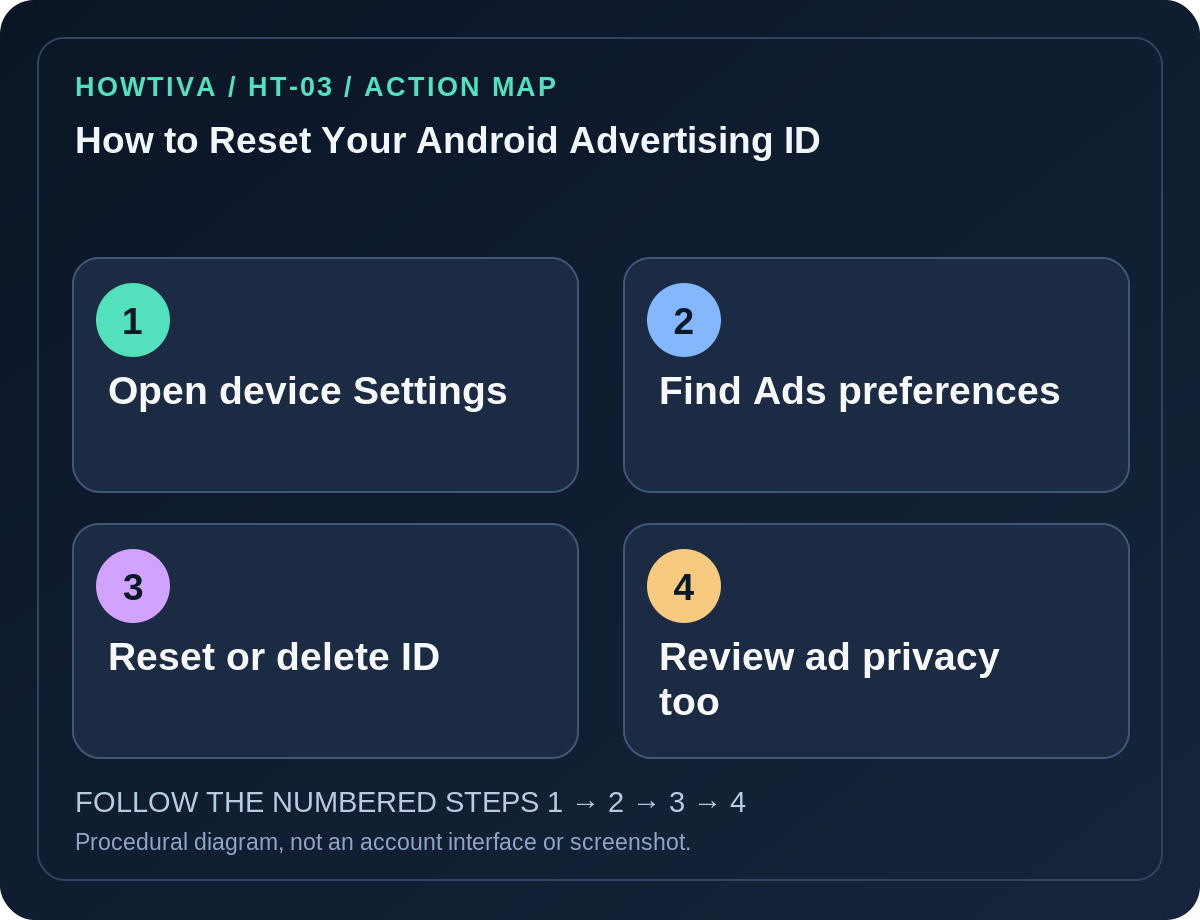
To reset the advertising identifier on an Android device that provides this control, open Settings and look for Privacy → Ads → Reset advertising ID.
Quick answer: To reset the advertising identifier on an Android device that provides this control, open Settings and look for Privacy → Ads → Reset advertising ID. Confirm the action. On newer Google-powered Android settings, Settings → Google → All services → Ads can be the entry point. If you prefer removing the identifier rather than replacing it, use Delete advertising ID when available. Exact menus depend on Android version and manufacturer.
An Android advertising ID is an identifier that apps may use for advertising and measurement under platform policies. Resetting it provides a new ID. Deleting it is a different choice: supported apps should not be able to retrieve the old identifier through the usual advertising-ID interface. Neither choice deletes your Google Account, erases app profiles or guarantees that all advertising stops.
Reset the ID without deleting the phone
- Unlock your own Android phone and open Settings. No Google password or verification code is needed for the ordinary on-device preference.
- Look for Privacy → Ads. Google also documents entering through Google → All services → Ads, under Privacy & security, on devices using the newer Google services layout.
- Find the advertising-ID control. If Reset advertising ID is offered, read its explanation and select it.
- Confirm the reset in the system dialog. A replacement identifier may then be issued; you do not need to write down or share that identifier.
- Return to the Ads screen to review related controls. A reset does not automatically turn off Android’s separate ads personalization features.
- If only Delete advertising ID is available or the layout differs, do not hunt for an undocumented developer setting. Follow the device’s current options or its manufacturer’s support instructions.
Reset or delete: choose the right control
Reset changes the advertising ID associated with your device’s advertising services; an advertising profile built from the old identifier may be less directly linked through that ID afterward. It does not erase information already held by an app or an advertiser. Delete is intended to remove the advertising ID from the device’s advertising-ID interface. Apps might still show contextual ads or use other identifiers permitted by law and their privacy policies.
If your goal is to reduce personalization rather than simply rotate a device identifier, inspect Ads → Ad privacy where supported. Google’s documented controls include Ad topics, App-suggested ads, and Ad measurement; these have separate switches and are not synonymous with Reset advertising ID. A device can have some but not all of these controls depending on its services and software.
If your menus look different
- Pixel or recent Google services interface: Try Settings → Google → All services → Ads and look for the relevant preference. The Ads entry can also expose Ad privacy, not only a reset button.
- Older Android: Google documents a legacy Privacy → Advanced → Ads option such as Opt out of Ads Personalization on some versions. This is not the same as resetting a newer advertising ID.
- Samsung or other manufacturer skin: Use Settings search for Ads, Advertising ID or Privacy; treat matching labels as navigation hints, not a guarantee that every device has the same control.
- Work-managed or supervised device: Some choices can be restricted. Respect the administrator or guardian policy rather than seeking a bypass.
- No Google Play services: The Google advertising-ID setting described here may not exist. Look for the advertising and privacy controls of the actual OS and services; do not install a third-party ‘ID resetter’ to simulate it.
Troubleshooting and privacy limitations
If a reset appears to have no visible effect, remember that the outcome is a service identifier, not a redesigned Settings screen. Do not expect a reduction in the number of ads. If ads still resemble your interests, they may reflect Google Account preferences, in-app profiles, location, browsing activity or contextual matching. Review each service’s privacy settings separately.
If an app crashes or has trouble retrieving ad services after the change, update it from its official store, restart it, and seek developer support. Avoid clearing app storage as a first response because that can delete local data or sign you out. If the Ads settings are missing after an update, check system version and Google Play services availability; do not modify hidden system packages or use root tools for this routine task.
Frequently asked questions
Does this stop tracking everywhere? No. It affects an advertising identifier, not all forms of data collection or fingerprinting.
Is deleting the identifier a factory reset? No. It does not wipe the phone.
Will I see fewer ads afterward? Not necessarily. The type or personalization of ads may change; the number of ads is controlled by apps and sites.
Can I repeat the reset? Use the system control as needed, but don’t assume frequent resets erase information already stored by other services.
Sources & Further Reading
- Advertising ID — reset or delete your device advertising ID — Google Play Console Help.
- About Google Play services for ads safety — Google Android Help.
- Manage your ad privacy settings on Android — Google Android Help.
Use the checklists as you go, and confirm the result before moving on to a more involved repair.