How to Limit Ad Tracking on an iPhone
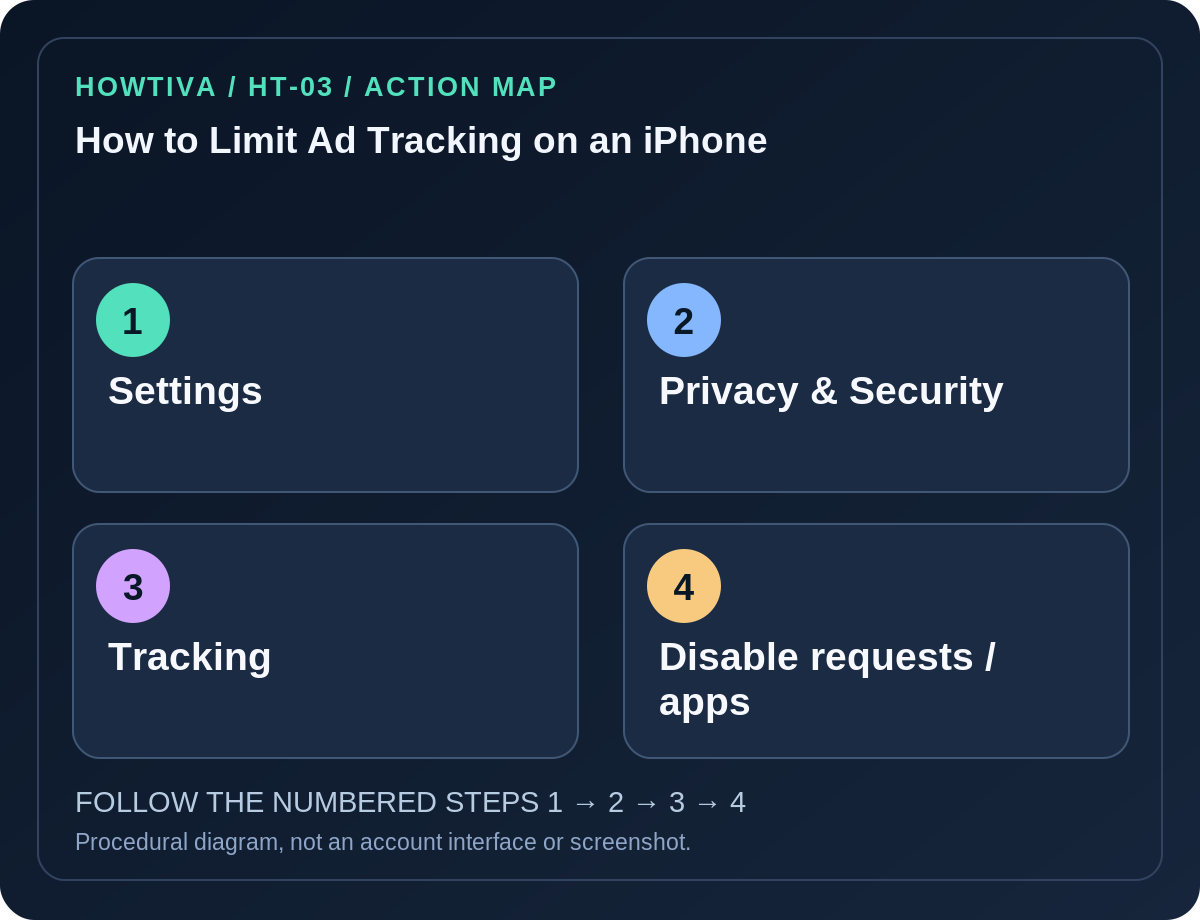
On an iPhone running a supported iOS version, open Settings → Privacy & Security → Tracking. Turn off Allow Apps to Request to Track to stop future permission prompts; apps asking while it is off are treated as if you chose Ask App Not to Track.
Quick answer: On an iPhone running a supported iOS version, open Settings → Privacy & Security → Tracking. Turn off Allow Apps to Request to Track to stop future permission prompts; apps asking while it is off are treated as if you chose Ask App Not to Track. You can also adjust tracking permission for individual apps listed there. This limits a specific form of cross-company tracking—it does not remove all advertising or make every app anonymous.
Apple’s App Tracking Transparency (ATT) system applies to permission for tracking activity across other companies’ apps and websites for advertising or data-broker purposes. It is different from turning off an app’s location, changing Safari website settings or deleting cookies.
Turn off tracking requests across apps
- Open the Settings app on your iPhone.
- Select Privacy & Security and then Tracking.
- Review the Allow Apps to Request to Track switch and the list of apps that have asked for permission.
- Turn off Allow Apps to Request to Track if you do not want future prompts from apps requesting cross-company tracking.
- Follow any prompt about apps previously allowed to track. Apple explains that you may be offered a choice about existing permissions; review this carefully rather than assuming every previous grant was silently removed in the same way.
- Reopen Tracking to review the result. You do not need to visit or sign in to an advertising broker to change this setting.
Restrict one app instead of changing the global setting
Open Settings → Privacy & Security → Tracking. Apps that requested tracking permission can appear in a list with individual controls. Turn off permission for an app you do not want to track across other companies’ properties. The list does not necessarily contain every installed app, only those relevant to the permission system and its requests.
At an app’s permission prompt, select Ask App Not to Track rather than Allow if that is your choice. Apple says a denied app should not access the system advertising identifier (IDFA) for this tracking and is not permitted to track using other identifiers such as your email address in the prohibited manner.
What this setting does not do
- It does not stop contextual ads that are based on the content of a page or app rather than cross-company tracking.
- It does not prevent all first-party use of information by a service you directly use, or erase information already collected.
- It does not independently stop websites tracking you through ordinary browser mechanisms. Review Safari and other browser privacy options separately.
- It does not disable GPS permissions. Use Privacy & Security → Location Services for location access.
- It does not guarantee that every advertiser obeys platform policy in every situation; report suspicious practices through the platform’s relevant process.
These distinctions matter: tracking permission is a narrow privacy control, not a universal ‘disable ads’ switch.
Why the Tracking switch may be disabled
Apple documents circumstances where Allow Apps to Request to Track cannot be enabled, such as some child or under-18 accounts, institution-managed Apple Accounts, devices with restrictive management profiles, or an Apple Account created in the previous three days. Those are account or administrative conditions rather than instructions to override a lock.
If the toggle is grayed out, check whether you are using a managed or family account and review Apple’s support explanation. Avoid tips that advise removing legitimate organization restrictions or changing your birth date to defeat a protection.
Older iPhone guidance and changing labels
On supported versions beginning with iOS 14.5, ATT uses the Tracking menu. Older guides may discuss Limit Ad Tracking under different advertising settings; those references are not the current step-by-step path for ATT. The device’s iOS version and account type determine which controls are offered.
For additional privacy, review each app’s access to Contacts, Photos, Microphone and Location Services under Privacy & Security. Those permissions solve different problems and should be adjusted separately. You may also review relevant advertising and personalization controls inside each major service account.
Troubleshooting
- No apps appear in Tracking: You may have no qualifying app requests, or the current device restrictions may affect the list. No list does not mean no advertising data is ever processed.
- An app still shows ads: Expected. ATT is not an ad blocker.
- A website still remembers your interests: ATT and browser cookies are separate systems. Manage browser data and site preferences independently.
- A previously allowed app is still listed: Adjust its specific tracking control or review the global switch’s existing-grant choice.
- The switch is grayed out: Check Apple’s documented account age/management conditions; do not invent a workaround.
Frequently asked questions
Will this remove all personalized advertisements? No. It restricts permission for the cross-company tracking Apple defines; other forms of personalization can still exist.
Does ATT delete my advertising profile from another service? No. Data already held by a service may require its own privacy controls or deletion request.
Do I need an extra app to turn this off? No. Apple’s built-in Settings are sufficient for ATT permission management.
Sources & Further Reading
Use the checklists as you go, and confirm the result before moving on to a more involved repair.