How to Check File Downloads for Malware Safely
Before opening a downloaded file, verify where it came from, take Chrome or another browser's security warnings seriously, and on Windows 11 right-click the file → Show more options → Scan with Microsoft Defender.
Quick answer: Before opening a downloaded file, verify where it came from, take Chrome or another browser’s security warnings seriously, and on Windows 11 right-click the file → Show more options → Scan with Microsoft Defender. Check that real-time protection is enabled in Windows Security → Virus & threat protection. A clean scan lowers some risks but cannot prove a download is safe; unknown files can contain threats too new for detection or require dangerous actions after opening.
Do not open files from unexpected messages, run “password-required” installers supplied by strangers or disable protection merely because an upload or download page tells you to. Especially suspicious types include executable installers, unexpected script files and archives asking you to launch something inside them.
Safe first pass before you run anything
- Pause before opening. Know the file’s intended purpose and which person or company provided it. If it came via a surprise delivery text, unexpected invoice or fake support chat, stop.
- Reach the software publisher’s official website directly. Do not rely on a search advertisement, cloned store listing or message link just because the logo matches.
- Read the exact file name and extension. On Windows, enable file-name extensions in File Explorer if helpful. A document-looking name ending in an executable extension is a different risk from an ordinary PDF.
- If the browser marks the download dangerous, do not choose Keep dangerous file or turn off Safe Browsing to proceed. Google advises leaving these protections enabled.
- Update your browser and security software before inspecting unfamiliar downloads; use the security software already installed rather than an unverified “scanner” linked by the file’s sender.
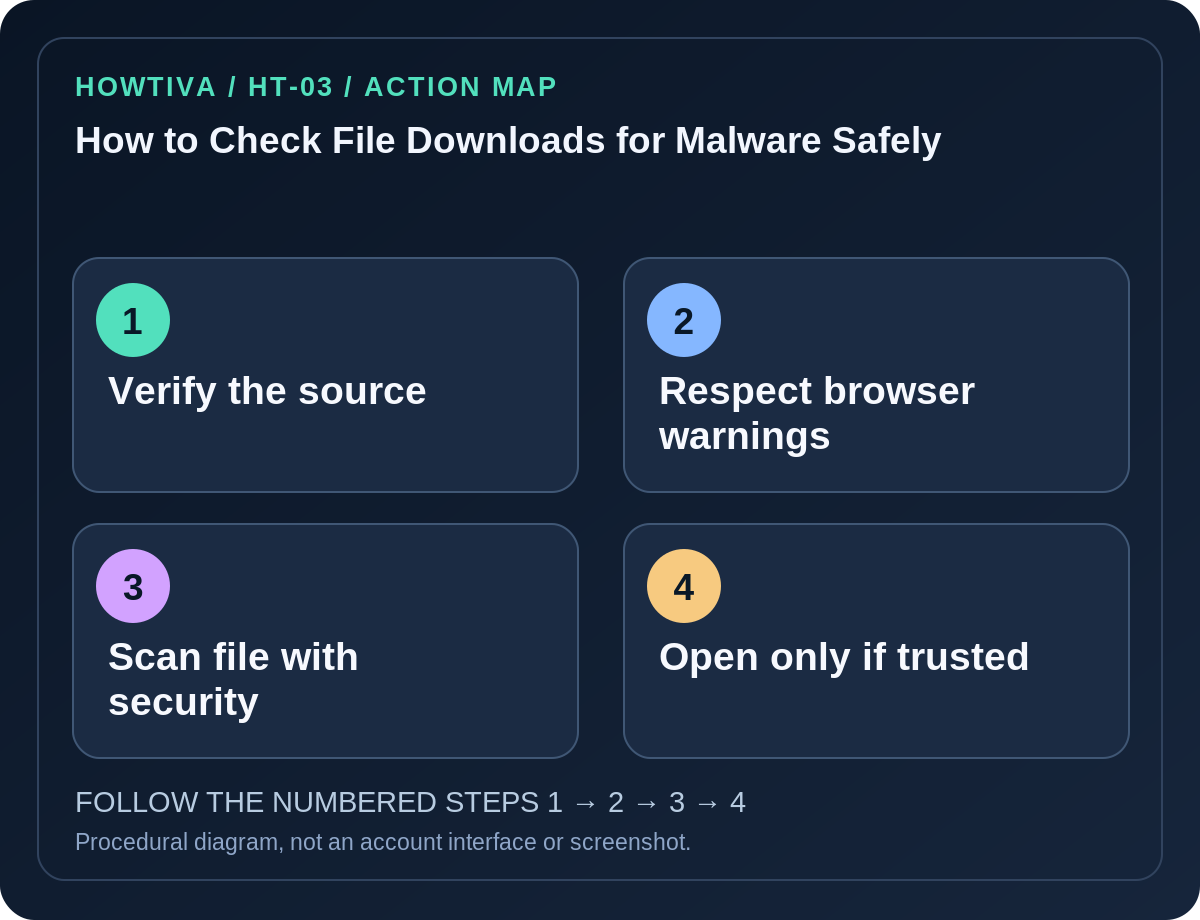
Scan one downloaded file in Windows 11
- Open File Explorer and navigate to Downloads or the folder in which you deliberately saved the file. Do not double-click it.
- Right-click the file. On Windows 11, choose Show more options when needed, then Scan with Microsoft Defender.
- Read the actual results from Windows Security. If malware is detected, follow the protective action offered by Windows Security; avoid extracting or running another copy of the file.
- To confirm protection is active, search Start for Windows Security, open Virus & threat protection and review your security provider and real-time protection status.
- If a different antivirus product is installed, Defender’s scanning menu may be absent or its engine inactive. Use your installed provider’s scan selected file action; Microsoft documents that Defender can be disabled when another antivirus is primary.
- If the file passes, still verify publisher authenticity and whether it is genuinely needed. The absence of an alert is not a warranty.
What about Mac, Chromebook, iPhone and Android?
macOS and mobile operating systems apply different signing, permission and app-screening systems. Prefer the operating system’s built-in protections and official app distribution. Never disable Gatekeeper or device protections to satisfy instructions on a suspicious download page. macOS Finder’s Get Info can help identify a file type, but it is not itself a malware scan. On managed machines, use the organization’s security workflow; don’t try to upload confidential samples to public scanners.
On Chrome, Google Safe Browsing can flag websites and downloads. The Settings → Privacy and security → Security screen controls the protection level, but selecting No protection also removes download warnings and is not a safe troubleshooting step.
If an antivirus scan says “no threats found”
Keep the file’s origin in context. An attacker may hide malware in a password-protected archive, distribute a new malicious file that signatures miss, or ask you to enter your credentials on a legitimate-looking webpage after opening. Genuine software downloaded from the actual publisher and verified through a signed installer or published checksum, when available, gives better evidence than an unknown link alone.
Checksums are not proof of safety by themselves. A hash protects against an unintended file change only when the expected hash comes from a trustworthy independent source. A malicious site can publish a hash for its own malicious payload.
Troubleshooting real situations
- Scan option missing: Make sure the file is on local storage and check your installed antivirus; other security products can handle scans instead of Defender.
- Warning is about an uncommon file: This is not automatically malware, but it warrants verification at the publisher’s official site before proceeding.
- A ZIP appears empty until you enter a password: Do not enter passwords supplied by an unknown sender just to bypass scanning. Ask for a verified transfer path instead.
- You already ran the file: Disconnect from risky sites, run a full or additional supported security scan, check unfamiliar startup software and secure exposed accounts from a clean device. Ask qualified incident-response support if business data is involved.
- A trusted work download is blocked: Ask your IT department or the publisher for a signed clean copy; do not weaken organization policy.
Frequently asked questions
Is a PDF always safe? No. File format alone cannot establish safety; malicious attachments and social-engineering links are possible.
Should I submit private files to a public malware-check website? Not without understanding privacy and disclosure rules. Sensitive documents may become accessible to the service or researchers.
Does scanning a file open it? The dedicated antivirus scan operates on the file without intentionally launching it as an application; follow your product’s actual behavior and alerts.
Sources & Further Reading
- Scan an item with Windows Security — Microsoft Support.
- Stay protected with the Windows Security app — Microsoft Support.
- Manage warnings about unsafe sites — Google Chrome Help.
Use the checklists as you go, and confirm the result before moving on to a more involved repair.