How to Set Up a Guest Wi-Fi Network
Create a secure guest Wi-Fi with its own password, verify internet access and LAN isolation, and avoid router-mode mistakes.
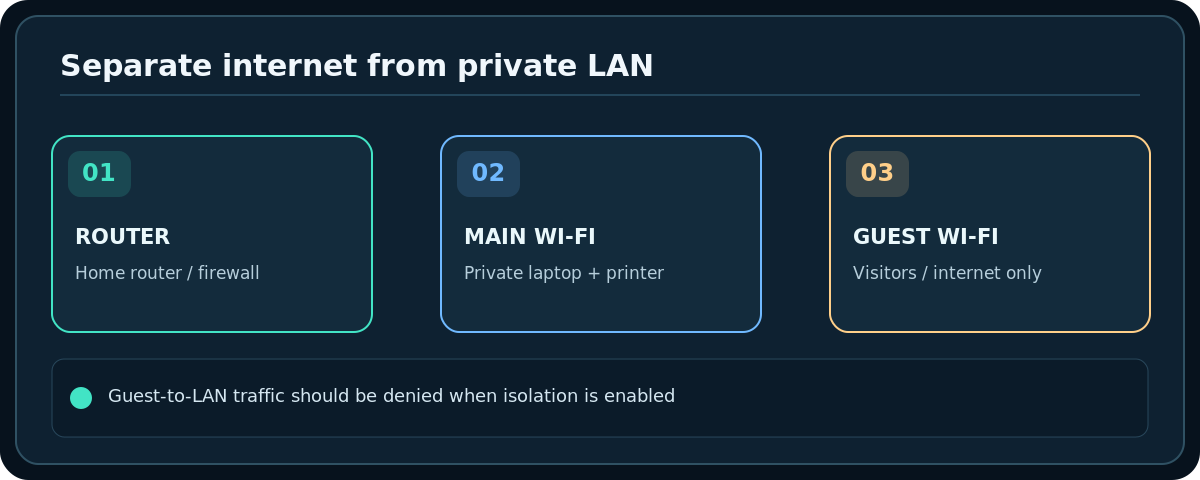
Quick answer: Sign in to your own router’s app or administration page, open Guest Network (sometimes Guest Wi-Fi or Guest Network Pro), enable it, choose a separate network name and strong password, and disable guest access to your home LAN when the option exists. Save, then join the guest network from a phone and verify both internet access and isolation from private devices. A different network name alone is not proof of isolation.
Use this when friends, short-term visitors or contractors need internet without your primary Wi-Fi password. You must be the authorized router administrator. Some ISP gateways, access points or older routers do not support true guest isolation; do not promise privacy if the feature is absent.
Before changing your router
- Confirm which device is your actual router. A mesh system, ISP modem-router and a separate access point can each broadcast Wi-Fi; change settings on the device managing your wireless network.
- Connect your phone or computer to the primary Wi-Fi or an Ethernet port. Open the router’s official management app or a trusted administration address listed in its manual; avoid arbitrary search-result login pages.
- Sign in with the router administrator credentials, which are different from the Wi-Fi joining password. If an ISP controls the device, use its permitted app or ask support.
- Record the current guest settings before editing. Do not factory-reset the router just to find a missing menu: that can delete the entire internet configuration.
Enable a separate guest SSID and password
- Find a menu named Guest Network, Guest Wi-Fi, Wireless > Guest, or a separate-network feature specific to your model.
- Turn the guest network On and name it something clearly distinct, such as
Home-Visitors. Avoid putting your full name, address or apartment number in the network name. - Choose the strongest security mode supported by both your router and visitors’ devices, commonly WPA2-Personal or WPA3-Personal where offered. Use a long, unique password; do not copy the main network’s password.
- Choose an available 2.4 GHz or 5 GHz band if requested. A 2.4 GHz option helps older devices connect, but you may enable both if the hardware supports it.
- Find Allow guests to access local network, Access Intranet, or a similar control. Turn local-network access Off if guest isolation is your goal. Guest-to-guest isolation is a separate option; enable it if visitors should not see one another’s devices.
- Save or apply. Your router might briefly restart its wireless radios and disconnect nearby users. Wait for the guest SSID to become visible before repeating the setup.
Router-brand and operating-mode differences
TP-Link Archer: TP-Link documents an Advanced > Guest Network web interface on supported models; some firmwares place it under Settings > Guest Network. In the Tether app, open your router and look for Guest Network, sometimes beneath More. Options such as guests’ access to the local network vary by model.
TP-Link Deco: Guest separation behaves differently in Router mode and Access Point mode. TP-Link says Deco in Router mode isolates main and guest networks automatically; in AP mode, inspect its local-access option and the upstream network design rather than assuming the same behavior.
ASUS: Some models use Guest Network and others Guest Network Pro or Network. ASUS documents an Access Intranet control on supported router-mode firmware. Disable it to deny access to the internal network; do not assume the feature works the same in AP mode.
Other brands and ISP equipment: Search the model’s official manual for guest Wi-Fi. If the product offers only an extra SSID without routing or firewall separation, treat that as convenience, not a secure private-network boundary.
Verify access and privacy, not just the Wi-Fi name
- Connect a test phone to the guest SSID using the guest password. Turn off cellular data temporarily so a page load genuinely tests guest Wi-Fi.
- Check that an ordinary website loads. If it does not, verify the guest network has internet permission and that the router’s WAN is working.
- While connected as a guest, try to reach an authorized, non-sensitive device on your main LAN, such as your own printer’s status page. Failure to reach it is a useful check, though one failed test alone does not prove every local service is blocked.
- If you deliberately need guest printing or casting, read your router’s model-specific documentation before allowing LAN access. Enabling local access may undermine the separation you wanted.
- Disconnect the test phone; keep the guest password private and rotate it after a visit if necessary.
If something goes wrong
The guest option is missing
Check the exact model and hardware version, update through its supported official procedure if appropriate, and confirm you are in router rather than bridge or AP mode. ISP firmware can remove controls. Do not install unverified firmware to unlock an advertised feature.
Visitors can connect but cannot get online
Confirm the main network has internet, verify any time limit or guest bandwidth rule, and test another visitor device. Guest isolation should block your private LAN, not public websites. Some networks enforce a login portal; read the provider’s instructions.
A printer or TV disappears
That may be isolation working as designed. Put the visitor on the main network only if they are trusted, or use a manufacturer-supported guest-printing/casting method. Do not leave broad LAN access enabled by default merely to fix casting.
A guest can still see local devices
Double-check local-network access and actual routing mode. On networks with separate upstream routers or mesh nodes, verify where traffic is bridged. Stop describing the guest network as isolated until it passes a real local-access check.
Frequently asked questions
Is guest Wi-Fi slower?
Not inherently. Some routers offer optional rate limits or share radio capacity with the main network. Actual speed depends on the internet connection, signal, congestion and settings.
Should smart-home devices use guest Wi-Fi?
Only if their apps, discovery and local control continue to work under isolation. A dedicated IoT network can be better than a visitors’ network when your router explicitly supports it.
Does turning off the guest SSID kick off my regular devices?
It should affect guest clients, not those joined to your main SSID. However, some router changes briefly restart all wireless radios; warn anyone relying on the connection.
Sources & Further Reading
- TP-Link — Guest network setup (accessed 2026-10-27)
- TP-Link — Deco guest network setup (accessed 2026-10-27)
- ASUS — Deny guest access to intranet (accessed 2026-10-27)
Use the checklists as you go, and confirm the result before moving on to a more involved repair.