How to Fix a Wi-Fi Network That Doesn’t Appear
Find a missing Wi-Fi network with safe Windows, router, band and adapter checks—without factory resets.
Quick answer: If your Wi-Fi name is missing, turn Wi-Fi on, turn Airplane mode off, move near the router, and refresh the available networks list. If other devices can see the network but yours cannot, investigate band compatibility, the adapter and its driver. If nobody can see it, inspect the router’s wireless settings and status before changing anything.
A missing network is not the same as a visible network that rejects a password. Avoid factory resetting a router before checking whether its radios are broadcasting, whether your device supports the band, and whether the Wi-Fi name was recently changed. Instructions below assume a network you own or are authorized to use.
Confirm what has disappeared
- Stand close to the router with a phone and the affected laptop. Check whether other nearby Wi-Fi networks appear on each device.
- Ask whether anyone renamed the home network or switched off a separate 2.4 GHz or 5 GHz network. A combined-band system may show just one name; that is normal.
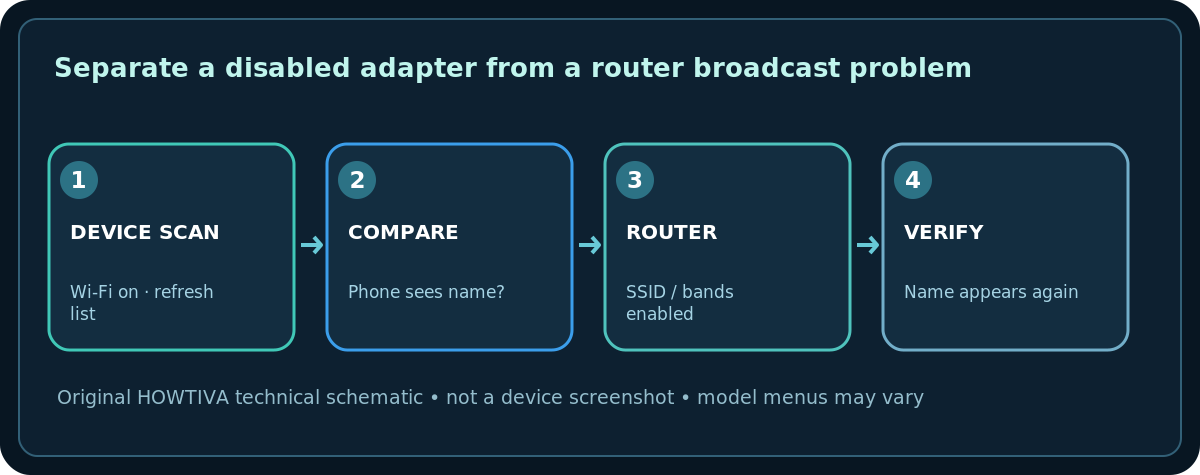
- Compare a second device in the same spot. Record which device sees the name and whether wired internet is working.
- If all Wi-Fi networks are absent from one Windows laptop, investigate its Wi-Fi switch, adapter and airplane mode rather than assuming the router failed.
Refresh the network list on Windows 11
- Select the taskbar Network, Sound, or Battery area, open the Wi-Fi connections list, and use Refresh network list when available.
- In Settings > Network & internet, confirm Wi-Fi is on and Airplane mode is off. Some laptops also have a physical radio switch or function-key shortcut.
- Open Device Manager > Network adapters. If the wireless adapter is disabled, choose Enable device. If it is absent, consult the laptop maker for the correct driver before attempting an uninstall.
- If the router broadcasts separate bands, try the 2.4 GHz name. Older adapters and many smart-home devices cannot join a 5 GHz-only or 6 GHz-only network.
Check the router without disrupting other users
- From an already connected device, open the router’s official management app or its documented local administration address. Do not guess a public website and enter credentials there.
- Verify that Wi-Fi radio and SSID broadcast are enabled for the desired band. A hidden SSID may not show in the scan even though the radio is working.
- On a multi-band router, inspect whether Smart Connect/band steering merges names. Do not turn features on and off merely to make two entries appear.
- If the router has Wireless Schedule, confirm that the schedule has not disabled Wi-Fi at this hour.
- Save only intentional changes, then rescan on both devices. Changing an SSID can disconnect every client using its old name.
A hidden network or incompatible band
Hidden network: If your administrator intentionally hides the network, Windows can support a manually added known network under Settings > Network & internet > Wi-Fi > Manage known networks > Add network. You need the exact name and security details. Hidden SSIDs are not a meaningful substitute for encryption and do not guarantee privacy.
Band/channel: A router configured for channels or frequency bands unsupported in your country or by your device may disappear from that device’s list. Restore the router’s region-appropriate automatic channel setting if a recent manual channel change caused the problem; do not change the regulatory region to bypass restrictions. A 6 GHz network requires compatible equipment and security settings.
Driver: Windows Update and the laptop manufacturer’s official driver page are safer than random driver download sites. Record your adapter name and driver version first.
Troubleshoot without losing working connections
- Network visible on phones, not Windows: Confirm wireless adapter enabled, update its official driver if necessary, try supported band, then restart the laptop.
- Missing on every device: Confirm router power, Wi-Fi indicator and intentional SSID broadcast. A restart may restore normal operation; tell other household members first. Do not hold the Reset button.
- Visible only near router: Coverage or interference may be the real problem, not a disabled network. Test in several rooms.
- SSID visible but cannot join: That is a password/security compatibility problem; don’t treat it as a missing-SSID problem.
- Workplace/campus network: Contact the network administrator. Enterprise certificates, device management and access policies differ from home Wi-Fi.
When to stop and escalate
If the router has no working Wi-Fi radio even at close range after a normal reboot and the vendor dashboard reports radio hardware failure, contact its manufacturer or the ISP that supplied it. If Windows has no detected wireless adapter despite an official driver, use device support. Document the model and symptoms; do not share passwords or admin credentials with strangers.
Frequently asked questions
Why does my phone see Wi-Fi but my laptop does not?
The laptop may have Wi-Fi disabled, an incompatible band/channel or a malfunctioning adapter. Comparing both devices beside the router separates coverage from compatibility.
Will hiding a Wi-Fi network make it safer?
Not by itself. Use WPA2-AES or WPA3 where supported and a strong unique password; SSID hiding does not replace those protections.
Should I factory reset the router?
Not as a first troubleshooting step. A factory reset can erase ISP settings, mesh pairing, network names and security choices.
Sources & Further Reading
- Microsoft — Fix Wi-Fi connection issues in Windows (checked 2026-10-27).
- Microsoft — Connect to a Wi-Fi network in Windows (checked 2026-10-27).
Use the checklists as you go, and confirm the result before moving on to a more involved repair.