How to Check a Router for Default Admin Credentials
Inspect router administrator login security, distinguish it from Wi-Fi access and replace factory defaults safely.
Quick answer: To check whether your router still uses a default administrator login, find its manufacturer and model, open the official local management interface, and check its documented administrator account/password configuration. If it has a known factory credential or asks you to create one on first use, replace any remaining default with a strong unique administrator password. Do not confuse the admin login with the Wi-Fi password.
Do this only for equipment you own or have explicit authority to administer. This is a security maintenance guide, not instructions for guessing passwords on other people’s networks or bypassing access controls.
Identify which credentials you are checking
Routers may have at least two distinct secrets. The Wi-Fi password lets a client join the wireless network. The administrator password protects changes to DNS, firmware, routing and wireless security. Changing one does not necessarily change the other.
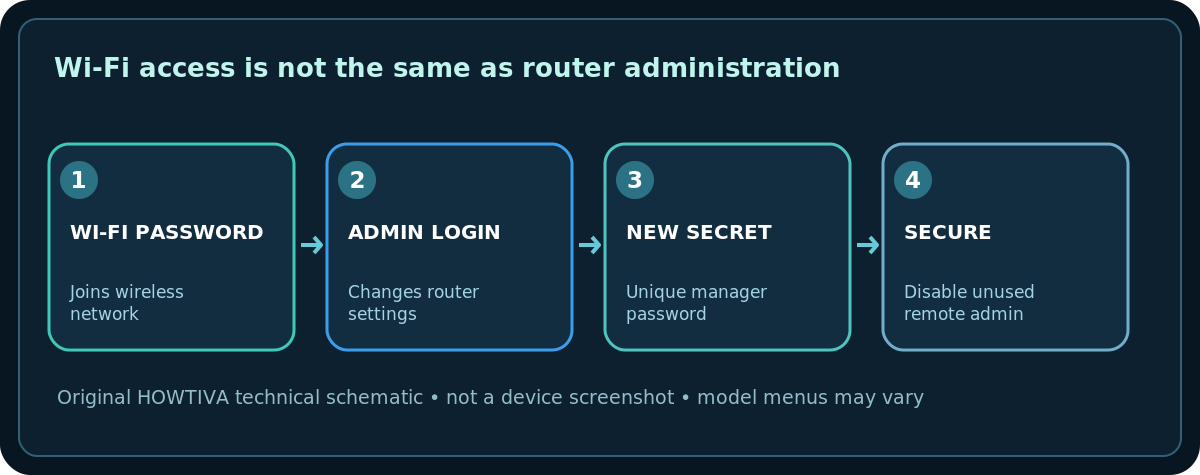
Older devices may ship with a preset administrator username/password; many newer systems require the owner to create one during setup or use a manufacturer account through an app. TP-Link’s guidance notes this model-dependent distinction. The device label can include a default Wi-Fi key and local IP address but not necessarily a current admin password.
Inspect your own router securely
- Identify the exact manufacturer, model and hardware revision from a physical label or the router’s official companion app.
- Connect to your own home network and navigate to the administration address shown in your manual or trusted app. Verify you are on the expected local interface, not a search-result advertisement or a lookalike login page.
- If you already have authorized administrative access, sign in with your current credentials and locate the account or administration/password area. Some systems use a vendor cloud account; use the manufacturer’s documented process.
- Check whether the device is still using an old factory login or a shared password that multiple people know. You do not need to publicly disclose the password to anyone to perform this review.
- If the administrator password is weak, shared or still factory-set, use the supported Change admin password function and save a new strong, unique secret in a reputable password manager.
- Log out and verify that the new login works while you still have a safe recovery path. Do not repeat trial logins to a device you do not administer.
How to change the administrator password
On some TP-Link routers, current official guidance describes the web route Advanced > System > Administration, or a supported Tether app path under More > System > Manage Password. These are examples, not universal menus. ASUS, NETGEAR, ISP-provided gateways and mesh ecosystems use different flows.
Use a passphrase or password that is unique to the router administration interface. If multiple trusted household administrators need access, share through an approved password-manager mechanism rather than writing the secret on the router or sending it by public chat. Change or remove remote-management access unless necessary for an authorized purpose.
If you cannot log in
- Check whether a password-manager entry or trusted owner has the current credential. Do not assume the default printed on the label is still valid after setup.
- Use the manufacturer’s official password-recovery or linked-account recovery when available. An ISP-managed gateway may require provider support.
- Do not keep trying generic username/password combinations. Account lockouts and device-specific recovery paths vary.
- Factory reset is a last resort and may erase ISP provisioning, Wi-Fi name/key, port forwarding, parental controls and mesh configuration. Verify you can restore all required settings before considering it.
Security checks after the change
- Confirm WPA2-AES or WPA3 is enabled for wireless clients where compatible; administrator security does not replace Wi-Fi encryption.
- Review whether remote administration is enabled and disable it if not necessary and supported by vendor policy.
- Install router security updates through official sources using the correct hardware revision.
- Keep an updated record of who owns the router, its support lifecycle and how to contact the ISP if it is provider-managed.
- Do not share photos revealing access tokens, serial-linked QR codes or passwords in a public troubleshooting thread.
Frequently asked questions
Is the Wi-Fi password the administrator password?
Not generally. Wi-Fi access and management control serve different purposes and should have different secrets where supported.
If the router label says admin, should I use it?
A label or manual may describe an old factory default, but newer units can require custom setup. Use authorized owner information and vendor guidance; don’t probe a router you don’t own.
Should I factory reset if I cannot log in?
Only after checking official recovery and preparing for loss of settings. A reset can interrupt the entire household connection.
Sources & Further Reading
- Federal Trade Commission — How To Secure Your Home Wi-Fi Network (checked 2026-10-27).
- TP-Link — How to Change Your TP-Link Device Admin Password (checked 2026-10-27).
- TP-Link — What if I forget the login password? (checked 2026-10-27).
Use the checklists as you go, and confirm the result before moving on to a more involved repair.