How to Check Which Devices Are Connected to Your Wi-Fi
Identify wired and wireless devices in your router dashboard, distinguish offline records and respond safely to unknown clients.
Quick answer: Open the official router app or its local administration page and look for Connected Devices, Clients, Device Manager, Attached Devices or Network Map. The list usually shows current device names and identifiers. Compare each entry with equipment you own before deciding something is suspicious: offline records, randomized MAC addresses and generic names often make legitimate devices look unfamiliar.
Check only networks that belong to you or that you administer. The list is a management tool, not a reliable way to identify a person’s real name or activity. Some routers show clients from the main SSID, guest SSID, Ethernet and mesh nodes in separate sections.
Open the connected-device list
- Connect a phone or computer to your own router’s network. Launch the router maker’s official app or browse to its locally documented administration address.
- Sign in with the administrator password, not merely the Wi-Fi access password. Avoid unknown links that claim to show connected devices; they might be phishing pages.
- Find a dashboard tile labelled Devices, Clients, Connected Devices or Network Map. Select the currently online view if you want a list of active connections.
- Check the columns, where supplied: device label, IP address, MAC address, wired/wireless status, band, guest-network status, connection time or signal.
- Refresh the list. A sleeping phone may be marked offline; a powered-on device can take time to appear. Do not assume every previously connected entry is online now.
- Identify your own phone and laptop by temporarily disconnecting and reconnecting one device at a time, observing which list entry changes.
Example locations on popular router systems
NETGEAR Nighthawk: NETGEAR documents the Device Manager tile in the Nighthawk app. On supported router web interfaces, Attached Devices lists known wired and wireless clients, often with IP and MAC addresses. A Network Map tile may appear only when the required mesh extender is present.
Mesh routers: Some mesh systems group clients by mesh node or report connections routed through an upstream access point. Check both the overall network client list and any per-node list, if supplied.
ISP gateways and other brands: Device lists may live under Home Network, LAN, DHCP Clients or Wi-Fi Clients. These menus are not universal; use the manual for your model and firmware instead of copying screenshots from unrelated products.
Identify an unfamiliar device carefully
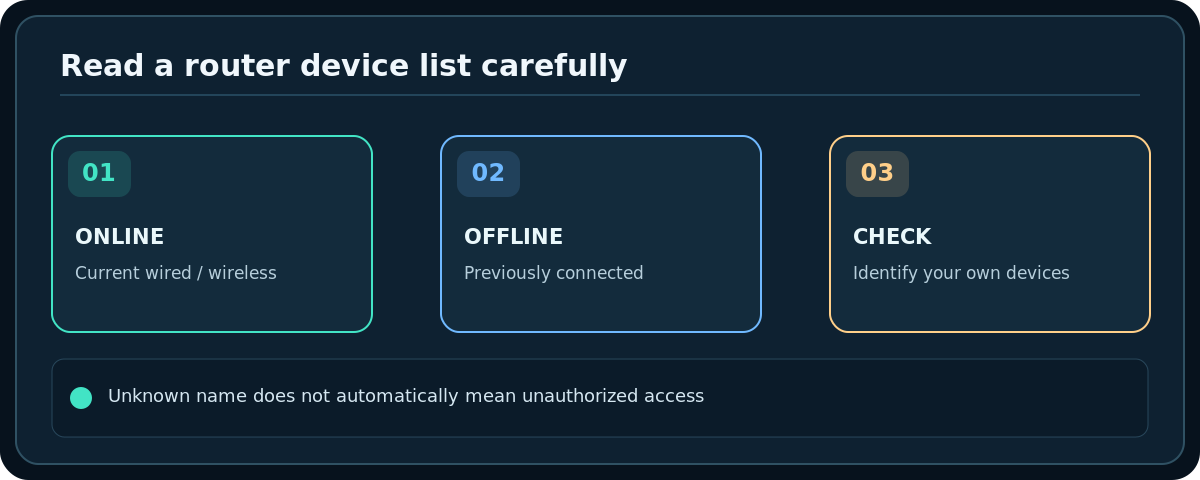
- Look at online versus offline first. The router may retain historical entries after a visitor has left. NETGEAR explicitly notes offline devices can remain in Device Manager.
- Compare timestamps, network names and the maker label. A generic name such as
android-xxxxorunknownis not proof of intrusion. - Check whether your phone uses private/randomized Wi-Fi addresses. Its router MAC entry may differ from a physical address printed on the device, and could change depending on settings.
- Disconnect suspected owned devices one at a time and refresh. Smart speakers, watches, TVs, printers, hubs and smart plugs are easy to forget.
- If the entry remains unexplained and active, take a screenshot without exposing sensitive identifiers publicly, and review the router’s security settings.
Secure the network if you really suspect unknown access
- Confirm the current Wi-Fi is protected using a supported modern security setting, such as WPA2 or WPA3 personal, and that the password is unique and not casually shared.
- Change the router’s Wi-Fi password through its official interface if an unauthorized user may know it. Expect every trusted device to need reconnecting.
- Change a weak or default administrator password separately and install available official firmware updates following the model-specific guidance.
- Review guest-network access, WPS settings and remote management. Turn off exposure you do not need where the manufacturer permits it.
- Use a router’s block/pause feature only after confident identification. An incorrect block can disable a household member’s work device, a smart lock hub or a streaming device.
Troubleshooting
The list has more entries than physical gadgets
One phone may use multiple interfaces or randomized addresses; some devices have old offline records, and mesh gateways can expose infrastructure entries. Check status and network role before counting each record as a separate intruder.
Device names are all unknown
Rename entries in the router app if the product supports custom labels; your labeling may stay local to the router. Cross-check IP or MAC identifiers through the device’s own network settings rather than relying on uncertain automatic vendor guesses.
Nothing appears after I connected a smart plug
Look at the appropriate 2.4 GHz SSID, guest network and connected-client filter, then refresh. Verify the plug is actually online using its manufacturer’s app. A cloud-connected device can be misclassified or appear only after it transmits.
Can I tell what websites each client visited?
A standard connected-device list does not provide an accurate browsing history. Monitoring capability varies by product, privacy settings and encryption; do not make unsupported surveillance claims.
Frequently asked questions
Does a MAC address identify the owner?
No. MAC addresses are device interface identifiers and may be randomized or locally administered. They do not establish a person’s identity.
Should I block all unknown devices immediately?
No. Identify first and consider the consequences of blocking household infrastructure. For suspected unauthorized access, securing credentials is often more effective than chasing rotating device addresses.
Will changing the Wi-Fi password remove every guest?
It forces devices using the old passphrase to reauthenticate, but does not replace updates, guest-policy checks or the separate administrator login security.
Sources & Further Reading
- NETGEAR — View devices in Nighthawk app (accessed 2026-10-27)
- NETGEAR — View attached devices from router (accessed 2026-10-27)
- NETGEAR — Device Manager offline records (accessed 2026-10-27)
Use the checklists as you go, and confirm the result before moving on to a more involved repair.