How to Connect a Smart Speaker to Wi-Fi
Set up Google Nest or Amazon Echo on Wi-Fi using the proper companion app and troubleshoot account and network problems.
Quick answer: Plug in your smart speaker, connect your phone to the intended home Wi-Fi, then use the official manufacturer’s companion app to add the speaker. For Google Nest/Home, use the Google Home app; for Amazon Echo, use Alexa. Follow the detected device’s setup prompts, supply your own Wi-Fi password only inside the authentic app, and confirm it responds after onboarding.
Check compatibility and prepare
Find the exact speaker model and the phone OS version required by its manufacturer. Install or update Google Home or Amazon Alexa from the appropriate official app store, sign into the correct account and enable Bluetooth/location permissions if the app requires device discovery. A Google smart speaker may require a supported phone, secure Wi-Fi and working internet; Google documents that WPA2-Enterprise networks are not supported in its cited setup flow. Office, hotel and captive-portal networks can be poor setup targets even when a phone can browse.
Use the wall adapter supplied for your model, place the speaker near the router during onboarding and make sure the phone is connected to the Wi-Fi network intended for the speaker, not only cellular data. Avoid factory-resetting an already configured household speaker without checking whether it belongs to another home/account.
Step 1: Identify the manufacturer’s setup route
For a Google Nest or Home speaker, open Google Home, select the correct home and follow Add device or the current setup suggestion. The Google Home app guides supported devices through pairing, Wi-Fi selection and account association. In Alexa, locate Devices, use the add-device flow for the Echo model and follow the on-screen setup. Labels can change as apps are updated. If the app shows no nearby product, search the official manual for the exact model rather than assuming a universal pairing button.
Step 2: Connect the speaker to Wi-Fi
When prompted, select your intended SSID and enter its password. Keep the phone close enough for Bluetooth-based setup if used. Wait for the app to report device registration and Wi-Fi connection before closing it. Some Echo models with a screen manage Wi-Fi from their on-device settings instead of the same path as screenless models; Amazon notes this distinction in its support instructions.
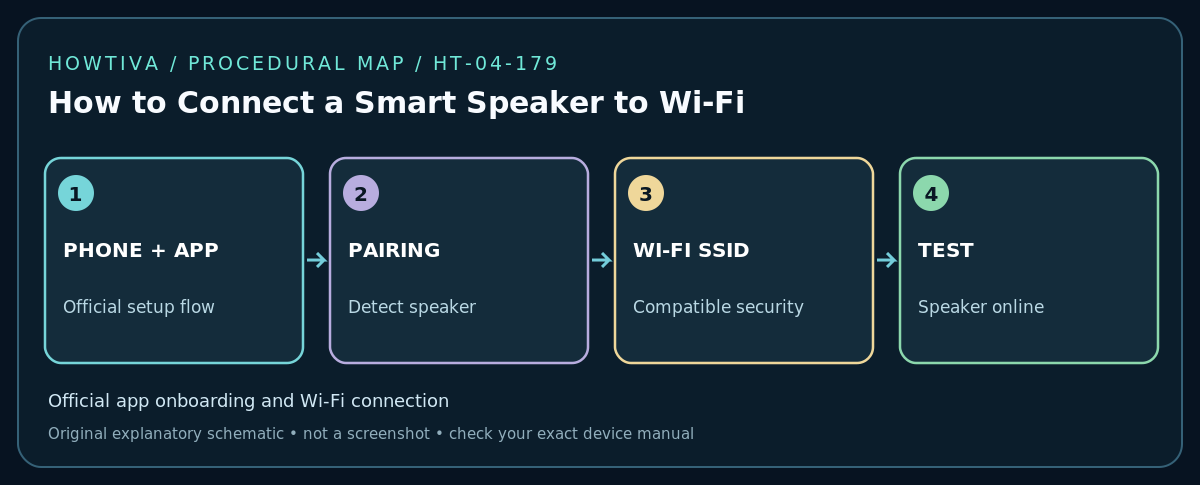
Step 3: Complete account and room setup
Assign an understandable room and speaker name, and review any microphone, voice-recognition, child-access, purchase and personal-result settings that are presented. Do not enable payment permissions or voice shopping merely to establish Wi-Fi connectivity. If the product asks you to authorize home members or connected music services, choose only the intended accounts. Check that household members understand when a microphone is enabled and whether hardware mute is available.
Step 4: Confirm actual functionality
Ask for a simple non-sensitive task such as the time or a timer. Then play audio at low volume, check the device shows online in the companion app, and verify it remains reachable after the phone screen turns off. If you use a separate IoT network, check local discovery and casting between your phone, speaker and hub; an isolated guest subnet might prevent that interaction even when the speaker has internet access.
If the speaker will not connect
- App cannot find it: Restart the app first, enable its required permissions, bring the phone closer, verify Bluetooth and phone-to-network connectivity, and check whether the speaker is already tied to another home.
- SSID not listed: Check band and encryption support in the model manual; do not change the entire network to WEP or remove security.
- Wrong network after moving house: Use the manufacturer-documented change-Wi-Fi flow; Google and Amazon publish separate instructions. Removing a device from an app is not always equivalent to a factory reset.
- Corporate/captive Wi-Fi rejects setup: Use a supported private router/network with an ordinary WPA2/WPA3 passphrase, or ask the network administrator about device onboarding.
- Device appears online but will not respond: Test internet service, disable temporary VPN-based local-network blocking when safe, and check the service/status in its official app.
Alternative connection paths
A model with a display may allow selecting Wi-Fi directly on screen. Another model may need to be set into a manufacturer-specific setup mode. Wired Ethernet works only for models with a supported port or approved adapter. Third-party Bluetooth speakers are not automatically smart assistants; they often pair via Bluetooth and need no home Wi-Fi.
Frequently asked questions
Should I use the guest network?
Only if it supports the speaker’s cloud access and the intended local discovery/casting. Guest-client isolation may prevent a phone on the main network from reaching the speaker.
Can I set up a used speaker from another person?
Check the vendor’s transfer and account-removal procedure before resetting it. Do not attempt to bypass account protections or ownership safeguards.
Sources & Further Reading
- Google — Set up your Google smart speaker or display (checked 2026-10-27).
- Amazon — Update the Wi-Fi Settings for Your Echo Device (checked 2026-10-27).
- Amazon — Checking Wi-Fi Connectivity on Smart Home Devices (checked 2026-10-27).
Use the checklists as you go, and confirm the result before moving on to a more involved repair.