How to Screen Mirror a Windows Laptop to a TV
Mirror a Windows 11 laptop to a compatible TV with Miracast and Win+K, or use HDMI; fix connection, image and audio problems.
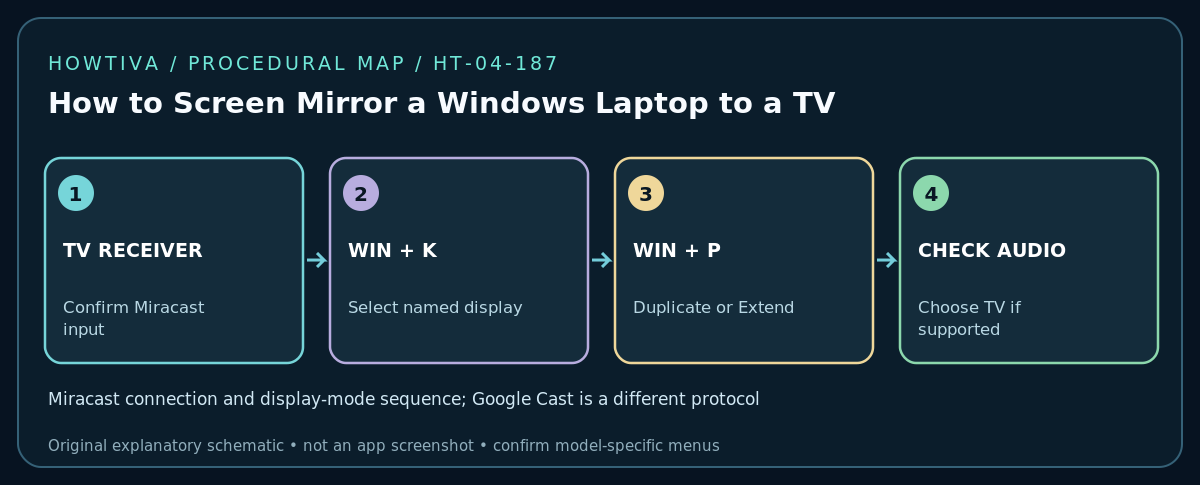
Quick answer: On a Windows 11 laptop, turn on your TV’s supported screen mirroring / Miracast / wireless display receiver, press Windows + K, choose the TV, and approve the connection on the TV if asked. Press Windows + P to select Duplicate (same image on both screens), Extend (a second desktop), or Second screen only. If Windows says Miracast is unavailable, use an HDMI cable or a supported adapter instead. Simply owning a smart TV does not establish Miracast compatibility.
Before you begin: identify the connection type
- Miracast screen mirroring: Transmits your Windows desktop wirelessly to a compatible TV or external Miracast adapter. Microsoft documents Windows + K for this workflow. The TV often needs its receiver feature turned on; the name varies by manufacturer and region.
- HDMI connection: Sends video, and usually audio, from the laptop’s HDMI port (or a video-capable USB-C adapter) to a matching TV input. It does not need the hotel’s or home’s Wi-Fi. Choose this option for predictable presentations, low latency, or unsupported wireless hardware.
- Cast an individual browser tab or video: Some apps and browsers can send supported media to Google Cast devices. That is not the same as mirroring the entire Windows desktop via Miracast; menus and receiver support differ.
Check your laptop’s video outputs, TV input ports and the exact TV manual. Do not buy a cable that assumes every USB-C port carries video; some USB-C ports transfer only data. Keep the remote handy. When using a shared or unfamiliar TV, avoid displaying private notifications or passwords.
Step 1: prepare the TV receiver
Power on the TV, select its Screen Mirroring, Wireless Display, Miracast or similarly named feature if available, and follow its on-screen instructions. Some TVs expose the receiver under Inputs or Connections; others need a supported external adapter connected to an HDMI port. If you see only AirPlay or Google Cast, do not assume Windows + K will connect: those are separate receiver technologies.
For an HDMI setup, connect the cable or approved video adapter first, then use the TV remote’s Input / Source selector to choose the exact HDMI port. Allow the laptop a few seconds to detect the display. Never force a connector that does not fit.
Step 2: connect from Windows 11
- Turn on the laptop’s Wi-Fi radio, even if internet connectivity itself is not the thing you need. Windows wireless-display support and the TV receiver must both support Miracast.
- Press Windows + K to open the available wireless-display list. If your TV appears, select the TV name displayed on its own screen. Verify that the receiver name matches your intended TV.
- Accept any pairing prompt on the TV. If Windows shows a PIN, follow the on-screen pairing steps; do not enter a PIN on a suspicious site.
- Wait until the laptop image appears. If it fails, disconnect the attempt and confirm the TV is still ready to receive a Miracast connection.
- Press Windows + P. Choose Duplicate for slides, Extend for two desktops, or Second screen only if you want the TV to show the output without the laptop screen. Choose PC screen only to return to the laptop by itself.
Step 3: set resolution, sound and privacy
Open Settings > System > Display, select the external display if present, and review its scale, resolution and arrangement. For an extended desktop, drag the virtual screens into the same left/right order as the physical screens so the pointer moves naturally. Keep settings supported by both devices; a TV’s advertised high resolution does not guarantee wireless streaming at the same refresh rate.
If picture appears but sound stays on the laptop, open the Windows sound output selector and choose the TV / HDMI audio device when offered. Not all combinations carry audio, so check the receiver documentation. Switch notifications off before a presentation and use an empty desktop or non-sensitive test window first.
If the TV does not appear
- Check compatibility rather than repeatedly searching. Microsoft says the Windows + K dialog can warn when the PC does not support Miracast. The TV must also support Miracast or use a dedicated Miracast receiver. Google Cast-only and AirPlay-only televisions may never appear in this list.
- Confirm receiver mode. Many TVs leave Miracast discovery when you exit their mirroring screen or switch HDMI sources. Reopen the correct mode and try again.
- Verify Wi-Fi is enabled and radio software is current. Check Windows Update and the laptop maker’s official driver guidance. Avoid unknown driver-updater websites.
- Test nearby and remove interference. Move the devices closer and temporarily turn off unnecessary wireless peripherals if they interfere. Performance is affected by wireless conditions and receiver load.
- Prefer HDMI for reliability. A compatible cable is generally the clearest fallback if a Miracast connection remains unavailable.
If the image is cropped, delayed or black
If edges are cut off, check the TV’s picture size or overscan setting, then Windows display resolution. If the TV extends the desktop but a window disappears, move it back using Windows + P Duplicate temporarily. High motion games and some protected streaming content may lag or display black because of latency or content-protection restrictions. Protected streaming services may require their dedicated TV application rather than desktop mirroring. If the TV detects HDMI but shows black, reseat the cable safely, choose the right input and check that the adapter supports video output.
How to disconnect safely
Return to Windows + K and disconnect the target, or select Windows + P > PC screen only. On a borrowed TV, verify that your screen is no longer visible before opening personal files. Disconnect the HDMI cable after finishing; do not leave your device paired to a shared room display unnecessarily.
Frequently asked questions
Does my laptop and TV need to be on the same Wi-Fi network?
Miracast is a specific wireless-display protocol and its connection behavior differs from app-level casting. Do not use ‘same Wi-Fi’ as proof that Windows + K must work. For Google Cast app features, local-network discovery is often relevant; hotel isolation may block it.
Can Windows 10 follow the same steps?
Microsoft also documents Windows + K for Miracast-capable Windows 10 PCs, but Windows 10 reached end of support in October 2025. This guide uses Windows 11 as its primary supported baseline.
Is an HDMI cable better?
Use HDMI when a wireless-display receiver is not supported, when the connection is unstable, or when latency and resolution consistency matter. Verify adapter compatibility and the TV input, not just the cable label.
Sources & Further Reading
- Microsoft — Screen mirroring and projecting to your PC or wireless display (checked 2026-10-27).
- Microsoft — Fix connections to wireless displays or docks in Windows (checked 2026-10-27).
Use the checklists as you go, and confirm the result before moving on to a more involved repair.