How to Remove Duplicate Rows in Excel
Make a copy of your Excel table, select the data, open Data → Remove Duplicates, choose which columns define a duplicate, and confirm.
Quick answer: Make a copy of your Excel table, select the data, open Data → Remove Duplicates, choose which columns define a duplicate, and confirm. Excel retains the first occurrence of a matching combination and removes later matching records from the selected table or range. This action deletes data; filtering unique items is the non-destructive alternative.
Decide what “duplicate” means for your dataset before touching the command. Two customers can share a surname but have different IDs. Two transactions may have the same amount but different timestamps. Removing duplicates by the wrong columns can destroy legitimate records.
Step 1: Back up and inspect the sheet
- Save a new working copy or duplicate the source worksheet, clearly labeling it
Before_Deduplication. - Confirm that each row represents a complete record and that its fields are in adjacent columns with a single header row.
- Determine a reliable key: an order ID, a unique email plus a date, or a combination of fields actually intended to identify one record.
- Check for blank cells, accidental leading spaces, inconsistent capitalization or different formats. These can change which rows match.
- Count the rows before running removal and note any known exceptions, such as legitimate repeat purchases.
Step 2: Remove duplicates using the correct columns
- Click inside the Excel table or select the full contiguous range. Do not select only the ID column while leaving related data outside the range.
- Open Data → Remove Duplicates. Check whether My data has headers is selected appropriately, if presented.
- In the Columns list, choose the fields that together define identical records. For example, select Order ID if it is guaranteed unique, or Customer ID plus Invoice Number if required by your workflow.
- Select OK. Record how many values were removed and how many unique records remain.
- Compare the result with your backup, checking several retained rows and any unusual exceptions.
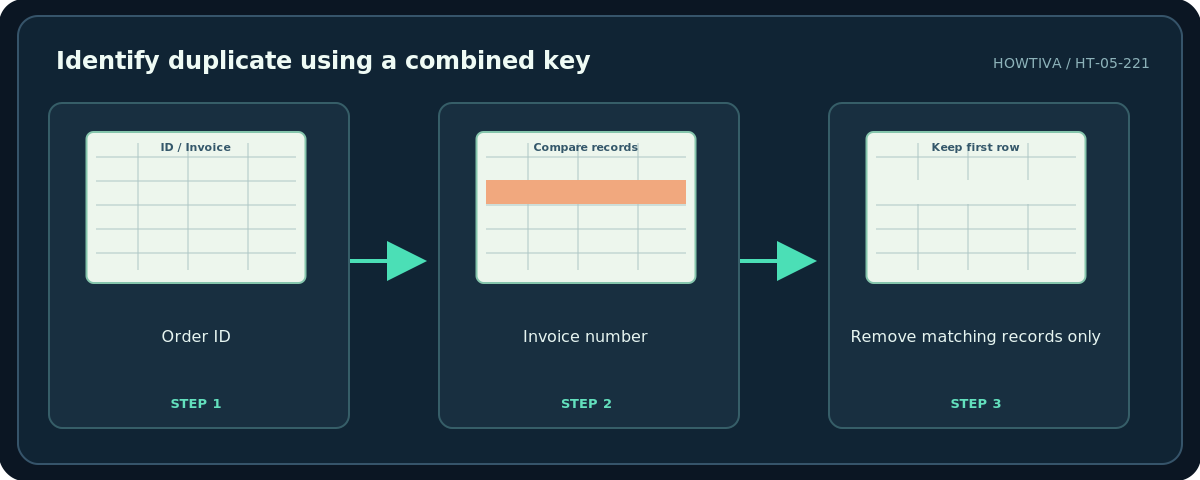
Microsoft explains that the first occurrence is kept. This is not necessarily the newest, most accurate or most complete row. If you need the most recent record retained, sort carefully and verify dates first, or use Power Query with a documented selection rule instead of assuming Remove Duplicates will select the right version automatically.
Non-destructive alternative: Identify duplicates before deleting
Use Home → Conditional Formatting → Highlight Cells Rules → Duplicate Values to flag repeated values for inspection. To display unique rows without physically deleting others, Microsoft’s Advanced Filter offers a Unique records only option. Both are useful when you need to review unexpected duplicates with colleagues.

A highlighted duplicate in one column may be entirely valid when other fields differ. Always interpret it in business context. For important finance or customer data, do not rely on a single automated cleanup pass without a reconciliation count.
Recover if the result is wrong
Immediately use Undo (Ctrl+Z) if the edit is still reversible. If other edits have occurred or the session has closed, retrieve the backup or an appropriate version-history snapshot. Do not treat Undo as a durable archival strategy. Keep the original and the deduplicated copy separately until validation is complete.
Troubleshooting
Too many rows disappeared. The selected key was overly broad. Restore from backup and define a more specific combination.
Duplicates remain. Compare whitespace, data types, dates, formatting and whether each row truly matches in all selected columns. Excel evaluates underlying values, not your business intention.
Rows no longer line up. You may have selected a partial range. Restore and select the whole logical table before applying the feature.
The Remove Duplicates button is disabled. Confirm you’re not editing a protected range or dealing with an unsupported client mode; check your version’s feature availability.
Frequently asked questions
Does Remove Duplicates delete data?
Yes. It removes matching duplicate rows/values from the selected data. Make a backup first.
Does it keep the latest entry?
Not automatically. Microsoft documents keeping the first occurrence; sort and validate before deciding which occurrence should count as first.
Can I remove duplicates based on two columns?
Yes. Check both columns in the dialog; the combination of their values defines a match.
Sources & Further Reading
- Microsoft — Filter for unique values or remove duplicate values — Deletion behavior, first occurrence retained, backup and unique filter.
- Microsoft — Find and remove duplicates — Duplicate highlighting and conditional formatting.
Use the checklists as you go, and confirm the result before moving on to a more involved repair.