How to Organize Files with a Simple Folder System
Start with a handful of purpose-based folders, decide a naming rule, and move copies of a small test batch before reorganizing everything.
Quick answer: Start with a handful of purpose-based folders, decide a naming rule, and move copies of a small test batch before reorganizing everything. A usable starter structure might be Admin, Projects, Media, Reference, Archive, and a temporary To Sort inbox. Prefer names a future you will understand over deeply nested categories. Keep backups and check sharing permissions before moving cloud files.
This approach works in Windows File Explorer, Google Drive and similar tools, but the commands differ. The folder names are an editorial recommendation, not a required operating-system standard. The goal is to find a file in a few predictable steps, not to create a perfect taxonomy. Do not rename application database files, software installation folders or system directories as part of a general cleanup.
Step 1: Design a small predictable structure
- Choose one organizing boundary, such as your own Documents folder or a project folder within Google Drive. Do not start by reshaping your entire drive or a shared team’s root folder.
- List the recurring reasons you retrieve files: active projects, financial paperwork, reference material, images and completed work. Choose roughly five to seven top-level categories; merge categories that would rarely hold more than a few files.
- Under Projects, give each active project a named folder. Add a simple subfolder only when it solves a real retrieval problem, such as
Deliverables,Working,Sources. - Create a
To Sortfolder for new documents you cannot categorize immediately. Review it regularly so it does not become a permanent second Downloads folder. - Use
Archivefor closed projects you may still need. Archive means retained and recoverable, not automatically backed up and not automatically private.
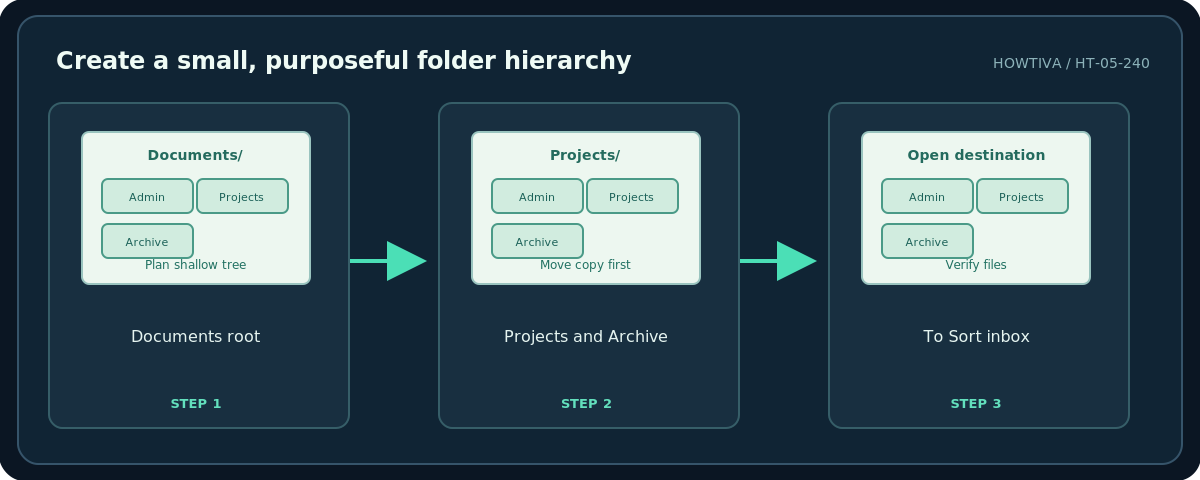
A sample tree, not a mandatory hierarchy:
Documents/
  Admin/
  Projects/
    Website-Refresh/
      Working/
      Deliverables/
  Media/
  Reference/
  Archive/
  To-Sort/
Step 2: Use a filename rule that survives sorting
Prefer specific filenames such as 2026-10-27_client-brief_v02.docx rather than new-final-FINAL2.docx. Dates formatted YYYY-MM-DD sort naturally in most file listings. Add a project term and meaningful version or status when needed, but avoid changing extensions (.pdf, .docx, .png) manually just to rename a file; the extension controls which applications may open it.
Do not store passwords or confidential account numbers in filenames, because filenames can be exposed in search previews, sync logs or shared folders. For collaborative work, agree on a common naming pattern and a single authoritative location rather than emailing many competing versions. For files already in a controlled workflow, ask the owner before renaming: scripts or references may depend on filenames.
Step 3: Create and move folders in Windows File Explorer
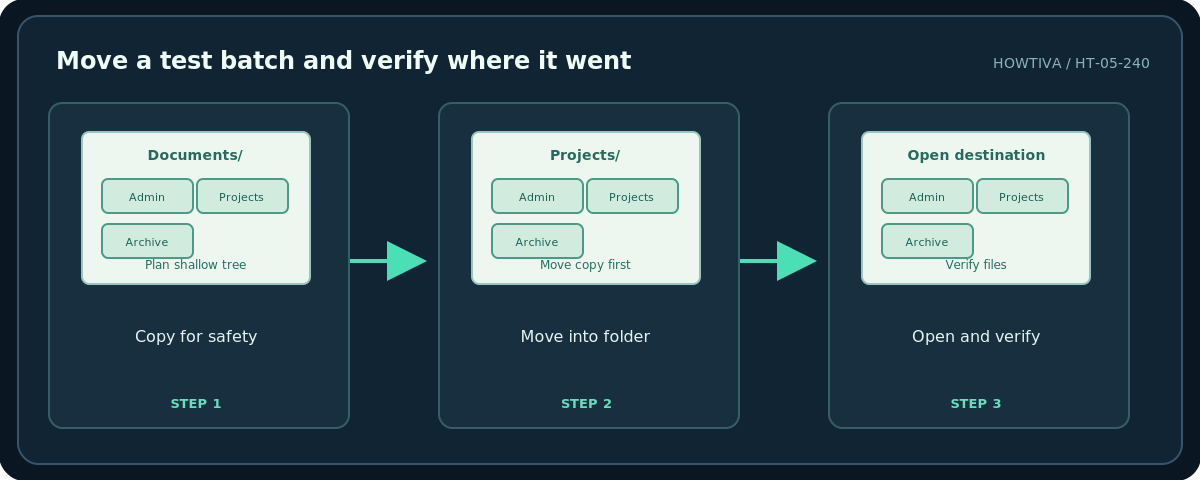
Open File Explorer with Windows key + E, select a safe folder such as Documents, then create your proposed subfolders using the New folder control or a suitable right-click action in the target folder. Microsoft documents Cut → Paste for moving an item to another folder; use Copy → Paste when you want to retain the source as well. After moving a small batch, open representative files to verify that their contents and links still work.
For Windows 11, show filename extensions when you need to distinguish similar file types (View → Show → File name extensions, per Microsoft’s File Explorer guidance). The layout of the ribbon and context menu differs between Windows 10 and 11. Pin a frequently used folder to Quick access only as a navigation convenience: a pin is not a duplicate of the folder and is not a backup.
Step 4: Organize Google Drive without breaking access
On drive.google.com select New → Folder, type a clear name and select Create. For an existing item, right-click it and choose Organize → Move (or use drag and drop) when you have permission. Google states that if you lack permission to move an item, Drive may create a shortcut in the intended destination instead; a shortcut points to the original and is not a copy. If other people use the original shared folder, ask before moving it because location and access inheritance can matter.
Google recommends short, meaningful names and, if useful, folder colors or starred favorites. Colors and stars help navigation but are not substitutes for stable naming. Verify that sharing did not become broader or narrower after a move. If a shared folder contains sensitive documents, review its members and permissions before reorganizing them, not afterward.
Step 5: Maintain the system safely
Set a modest weekly routine: empty To Sort into the correct folders, rename obviously ambiguous files, review duplicate candidates, archive finished projects and keep a reliable backup. Do not delete duplicates just because names match: two files may have different revisions or contents. Compare dates, sizes or hashes and check whether an application or teammate still uses the earlier version. A synchronized folder is not inherently an independent backup; deletion can synchronize too.
When organizing a large number of files, work in small batches and verify results after each one. A practical test is to ask: Can I find last month’s signed document using the folder structure and filename? If not, simplify rather than adding more layers. Keep a small written index only if it actually speeds retrieval.
Alternatives and different situations
Search-first workflow: For a small document collection, consistent filenames plus search may be enough; you may need fewer folders than suggested above. Shared team: Decide ownership, permissions and one source of truth before moving files. Photos: A year/event structure may make more sense than project names. Long-term records: Use an archive plan aligned with any retention obligation; do not automatically purge legal, accounting or tax documents based on generic age rules.
Troubleshooting
Can’t move a Drive file: You may lack permission or have selected a shortcut; inspect the owner and source folder. File seems to disappear: Check search and the original folder or a newly created shortcut before restoring or deleting anything. Links fail after moving local files: Some programs use absolute paths; restore the original location or update references. The archive is growing endlessly: Add one consistent quarterly review, not twenty new labels. A colleague cannot access moved files: Check inherited folder permissions and coordinate with the owner.
Frequently asked questions
How many folders are enough?
Only as many as make common retrieval tasks easy. A shallow hierarchy with clear names is usually easier to maintain than dozens of rarely used subfolders.
Are Drive shortcuts backups?
No. A shortcut refers to another file or folder; deleting the original may affect access to it.
Should I rename all my old documents at once?
No. Start with a small batch and avoid changing filenames that other workflows or shared links rely upon.
Sources & Further Reading
- Google Drive Help — Organize your files in Google Drive — Creating folders, naming conventions, moving items and permission/shortcut behavior.
- Google Drive Help — Find files and folders with Drive shortcuts — Shortcut is a reference rather than a duplicate.
- Microsoft Support — File Explorer in Windows — Windows File Explorer navigation, cut and paste, Quick access and file extensions.
Use the checklists as you go, and confirm the result before moving on to a more involved repair.