How to Block Third-Party Cookies in a Browser
In desktop Chrome, go to Settings → Privacy and security → Third-party cookies and choose Block third-party cookies.
Quick answer: In desktop Chrome, go to Settings → Privacy and security → Third-party cookies and choose Block third-party cookies. In Firefox, review Settings → Privacy & Security → Enhanced Tracking Protection; Firefox already provides cross-site cookie protection by default and offers stricter Custom controls. Safari provides cross-site tracking prevention through its privacy controls rather than the identical Chrome menu.
A first-party cookie comes from the site you are visiting and may store your sign-in state or preferences. A third-party cookie is associated with another domain embedded on that site; some are used for cross-site tracking. Blocking third-party cookies limits one important tracking technique but does not stop all measurement, embedded content requests, server logs or browser fingerprinting.
Chrome desktop: block third-party cookies
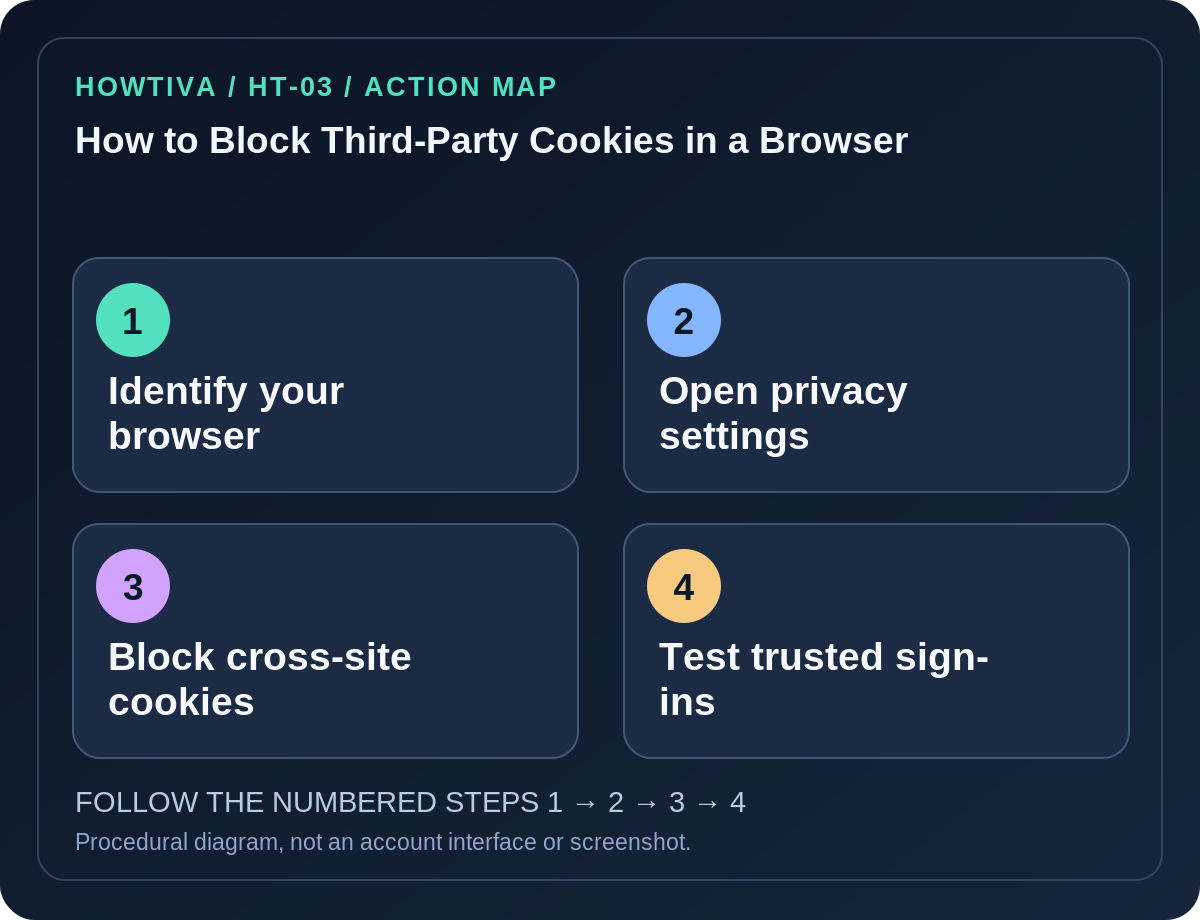
- Open Chrome and choose More → Settings.
- Navigate to Privacy and security → Third-party cookies.
- Select Block third-party cookies and check whether an organization or profile policy controls the choice.
- Review allowed-site exceptions. A previously allowed site may continue to use third-party cookies under the exception even while the global block is on.
- Visit a trusted site that you use regularly. Check whether sign-in, payments, embedded media and other functions still behave normally.
- If one verified site breaks, consider a temporary site exception rather than permitting every website. Remove the exception after you no longer need it.
Firefox: use its existing cross-site protection
Firefox’s Enhanced Tracking Protection protects against cross-site tracking cookies, and Mozilla documents Total Cookie Protection as the default cookie-isolation behavior. If you need a stricter approach, open Firefox → Settings → Privacy & Security, choose Custom under Enhanced Tracking Protection and review the Cookies option. Mozilla’s option for blocking All cross-site cookies can break websites. Avoid changing undocumented advanced preferences as a routine privacy step.
If a trustworthy site stops working, diagnose the problem from Firefox’s shield/site protections rather than globally disabling security settings. An exception for one known website is narrower than turning protection off for every site.
Safari, Android and iPhone differences
Safari includes a Prevent cross-site tracking privacy feature. On Mac, review Safari → Settings → Privacy and keep cross-site prevention enabled where that control is present. Safari version and Apple platform influence the exact location and available options; this is not Chrome’s Third-party cookies panel.
On Android, Chrome can expose cookie choices under its Settings privacy or site-settings areas, but options vary with release and experiments. Use Google’s version-specific help for the installed Chrome app. On iPhone, Apple platform privacy controls may govern some cross-site behavior; do not assume an iOS Chrome menu will precisely match Windows Chrome.
What could break after blocking cookies?
Cross-domain identity sign-in, embedded video players, widgets, checkout systems and some workplace portals can depend on cross-site cookies. A failure is not proof the website is malicious. Try the verified site in a normal browser session, inspect its cookie notice, and use a narrowly limited exception if it is necessary. Do not ignore a site’s identity just because it requests an exception.
Changing a cookie setting does not necessarily delete existing cookies or browsing history. If you need to remove previously stored site data, use that browser’s separate Delete browsing data or Website Data controls. Beware that deleting site data may sign you out, erase preferences or disrupt draft work on sites.
Troubleshooting
- A button is absent: Your browser version, enterprise policy or default protections may differ; consult current vendor instructions.
- A site repeatedly signs out: Cross-site authentication cookies may be blocked. Allow only the verified site if essential, and reassess afterward.
- Ads still seem personalized: Some personalization uses first-party information or account data. Cookie blocking isn’t an anonymity guarantee.
- Incognito behaves differently: Chrome blocks third-party cookies by default in Incognito, which can differ from normal mode.
- You want to stop all tracking: Pair cookie controls with site privacy choices and account settings, but avoid claiming complete prevention.
Frequently asked questions
Are third-party cookies all dangerous? No. Some legitimate features rely on them; tracking and functionality are separate questions.
Will blocking them remove saved passwords? No; the cookie setting isn’t a password deletion function.
Does blocking also delete old cookies? Not necessarily. Data deletion is a separate action.
Sources & Further Reading
- Delete, allow, and manage cookies in Chrome — Google Chrome Help.
- Third-party cookies and Firefox tracking protection — Mozilla Firefox Help.
- Prevent cross-site tracking in Safari on Mac — Apple Safari User Guide.
Use the checklists as you go, and confirm the result before moving on to a more involved repair.