How to Change a Gmail Password
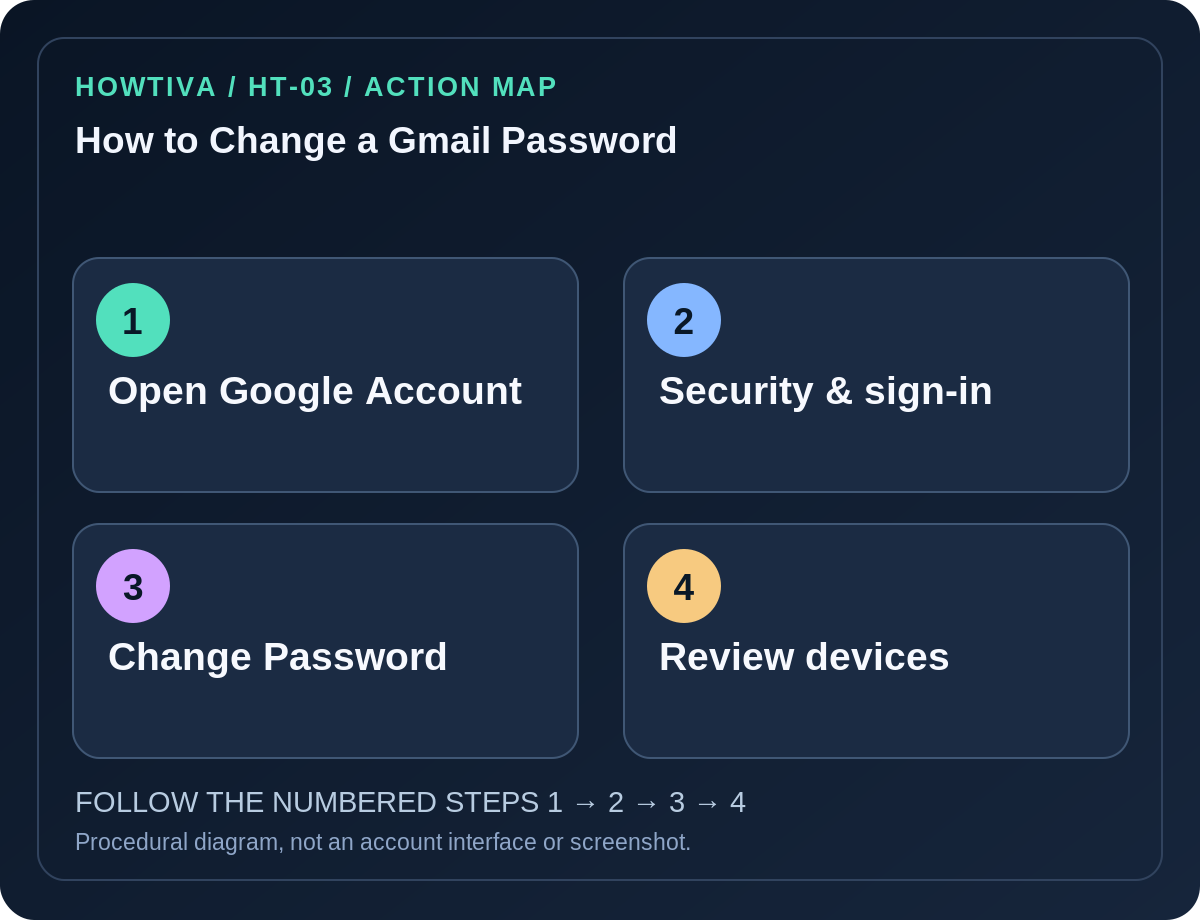
Gmail uses your Google Account password, not a separate Gmail-only password. On a computer, go directly to myaccount.google.com, choose Security & sign-in → How you sign in to Google → Password, verify your identity, enter a strong new password and select Change Password.
Quick answer: Gmail uses your Google Account password, not a separate Gmail-only password. On a computer, go directly to myaccount.google.com, choose Security & sign-in → How you sign in to Google → Password, verify your identity, enter a strong new password and select Change Password. The updated password also applies to other Google services using that account.
Changing a password is appropriate if it was reused, disclosed in a data breach, entered on a suspicious site or known to somebody else. If you have forgotten it, use Google’s account recovery flow instead of guessing repeatedly.
Change the password on a desktop browser
- Open a browser you trust, type
myaccount.google.comyourself and choose the correct Google profile if multiple profiles are active. - Select Security & sign-in in the account navigation. Under How you sign in to Google, select Password.
- Google may request your current password, passkey or another identity verification. Complete the prompts only on the official Google site.
- Enter a new, unique password and choose Change Password. A password manager can generate and store a long random password.
- Verify you can sign in again using an established recovery method; update saved entries on devices where the old password remains cached.
On iPhone, iPad and Android
iPhone or iPad: Google’s iOS help describes Gmail → profile picture → Manage your Google Account → Personal info → Password, then enter a new password and continue. Some Google Account pages instead expose Security & sign-in; use the visible account navigation rather than following a screen that is no longer present.
Android: You can open myaccount.google.com in a browser. On many Android devices, use Settings → Google → your name → Manage your Google Account → Security & sign-in → Password. Android manufacturers organize device Settings differently, so the browser route is more consistent.
Multiple Gmail accounts: A phone can host several Google identities. Double-check the email shown in account settings before making the change. Changing one Google Account password does not update other Google Accounts just because they appear in the same Gmail app.
What happens to existing sessions?
Google says changing or resetting a password signs you out in most places, with exceptions for some devices used to verify your identity, some devices that host authorized third-party applications, and certain connected home devices. Do not assume every token and device session was revoked.
After a suspected compromise, navigate to Security & sign-in → Your devices → Manage all devices and review sessions. Sign out unfamiliar sessions individually; similarly named device sessions may need separate action. Also review recovery methods and connected apps. Changing the password alone is not a guaranteed comprehensive incident response.
If you can’t complete the change
- You forgot the old password: Select Google’s official Account recovery route; expect ownership checks. Do not pay for third-party account access.
- You no longer have the verification phone: Before signing out anywhere, check existing backup methods, trusted devices, passkeys or recovery contact details. Google’s options depend on the account.
- A workplace or school Google Account: The organization may enforce security policies or require administrator involvement. Do not assume consumer menus apply.
- Saved password still fills the old value: Update the correct vault record, then test on a legitimate Google sign-in; beware lookalike login screens.
- Google blocks a familiar password: Use one that has never been used for the account and is not exposed or predictable.
Protect Gmail after the change
Check Gmail forwarding and filters if you suspect unauthorized access; an attacker can sometimes create persistence through mailbox settings. Inspect recent security activity, unknown devices, third-party access and recovery email/phone. Enable or strengthen two-step verification; use a passkey or security key when suitable, and retain secure backups.
Keep authentication notifications private. Google employees and Howtiva will not ask you to paste verification codes into a chat.
Frequently asked questions
Is the Gmail app password different from my YouTube password? Normally no: both are tied to the same Google Account identity, unless your organization has separate arrangements.
Does changing my password remove every logged-in device? Google documents exceptions. Inspect the device/session list and revoke unfamiliar access.
Can I change the password without the old password? Use account recovery. You may have to prove ownership by other means.
Sources & Further Reading
- Change or reset your password — Google.
- Change or reset password on iPhone/iPad — Google.
- See devices with account access — Google.
Use the checklists as you go, and confirm the result before moving on to a more involved repair.