How to Set Up a Password Manager
Choose a trusted manager, secure its sign-in, save one test login, then turn on autofill and migrate accounts carefully.
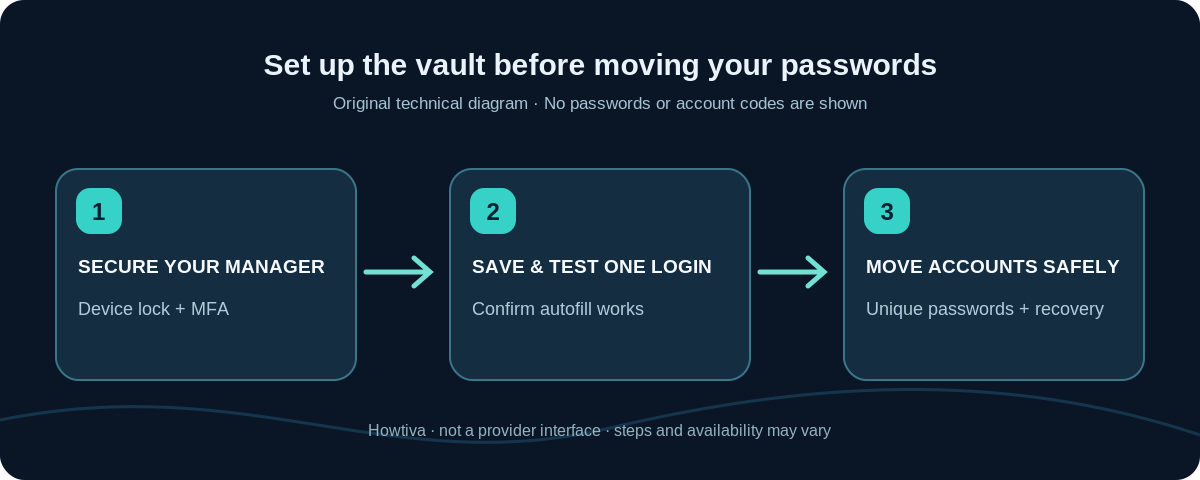
Quick answer: Choose a reputable password manager, install it from its official source, protect it with a strong sign-in method, save one test password, and enable autofill on the devices you use. After confirming you can find and use the saved credential, switch important accounts to long, unique passwords one at a time. Arrange recovery before relying on the vault for everything.
A password manager stores and fills credentials so that you do not have to remember each account password. There are two common starting points: a built-in manager from your browser/device ecosystem, or a separate cross-platform manager. There is no single setup screen shared by all of them. The exact app, fees, sync limits, emergency access and recovery policy are product-specific; verify those on your chosen provider’s current help pages.
Step 1: Choose a manager that matches your devices
If you mostly use Chrome and Android, Google Password Manager is a built-in option integrated with Chrome and your Google Account. If you use current iPhone, iPad and Mac, Apple’s Passwords app is available from iOS 18, iPadOS 18 and macOS Sequoia onward. On iOS 17 or earlier, saved passwords are found through Settings → Passwords rather than the separate Passwords app. Apple uses iCloud Keychain to synchronize compatible saved credentials when enabled.
A dedicated cross-platform manager may be preferable when you switch frequently among different operating systems and browsers or need family/business sharing. Before deciding, look for the company’s official security documentation, supported platforms, recovery model, export/import controls, independent audits where available, and the cost of the features you actually need. Do not download a password manager from a pop-up ad or an unsolicited ‘security update’ message.
Step 2: Secure the manager and its recovery route
- Download or open the manager through its official app store, browser settings or website. Check the exact publisher and website address rather than trusting a sponsored-looking link.
- Create or sign in to the account the manager requires. If it asks for a main password, create a long, private, unique passphrase; do not reuse an email or bank password. Some device-integrated managers instead rely on your device lock and platform account.
- Enable the manager’s supported multi-factor authentication if offered. Protect the phone and computer with a passcode or strong system login and keep updates current.
- Set up the provider’s documented recovery key, emergency kit, trusted device or account recovery method, if offered. Keep required recovery material in a safe place separate from the device. Recovery procedures vary and some zero-knowledge managers cannot reset a forgotten main password.
- Verify that you can unlock the vault and access recovery settings before adding dozens of logins. Do not send actual passwords, recovery keys or screenshots of them to anyone for help.
Step 3: Save one test credential, then try autofill
Choose a noncritical account that you own and can recover. Sign into the genuine website, then accept the manager’s offer to save its login. Open the manager and check the entry’s website domain and username. Sign out of that site, return using your normal browser, and use the offered autofill. Make sure the filled account is the intended one.
In Chrome desktop, open More (three dots) → Passwords and autofill → Google Password Manager. In its Settings, check that password saving is offered. Google also documents a Use strong password suggestion in password fields on supported sites. Exact prompt placement can differ by OS, browser version and page design.
On Apple devices with iOS 18 or newer, open the Passwords app to inspect saved records. For synchronization through iCloud Keychain, open Settings → [your name] → iCloud → Passwords → Sync this iPhone (the middle label can vary by device); Apple lists Passwords and Keychain on iOS 17 or earlier. You may need your Apple Account’s two-factor authentication enabled. Use a device’s autofill settings to choose the credential provider where the operating system offers that choice.
Look carefully at the website before filling. An entry saved for an unfamiliar domain should not be used just because the page looks like a familiar bank or email login. Autofill helps reduce mistakes but is not a guarantee against every phishing technique. Never share a vault unlock prompt with someone who did not initiate your sign-in.
Step 4: Move existing accounts without losing access
Start with email, platform accounts and financial services, but move one login at a time. Open the site’s own account settings, request a password change, use the manager to generate a new unique password, save it, and confirm you can sign back in. Keep your existing verified recovery method available until you have tested the new credentials.
If you already have passwords saved in another manager, check for a supported import method instead of manually typing everything. Password exports can be plain-text files, which anyone with file access might read. Export only on a trusted device; import promptly; then securely remove the temporary export according to your operating system’s capabilities. Do not email CSV files or upload them to a random ‘converter.’ Duplicates can arise during import: examine entries rather than deleting them indiscriminately.
Step 5: Check sync, backup and ongoing health
If the manager supports sync, sign in on a second trusted device and confirm the test credential appears there before relying on cross-device access. Confirm your sign-in method and emergency recovery procedure separately; a second device showing passwords today does not prove you will recover after losing every trusted device.
Use the manager’s password-health feature if offered. Chrome includes a Checkup screen for weak or exposed saved passwords. Prioritize alerts for compromised credentials and reuse. Password-check alerts are not proof that someone accessed your specific account, but are a good reason to change the affected password and review its activity.
Troubleshooting and differences
Autofill never appears on a website
Confirm you are in the manager’s supported browser/app, saving and autofill are enabled, and the vault is unlocked. Some pages intentionally block autofill or use unusual forms. Open the vault manually and verify the domain; do not install a random extension to force filling into a suspicious page.
You use two managers and get conflicting suggestions
Set a preferred autofill provider in your device/browser’s supported settings, or disable duplicate offers where possible. First identify which vault currently holds the correct password. Deleting one saved record does not change the website password itself.
The new password saved but login now fails
The website may not have accepted the password change, or the manager may hold a generated password that was never submitted. Check the official site’s reset process and your manager’s change history if available. Avoid overwriting both old and new values blindly until the login is confirmed.
You lost your phone or forgot the manager’s main password
Use the specific provider’s recovery workflow from its official website or a previously enrolled device. Do not assume that support can bypass end-to-end encryption or that a Google/Apple login automatically restores an independent third-party vault. Keep a separate, secure recovery plan while access remains available.
Frequently asked questions
Is the browser’s built-in password manager enough?
It may be appropriate for your devices and needs. Compare supported platforms, recovery, security features and how you work. Using a manager consistently is more useful than installing several and not knowing which one holds the current credentials.
Should I keep one password for multiple services?
No. Give each service a distinct generated password. Reuse turns a breach at one site into a risk for other accounts.
Can I store verification codes in the same manager?
Some managers support that. It is convenient, but puts multiple factors inside one protected vault. For higher-risk accounts consider a separate authenticator or security key, along with a well-protected recovery route.
Do I have to pay for a manager?
No. Built-in options exist. Independent products may offer free and paid plans, but features and prices change, so check the provider rather than relying on a permanent price claim in a tutorial.
Sources and further reading
- CISA: Four Cybersecurity Essentials (checked 2026-10-27).
- Google Chrome Help: Manage passwords in Chrome (checked 2026-10-27).
- Apple Support: Use the Passwords app (checked 2026-10-27).
- Apple Support: Set up iCloud Keychain (checked 2026-10-27).
- Apple Support: Find saved passwords on iPhone (checked 2026-10-27).
- NIST SP 800-63B password manager usability (checked 2026-10-27).
Use the checklists as you go, and confirm the result before moving on to a more involved repair.