How to Change Your Microsoft Account Password
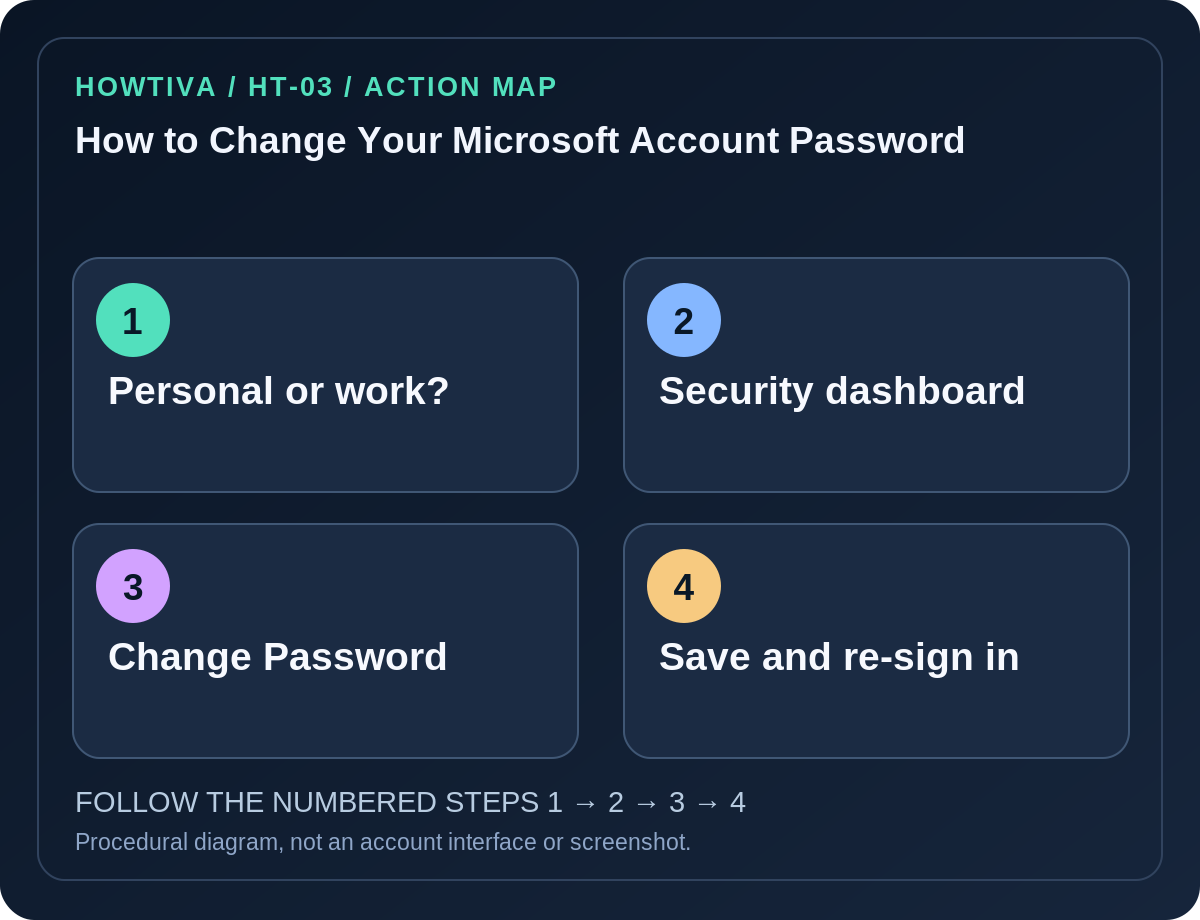
If you know your current personal Microsoft account password, sign in at account.microsoft.com, open Security, choose Change password, enter a fresh password and select Save.
Quick answer: If you know your current personal Microsoft account password, sign in at account.microsoft.com, open Security, choose Change password, enter a fresh password and select Save. For a work or school account, Microsoft points users to their organization’s password reset experience, commonly passwordreset.microsoftonline.com, instead of the personal-account dashboard.
The password for a Microsoft account can protect Outlook.com, OneDrive, Xbox and other linked services. Updating the password for one of those personal services updates the same account identity, but it does not change a separate work or school account.
Change a personal Microsoft password
- Open
account.microsoft.comdirectly, rather than following an unexpected email link or search-engine advertisement. - Sign in to the correct personal account. If you have both personal and work profiles with similar email addresses, check which account type the sign-in page shows.
- Open Security and select Change password near the security controls. Microsoft may ask for another authentication factor.
- Enter your existing password if prompted, then a unique new password. Avoid patterns based on your name, birthday or a password used by another site.
- Choose Save. Return to your security dashboard and confirm you can access your account normally.
- Update credentials in your password manager and on your own Outlook, Microsoft 365, Windows, OneDrive and Xbox sign-ins as prompted. A device may keep some sessions until refreshed.
Use the correct method for work or school
A company or university Microsoft account is not the same thing as the consumer Microsoft account dashboard. Your organization may use self-service password reset, conditional access policies, a company-managed authenticator, or an administrator. The Microsoft personal-account support page points work/school users toward passwordreset.microsoftonline.com.
If that page says the feature is unavailable, contact your organization’s IT support using a channel you already trust. Do not paste corporate verification codes into a third-party help site, and do not create a personal Microsoft account as a substitute for recovering a managed identity.
If you do not know the current password
Use Forgot password? at Microsoft’s official sign-in screen or the Sign-in Helper at aka.ms/sign-in-helper. A change of a known password and a reset of a forgotten password are different processes. You may be asked to confirm a recovery email, mobile device, authenticator or other registered factor.
For some personal accounts the recovery form may be relevant. Microsoft explicitly states that when two-step verification is enabled and every alternate sign-in method is inaccessible, support cannot bypass those requirements. Do not trust advertisements for a guaranteed Microsoft reset.
Troubleshooting when a password change fails
- Verification prompt goes to an old phone: Check other existing sign-in methods before removing your last usable factor. Follow Microsoft’s offered recovery process.
- ‘Wrong password’ repeatedly: Verify you are entering the password for the account shown; Caps Lock, autofill and personal/work identity switching are common causes.
- Security page has no password option: The account may use passwordless sign-in or be managed by an organization. Do not invent a missing menu; consult the sign-in method shown.
- Outlook app keeps asking for a password: Update its saved sign-in; review sync status rather than deleting local data or profiles blindly.
- You received an unexpected security message: Open Microsoft’s account dashboard independently and check recent activity before clicking any notification link.
What to do after a possible compromise
Changing the password is only the first containment step. Review Recent activity and your security contacts. Remove unfamiliar sign-in methods or sessions using official controls and verify account recovery methods that only you control. Look for suspicious Outlook forwarding rules and connected applications. If the same password was used elsewhere, change those accounts too.
Use a password manager and consider phishing-resistant passkeys or two-step verification where supported; maintain recovery options separate from the device that would be lost in an emergency.
Frequently asked questions
Does this change my Windows device PIN? No. A local Windows Hello PIN is device-specific and is not automatically replaced by changing a Microsoft account password.
Can I change the password in Outlook email settings? Use Microsoft’s account Security dashboard for the identity, rather than mistaking application password prompts for the account change page.
What if my organization controls password policy? Follow the organization’s IT instructions. Consumer-account screenshots or options may not apply.
Sources & Further Reading
- Change your Microsoft account password — Microsoft.
- Microsoft account sign-in helper — Microsoft.
- Microsoft account recovery form — Microsoft.
Use the checklists as you go, and confirm the result before moving on to a more involved repair.