How to Change the Default Browser on a Mac
On macOS Ventura 13 or later, open Apple menu > System Settings > Desktop & Dock, scroll to Default web browser, and select the installed browser you want.
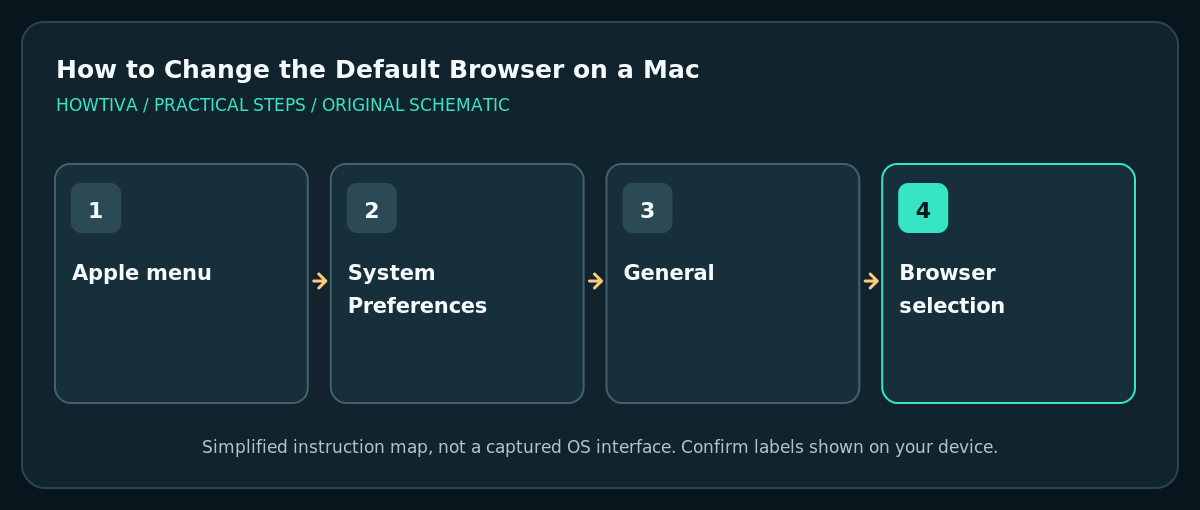
Quick answer: On macOS Ventura 13 or later, open Apple menu > System Settings > Desktop & Dock, scroll to Default web browser, and select the installed browser you want. On older macOS versions, use System Preferences > General > Default web browser.
Your Mac normally opens regular web links in its selected default browser, initially Safari on many Macs. You can change the setting to a supported installed browser without uninstalling Safari or migrating your saved passwords automatically. Apple documents different settings locations for macOS Ventura or newer versus older versions; follow the path for the version actually installed.
Select a browser in macOS Ventura or later
- Install the browser you want from the official developer’s site or a trusted distribution source. Start it at least once to complete any installation and security prompts.
- Choose Apple menu > System Settings, then choose Desktop & Dock in the sidebar. Scroll through the right-hand pane; some screens require more scrolling than expected.
- Find the Default web browser menu and open it. Select the browser you want from the list of installed eligible applications.
- Quit System Settings. Click a normal web link from an unrelated app such as Notes or Mail to see whether the selected browser opens.
- If the expected app does not launch, reopen the setting and check the selection. Test after relaunching the browser rather than assuming an individual website preference proves the OS setting failed.

On macOS Monterey or earlier
- Open Apple menu > System Preferences rather than System Settings.
- Select General, then locate the Default web browser pop-up menu. Choose the desired installed browser.
- Test a regular hyperlink from another application. If the browser does not appear as a choice, confirm it was successfully installed and launched.
Alternative: use the browser’s own settings
Safari, Firefox, Chrome and other browsers may provide a Make default browser control in their settings. Depending on macOS version, that control can direct you to the operating system panel described above. If a browser demands extra permissions unrelated to becoming the default, review carefully instead of granting everything automatically.
Understand what this does—and does not—change
- The default browser applies to normal web links. An app’s built-in web view or special app link may not use the system browser in the same way.
- Your bookmarks, saved passwords, profiles and extensions stay where they were unless you deliberately import or sync them. Switching defaults does not erase Safari’s data.
- Your default email app is a different setting and is not changed by choosing a browser.
- Changing the default browser does not disable tracking or automatically set the browser’s search engine. Adjust those independently if needed.
Troubleshooting
The Default web browser menu is missing
Check your macOS version via Apple menu > About This Mac and use the matching Apple-documented path. On newer releases, Desktop & Dock can contain many options; scroll down rather than searching only near the top.
My preferred browser is not listed
Confirm the app has been installed in a normal accessible location and can open websites. Start it once, close System Settings and reopen the menu. If your Mac is managed by a school or employer, check for administrative restrictions.
Links still open in Safari
Try an ordinary HTTPS link from Notes, Mail or another independent app. Some apps include their own in-app browser or have separate settings. If a standard link behaves correctly, investigate the original app rather than changing macOS repeatedly.
A browser asks to be the default every time
Review whether the app’s own default setting agrees with macOS and whether the preference stays selected after closing settings. Browser updates, multiple profiles or managed policies can cause prompts; never erase your browsing data as the first fix.
Frequently asked questions
Will I lose Safari bookmarks if I choose Chrome or Firefox?
No. Selecting a default browser does not itself remove another browser’s bookmarks. Migrating data is a separate optional operation.
Can I return to Safari later?
Yes. Select Safari in the same Default web browser menu if it is installed and available.
Why does one particular app ignore the default browser?
It may use an embedded web view, its own link setting or a dedicated sign-in flow. Compare with a standard link outside that app before troubleshooting the Mac-wide default.
Sources & Further Reading
- Apple — Change the default web browser or email app on Mac — Ventura 13+ Desktop & Dock path; older System Preferences > General; requires installed browser.
- Apple — Desktop & Dock settings on Mac — Default web browser setting present in current macOS system settings.
Use the checklists as you go, and confirm the result before moving on to a more involved repair.