How to Change Your Mouse Pointer Size in Windows
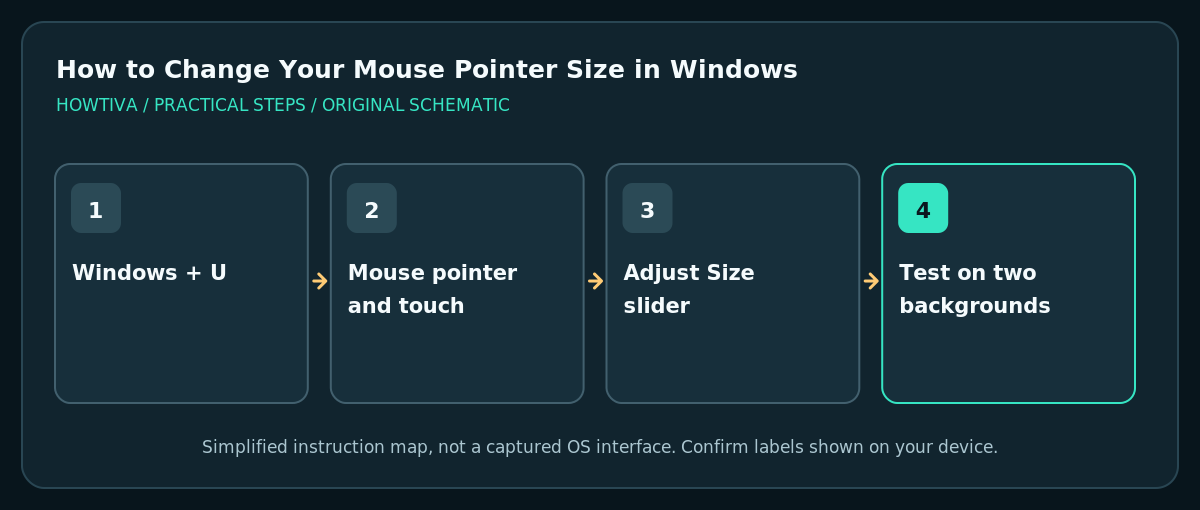
Press Windows + U to open Accessibility, select Mouse pointer and touch, and move the Size slider under Mouse pointer.
Quick answer: Press Windows + U to open Accessibility, select Mouse pointer and touch, and move the Size slider under Mouse pointer. You can also choose a white, black, inverted or colored pointer style for better visibility. These settings change the pointer, not the text cursor.
The mouse pointer can be hard to locate on a high-resolution monitor, when presenting a screen or when using a multimonitor setup. Windows 11 provides a built-in pointer size and color control. The correct setting is under Accessibility; the nearby Text cursor options affect the caret inside text boxes rather than the arrow controlled by your mouse.
Increase the Windows 11 mouse pointer size
- Press Windows logo key + U. This opens Accessibility settings without needing to locate a tiny pointer through several menus. Alternatively select Start > Settings > Accessibility.
- Under the visibility or vision-related options, choose Mouse pointer and touch. The exact grouping may look different after a Windows update; search Settings for “mouse pointer” if needed.
- Find Mouse pointer > Size. Move the slider to the right a small amount and check the live pointer on different backgrounds.
- Test the new size over a document, browser and taskbar. On a large display you may prefer a bigger pointer, but an extreme size can obscure small buttons or diagram details.
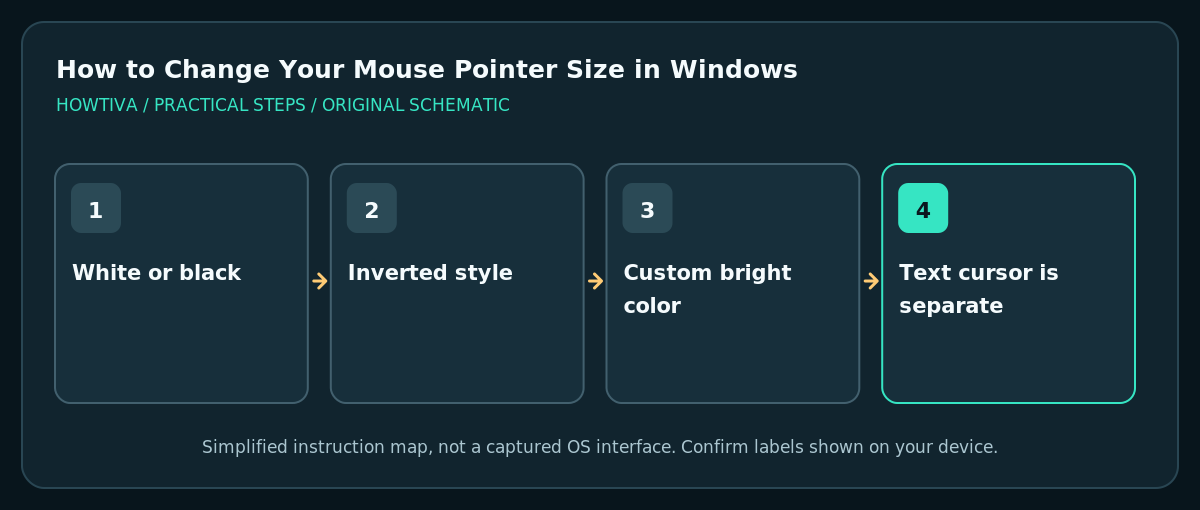
- Under Mouse pointer style, choose white, black, inverted or a recommended color. For custom colors, choose the additional color option if offered. Prefer high contrast on the backgrounds you actually use.
- If the adjustment is uncomfortable, return to the same slider and restore a smaller size. This setting is reversible and does not require deleting drivers or installing a theme.
Make the pointer easier to track, not just larger
The inverted pointer style automatically varies contrast against what lies underneath, which can help on mixed dark and light backgrounds. A vivid custom color can help during a presentation, but color choice should take visual comfort into account. Test over desktop wallpaper and application windows, not only the Settings preview.
Windows also exposes classic mouse settings for some options, including pointer trails. If those are helpful, open the additional mouse settings associated with the device. Trails may make movement more noticeable, but they can obscure a fast-moving cursor or feel distracting; evaluate based on your own needs.
Mouse pointer versus text insertion cursor
The mouse pointer is the moving arrow or other mouse-controlled shape. The text cursor is the vertical insertion caret that blinks where you type. Making one larger does not guarantee the other changes. If you lose your position while editing documents, go to Settings > Accessibility > Text cursor to inspect caret indicator and thickness options instead.
Likewise, Settings > Accessibility > Text size adjusts text, and Settings > System > Display > Scale changes broader interface sizing. Those controls solve different visibility problems. Do not alter screen resolution just to find a missing pointer unless the display itself is misconfigured.
What if the slider does not seem to work?
Pointer is still tiny inside one app: the application may draw its own cursor or use special full-screen graphics, so the Windows preference may not control that pointer. Check that app’s own accessibility settings.
Pointer looks too large on one monitor: verify Windows scaling and display arrangement for that screen. Test across monitors before changing global settings.
Pointer disappears while typing: review mouse/pointer settings and application behavior; this can be a separate visibility preference rather than a size problem.
Settings are locked: work or school device policies can restrict accessibility changes. Ask your administrator instead of using untrusted registry scripts.
Practical setup suggestions
Increase size a little at a time, then choose a high-contrast style. Someone demonstrating software on a projector may benefit from a larger, vivid pointer, while a graphics designer may prefer a moderate size to avoid covering precision targets. Because the setting is reversible, compare usability in the real applications you use.
Frequently asked questions
Is this the same as changing mouse sensitivity?
No. Pointer size changes visibility; sensitivity and speed determine how far the pointer moves when the mouse moves.
Do I need another program?
No. Windows 11 includes the size and color controls in Accessibility.
Will this change the insertion cursor in Word?
Not necessarily. The typing caret has its own Accessibility settings.
Sources & Further Reading
- Microsoft — Make input devices easier to use — Windows+U, pointer size and style, additional mouse options.
- Microsoft — Make Windows easier to see — Text and display scaling distinction.
Use the checklists as you go, and confirm the result before moving on to a more involved repair.