How to Change the Default Browser on Windows 11
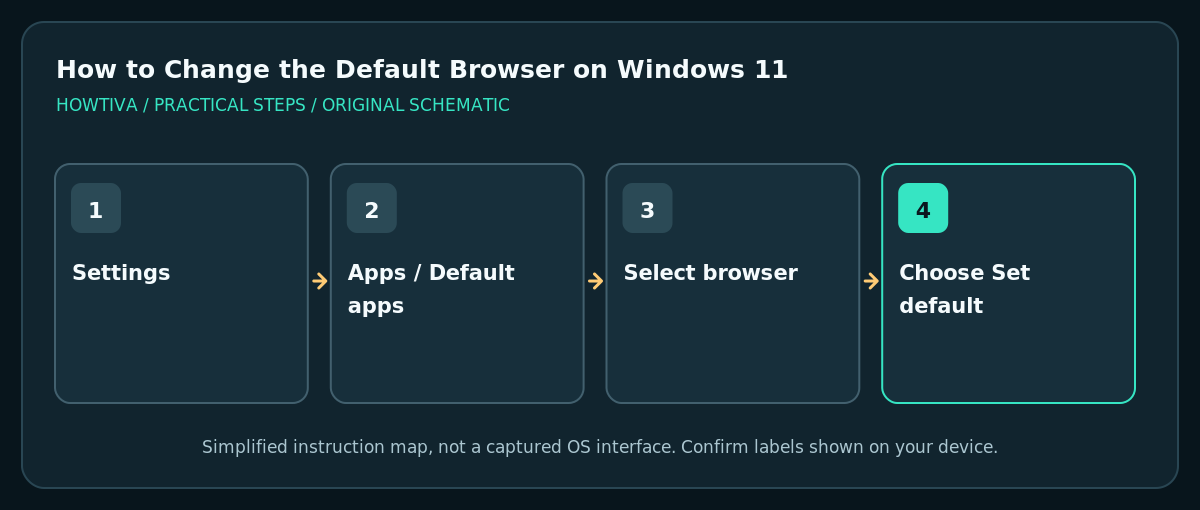
Open Settings > Apps > Default apps in Windows 11. Search for and select the browser you want, then use Set default if that button appears.
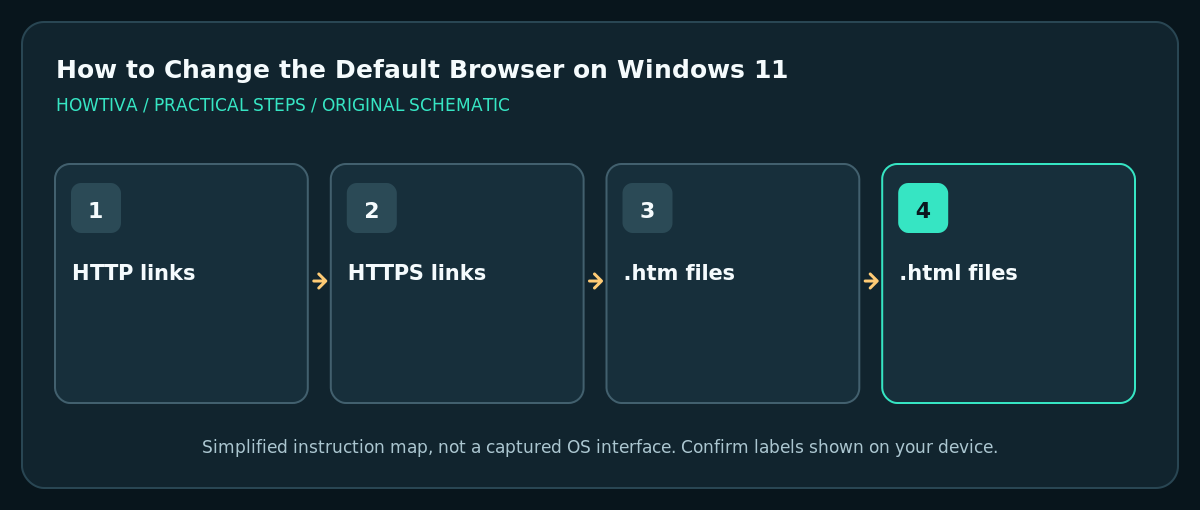
Quick answer: Open Settings > Apps > Default apps in Windows 11. Search for and select the browser you want, then use Set default if that button appears. Check the HTTP, HTTPS, .htm and .html associations if links still open elsewhere.
A default browser is the application Windows uses for supported web links and associated web files when another application does not explicitly choose its own browser. You can switch this without uninstalling Microsoft Edge or losing bookmarks. The exact Default apps panel can change with Windows updates, and some managed computers restrict the setting.
Set your preferred web browser
- Install and open the browser you want from its official website or a trusted app-distribution channel. Complete its initial setup, but do not accept unrelated software bundles or import browser data unless you want that migration.
- Open Start > Settings > Apps > Default apps. Alternatively search Start for Default apps. You should see a list or search field for installed apps and supported file or link types.
- Search for the browser name, for example Mozilla Firefox, Google Chrome or Microsoft Edge, and select it. The browser needs to be installed correctly to appear here.
- If Windows shows Set default, select it. The command should make the browser the default for relevant common web protocols and extensions supported by that Windows version.
- Examine any remaining assignments such as HTTP, HTTPS,
.htmland.htm. Microsoft also documents assigning defaults individually by link or file type, so select an entry and choose your browser if one remains associated incorrectly. - Close Settings, then click a normal web link from a separate app you trust. Test an
.htmlfile only if this file association matters to you. If the test fails, return to Default apps instead of repeatedly reinstalling browsers.
Why browser links can behave differently
The default browser preference mainly controls what Windows launches for regular web links and supported file associations. A link clicked inside an app can be shown in that application’s built-in web view or handled by an app-specific policy. That does not necessarily mean the Windows default did not save. Check with a plain link from another app before drawing conclusions.
Alternative method from within your browser
Many browsers offer a Make default button in their own Settings screen. If you select it, Windows may open its Default apps panel or the browser may guide you through the supported flow. This is often faster when you already have the browser running. If a work/school policy blocks changes, use the organisation’s support process instead of trying to override restrictions.
What does not change automatically
- Switching defaults does not transfer your bookmarks, passwords, installed extensions or browser history. Use the new browser’s official import feature if you want those items, and review what personal information is shared.
- Browser choice does not automatically switch your search engine. That setting is typically inside the chosen browser.
- Browser privacy protections depend on configuration, extensions and website behavior; merely changing the default app does not guarantee stronger privacy.
- Some Microsoft or third-party app features may launch their own embedded browser experience. Test standard links separately.
Troubleshooting
My browser does not appear in Default apps
Open it once, complete installation and restart Settings. Check that you installed a supported desktop version rather than only a website shortcut or portable executable. If the browser is not trusted, do not install it solely to solve a settings issue.
Set default is missing or greyed out
Your Windows build may require assigning file/protocol types individually, or an administrator may manage the default-app policy. Review HTTP/HTTPS and HTML associations; if managed, contact IT.
A website still opens in the old browser
Identify where you clicked the link. Some applications use an internal view, a dedicated profile or app-specific browser setting. Try a link from a different independent app; if that honors your choice, investigate the original app’s settings.
HTML documents open in another app
Look up .htm and .html individually under Settings > Apps > Default apps. Assign the desired browser where offered. Do not change .pdf defaults unless you also intend to change how PDFs open.
I changed browsers and cannot find passwords
Passwords are normally stored in browser accounts or password managers rather than moved by the Windows default selection. Use the relevant official import or sync workflow and protect credentials carefully.
Frequently asked questions
Does choosing Chrome or Firefox remove Edge?
No. This changes default handling for supported links and files; it does not uninstall another browser.
Why does Edge still open in some Windows features?
Certain OS and app experiences may have their own link behavior. Confirm default status using a normal HTTPS link before troubleshooting a special built-in feature.
Can I change the default again later?
Yes. Return to the Default apps panel, choose another installed browser and apply its supported file and protocol associations.
Sources & Further Reading
- Microsoft — Change Default Apps in Windows — Apps > Default apps, protocol/extension-specific assignments, Set default in browser app.
- Microsoft — Essential Network Settings and Tasks — General Windows settings UI context.
Use the checklists as you go, and confirm the result before moving on to a more involved repair.