How to Recover a Microsoft Account Using Official Recovery Options
For a personal Microsoft account (Outlook.com, Hotmail, Xbox or OneDrive), open the official Microsoft sign-in page, choose Forgot password?, and try an available verification method.
Quick answer: For a personal Microsoft account (Outlook.com, Hotmail, Xbox or OneDrive), open the official Microsoft sign-in page, choose Forgot password?, and try an available verification method. If that path is blocked, use Microsoft’s Sign-in Helper at aka.ms/sign-in-helper. An account recovery form may be available, but it is not a bypass for two-step verification when you cannot access any verification methods. Work or school accounts follow your organization’s separate procedure.
A recovery form is evidence-based: you must demonstrate that the account is yours. Nobody at Howtiva needs your password, email contents, one-time code or identity document. Do not send such information to a supposed recovery agent.
Step 1: Determine which Microsoft account you have
- Check whether the address is a personal Microsoft account, even if it uses a third-party email address, or an organization-managed work/school account.
- A personal Outlook.com or Xbox login normally belongs in Microsoft’s consumer recovery process. A company Microsoft 365 account generally belongs to your IT administrator’s identity system.
- If you can still sign in on a trustworthy device, first review Security in your Microsoft account dashboard and update missing recovery methods. Do not sign out your last working session before adding an alternative.
- Begin at
account.microsoft.com, or follow the Microsoft support page for the Sign-in Helper. Avoid search ads, unfamiliar shortened URLs and unsolicited recovery calls.
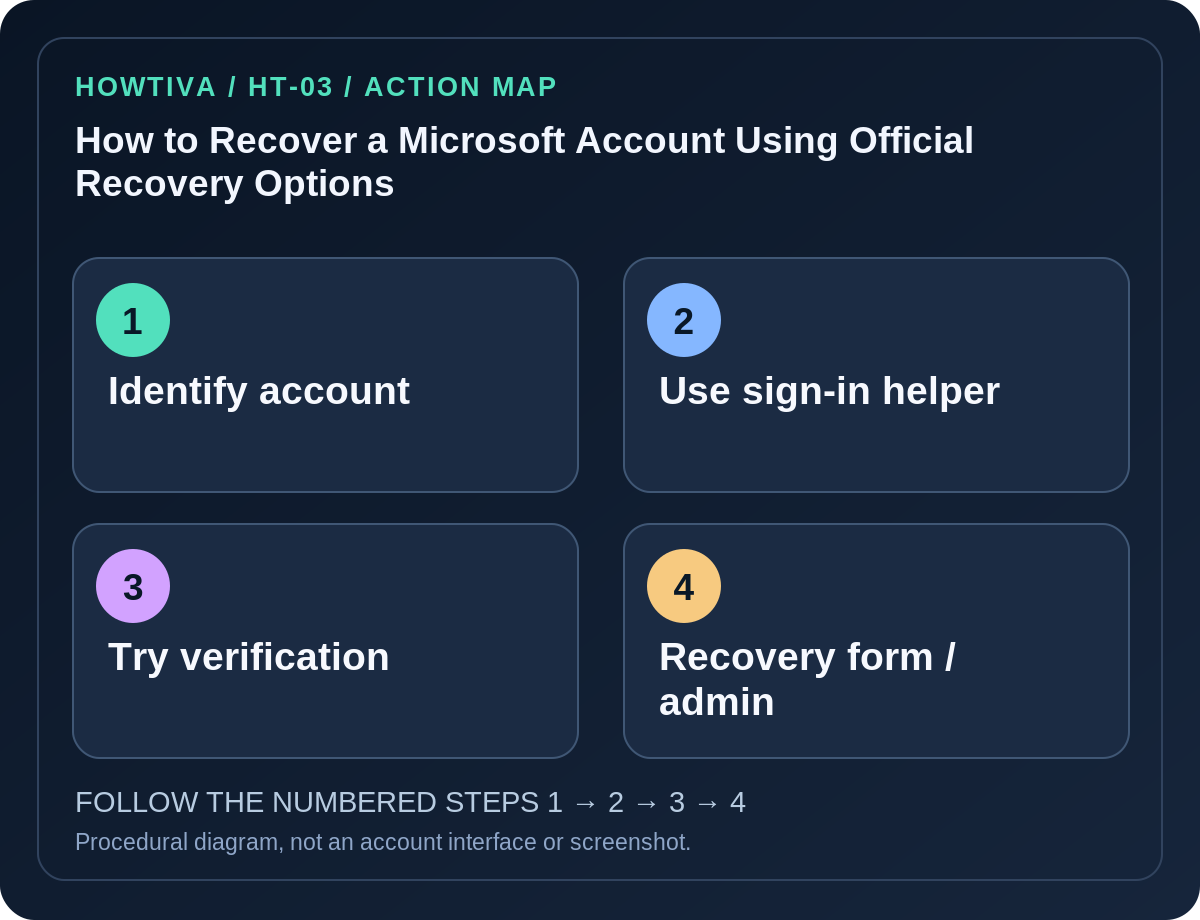
Step 2: Try official password reset and Sign-in Helper
- Enter the account identifier at the actual Microsoft sign-in interface and choose the offered Forgot password? or recovery option.
- Check whether the listed email, authenticator, phone or other verification method belongs to you and is still available. Microsoft may offer different choices based on the account’s security setup.
- If a message does not arrive, check the destination you selected, spam filters and connectivity. Don’t repeatedly request codes until old ones are confused with new ones.
- If your username is not recognized, you no longer know which login to use, or the reset instructions do not match your situation, open the Microsoft Sign-in Helper directly. It diagnoses the login problem and routes you to supported assistance.
- Only enter security information into a Microsoft-controlled page you opened yourself. Reject people who promise instant recovery via social messaging.
Step 3: When the Microsoft account recovery form is applicable
Microsoft offers a recovery form for some personal-account scenarios, particularly where two-step verification is not enabled and ordinary verification is unavailable. Start with the official form linked from Microsoft’s support article; its location and available fields can change.
- Prepare another working email address at which Microsoft can contact you about the request. It does not have to be the locked account.
- If possible, complete the form from a familiar device and location that you previously used for the account. This is Microsoft’s recommendation, not a guarantee.
- Provide accurate, account-specific historical details you genuinely know: services used, older passwords you remember, prior correspondents or other requested information. Do not invent answers or ask strangers for private details.
- Submit the form once carefully completed, and monitor the contact address. Microsoft says it normally reviews submitted information and responds within 24 hours.
- If rejected, reread the feedback and try again only with genuine additional details. An unsuccessful form does not mean a third-party provider can override Microsoft’s decision.
Critical limitation: Microsoft’s support documentation states that if two-step verification is enabled and you have lost access to all alternate verification methods, support agents cannot override the protection or send a manual reset link. The recovery form is not a secret back door.
Troubleshooting real situations
- ‘Account does not exist’: Recheck aliases, spelling, domain and account type. A workplace email may not be a consumer account. Use the official helper rather than creating another account under an assumed name.
- An unknown recovery phone appears: Do not send codes to strangers. Use only the options Microsoft presents and inspect the account for compromise after access is restored.
- An authenticator app was on the lost phone: Check your pre-existing alternative methods or recovery material. Avoid resetting the last accessible device before assessing its backups.
- You are locked out of a work or school account: Contact your organization’s help desk or use its published self-service password reset process, not the consumer form.
- Someone asks for money to unlock Microsoft: Treat this as a scam. Support personnel cannot bypass account ownership controls.
After you regain access
Go to your account’s Security dashboard and review recovery contacts, sign-in activity, devices and app permissions. Change a password you suspect was stolen, choose a unique password or passkey, and configure two-step verification with more than one recoverable method where supported. Update saved credentials on Outlook, Windows, Xbox and OneDrive only after the new sign-in works.
Do not immediately destroy a recovery phone, security key or session that is still the only working factor. Add and verify a replacement before removing the old option.
Frequently asked questions
Can Microsoft Support reset my personal account for me? Microsoft says support agents cannot manually provide reset links or change protected account details. Use the normal verification, official helper and applicable form.
Can I recover an account with two-step verification but no second method? Microsoft’s policy may prevent recovery if you have lost all alternate authentication options. Check all legitimate pre-registered recovery methods first.
Will a new Outlook.com account restore old OneDrive files? No. A newly created identity is not the old account and will not automatically gain the previous account’s private content.
Sources & Further Reading
- I cannot sign in to my Microsoft account — Microsoft.
- Microsoft account sign-in helper — Microsoft.
- Microsoft account recovery form — Microsoft.
Use the checklists as you go, and confirm the result before moving on to a more involved repair.