How to Check Your Internet Speed
Measure download, upload and ping, compare Wi-Fi against Ethernet or router speed tests, and interpret inconsistent results.
Quick answer: On a connected computer or phone, close large downloads and run a reputable internet speed test. Record download Mbps, upload Mbps, latency/ping in milliseconds and the date. Test twice, then compare with a wired Ethernet test or the router’s own WAN speed test to tell a slow internet service from weak Wi-Fi. One result is a snapshot, not proof of the provider’s average performance.
You do not need to install a random browser extension. Use a speed-testing service you trust, or use the built-in test of your router app if one is available. Be aware that a speed test transfers data; it can consume allowances on metered or mobile plans.
Run a fair test on your phone or computer
- Confirm which connection is being tested: home Wi-Fi, Ethernet or cellular. On a phone, temporarily disable mobile data if you specifically want to measure home Wi-Fi and your device otherwise switches automatically.
- Stop cloud backups, game downloads, video streams and VPNs that you can safely pause. If others must remain online, note that shared use may reduce your result.
- Open a reliable speed-test website or your router manufacturer’s speed-testing feature. Some services select a nearby server automatically; results from distant servers may differ.
- Start the test and let download, upload and latency measurements finish. Do not move the laptop or run other downloads during the measurement.
- Write down the measured values, device type, room, Wi-Fi band if known, test server, date and time. Repeat once or twice for a useful baseline.
- Compare with your subscription’s advertised and contracted details, remembering that plans can specify different download and upload rates and measurement conditions.
Understand what the numbers tell you
Download Mbps measures data flowing from the internet toward your device. It affects streaming, files and pages. Upload Mbps measures data leaving your device, important for video calls, sending files and backups. Latency/ping (ms) measures response delay; lower is generally better for interactive tasks, but the route and server matter. Jitter is variation in that delay, and packet loss indicates dropped packets; not every test reports them.
A connection showing 100 Mbps does not download files at 100 megabytes per second. A byte usually contains eight bits, so 100 Mbps has a theoretical upper conversion of 12.5 MB/s before protocol overhead and real-world effects. Do not promise that every server can supply the full line rate.
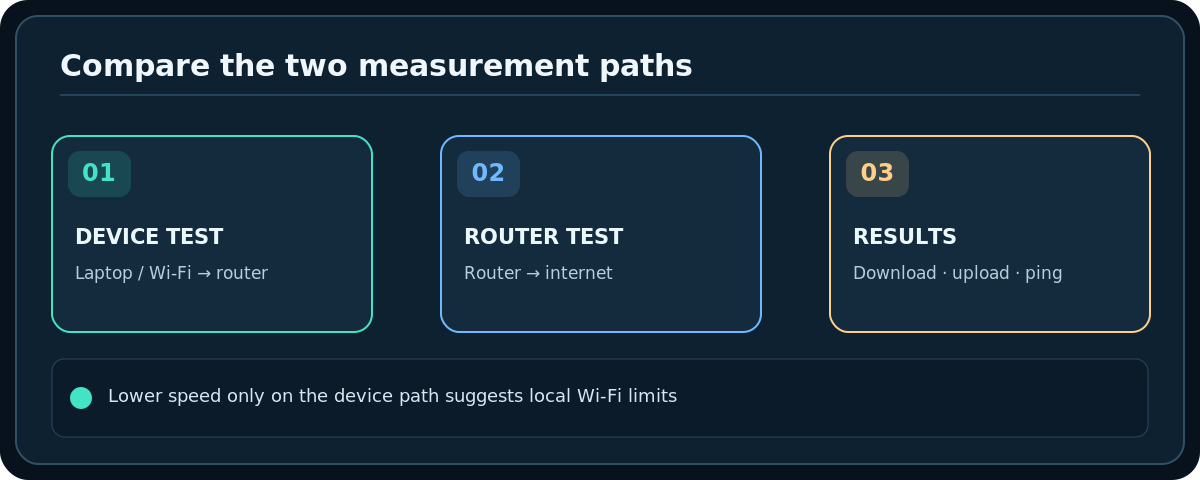
A test run on your laptop usually measures the path laptop → Wi-Fi → router → ISP → test server. A router-based internet test normally starts at the router, avoiding your laptop’s Wi-Fi bottleneck. That distinction explains why two legitimate tests can differ.
Find out whether Wi-Fi or your provider is slow
- Test the same device close to the router with a good Wi-Fi signal.
- Test again in the room where you normally experience delays. Keep the server and test conditions as similar as practical.
- If possible, use a computer connected by Ethernet directly to the router with a suitable cable and adapter. Disable Wi-Fi on that computer so the wired route is definitely being measured.
- If your compatible router offers a built-in internet speed test, run it as another data point. Google Home documents a test for Nest/Google Wifi that measures speed from the primary router/point rather than your phone’s Wi-Fi link.
- If Ethernet/router results are healthy but a distant Wi-Fi room is slow, focus on placement, band choice and interference. If all tests are poor, inspect modem/ISP status and contact the provider with logged results.
Why two speed tests disagree
Different services may use different servers, transfer durations, traffic paths or protocols. A nearby server often reports a better speed than a faraway service. Busy household devices, Wi-Fi congestion and ISP peak-hour load can change results minute by minute.
If a test gives an unusually high or low number, rerun it under the same conditions and compare several measurements rather than choosing whichever makes your plan look best. A very quick result is not a full diagnostic of live-streaming quality or web-browser performance.
Troubleshooting common surprises
The download number is fine but video calls break up
Check upload, latency, packet loss and Wi-Fi stability during the call. A good download rate alone cannot guarantee real-time communication. Temporarily move closer to the router and avoid large uploads on other devices.
Wi-Fi is much slower than Ethernet
Check the device’s band, distance, walls, interference and network adapter capability. A 2.4 GHz connection may be the range-friendly choice but still have less throughput than a good 5 GHz connection nearby.
The router itself tests slowly
Confirm that the internet plan is active, look for outages, check that Ethernet links are negotiated at the intended speed, and contact your ISP. Do not factory-reset the router on speculation.
A speed test is consuming too much mobile data
Stop testing and use an unmetered connection when practical. High-speed tests can transfer a meaningful amount of data; not all services disclose the exact traffic in advance.
Frequently asked questions
Do I need to pay for a speed test?
No. Several services and router vendors offer basic tests at no separate charge. Your broadband/mobile connection still carries their data traffic.
What is a good speed for my home?
It depends on simultaneous users, upload needs, conferencing, game latency and your service plan. Rather than declaring a universal magic number, compare actual tasks across devices and times.
Is a higher Wi-Fi link rate the same as internet speed?
No. Local radio link rates reflect Wi-Fi negotiation and do not account for the ISP connection, shared airtime, protocol overhead or remote server limits.
Sources & Further Reading
- Google — Test internet speed and improve Wifi (accessed 2026-10-27)
- Microsoft — Wi-Fi and your home layout (accessed 2026-10-27)
- Microsoft — Why is my internet connection slow (accessed 2026-10-27)
Use the checklists as you go, and confirm the result before moving on to a more involved repair.