How to Remove an Unknown Device from a Google Account
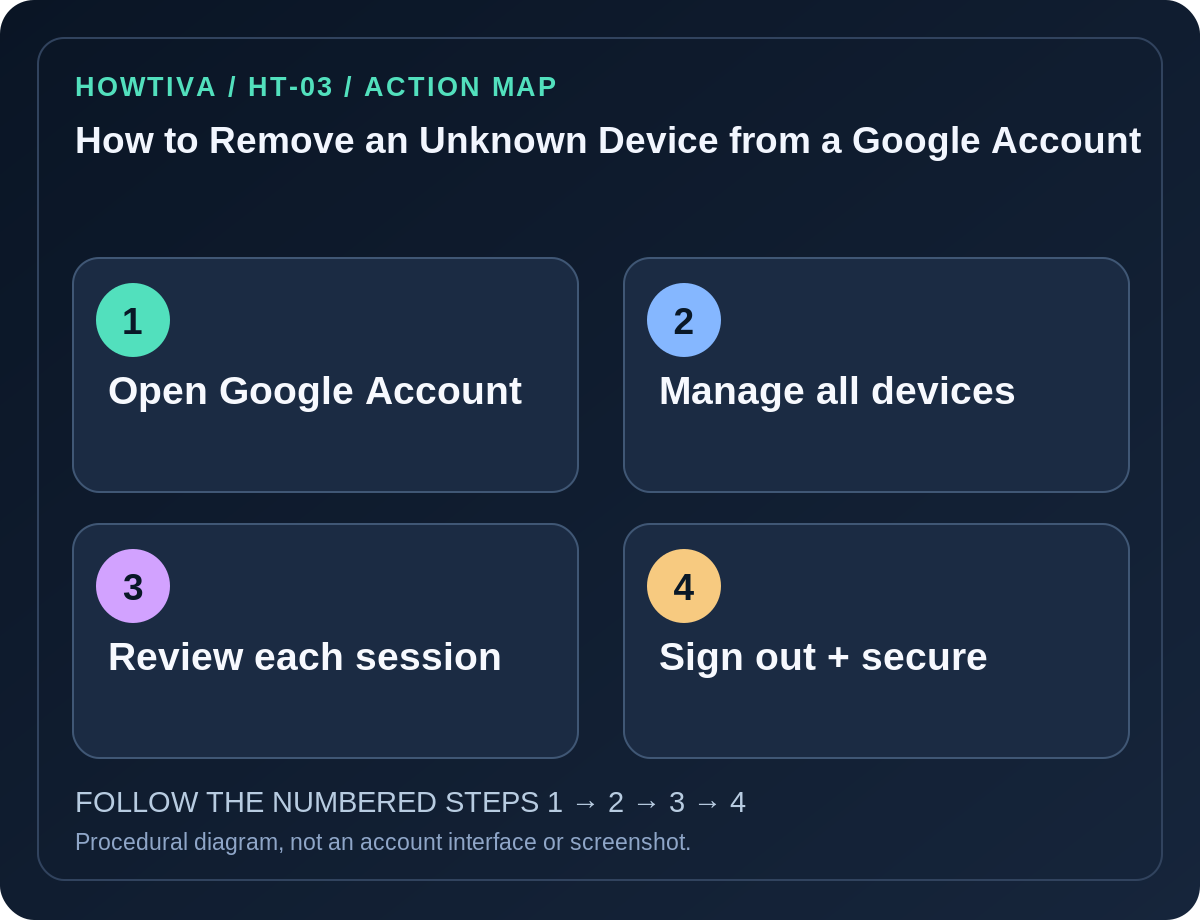
Open myaccount.google.com, select Security & sign-in → Your devices → Manage all devices, choose a device or session you do not recognize and select Sign out.
Quick answer: Open myaccount.google.com, select Security & sign-in → Your devices → Manage all devices, choose a device or session you do not recognize and select Sign out. If multiple sessions share the same device label, Google advises signing out of all matching sessions when you cannot identify which one is legitimate. Then secure the account, rather than assuming sign-out alone fixes a breach.
A Google device list is a history of account access, not a perfect live inventory of hardware. It may include older sessions, phones recently reset to factory settings, shared computers or entries with imprecise locations. Investigate calmly; not every unfamiliar city indicates an intruder.
Review the list before removing anything
- On a device you control, open
myaccount.google.comand confirm the email of the Google Account you intend to protect. - Choose Security & sign-in and then Manage all devices under Your devices.
- Check the device type, last activity, location and approximate timestamps, while recognizing that Google’s log can show recent app communication instead of a direct human sign-in.
- Compare the entries with your own current phone, older computer, borrowed browsers, tablets and recent travel.
- If a device is clearly not yours or is a shared machine you no longer use, select its entry and choose Sign out.
- Go back to the list and review other sessions; two sessions with the same displayed device name may need two separate sign-outs.
What to do if the entry looks suspicious
If the device is unfamiliar, treat it as a possible security incident, especially if you also received unexpected login alerts, saw changed recovery information or noticed unknown Gmail forwarding. Google provides an account-protection workflow for signs of compromise.
- From a clean device, change your Google Account password to a strong unique one if you suspect exposure.
- Inspect recovery email and phone, passkeys, security keys and two-step verification options; remove unrecognized methods only after securing your own fallback.
- Review other devices and sessions again. Google’s documentation notes that a password change may leave certain authorized device categories signed in; manually check instead of assuming full revocation.
- Inspect third-party connections and revoke grants to apps or websites you no longer trust, using Google’s official permissions area.
- If Gmail was involved, look for unexpected forwarding addresses, filters or delegated access that could continue exposing messages.
When a device is familiar but its location isn’t
IP-based geography may be inaccurate. Mobile networks, travel, VPN use, workplace gateways and nearby-location estimation can affect the listed area. Look at the full context: device model, date, browser profile, sessions and account alerts. Google’s device page warns that recent activity can also result from background sync rather than a fresh sign-in.
If you recently factory-reset a phone, Google says the old device may still appear in its list. A stale record alone does not prove continuing access. The account list is not a mechanism for physically erasing a phone.
Alternative path on mobile
On Android, navigate through Settings → Google → Manage Google Account, then Security & sign-in; on iPhone, use Gmail’s account profile menu or open myaccount.google.com in a trusted browser. Labels can vary depending on platform and account layout. The web dashboard is the cross-platform reference.
If you are signed out and cannot authenticate, use official Google account recovery. Do not give an unknown person control of your device just to remove a session.
Troubleshooting
- No Sign out button appears: Confirm you’re viewing the right account and an eligible session. Google may show information differently for a device currently in use.
- The entry reappears: You may be looking at multiple similar sessions or an authorized app that signed in again. Review grants and current account activity.
- Work or school Google identity: Your administrator may control devices and sessions differently. Use the organization’s support process if a policy blocks the action.
- You want to erase the hardware: Account sign-out and physical remote erasure are different tasks. Use Find Hub for Android loss scenarios, subject to its prerequisites.
Frequently asked questions
Does Sign out factory-reset the other phone? No. Google Account sign-out controls account access, not general device storage destruction.
Why is a city unfamiliar? Location is approximate and can be distorted by VPNs or networking. Assess several indicators together.
Can I remove a device without changing my password? Yes, but after a credible compromise, password change, MFA review and security checks are advisable.
Sources & Further Reading
- See devices with account access — Google.
- Change or reset your password — Google.
Use the checklists as you go, and confirm the result before moving on to a more involved repair.