How to Find a Saved Wi-Fi Password on iPhone
Find saved Wi-Fi keys on your own iPhone, with separate instructions for iOS 18+ and iOS 16–17.
Quick answer: On an iPhone running iOS 18 or later, open the Passwords app, unlock it, tap Wi-Fi, choose a saved network and tap Password to reveal or copy it. On iOS 16 or 17, open Settings → Wi-Fi, tap the ⓘ beside your network, select Password and authenticate with Face ID, Touch ID or your passcode.
You must be able to unlock your own iPhone. Apple supports revealing saved Wi-Fi passwords starting in iOS 16; an earlier iOS version does not provide the same built-in Settings method. The password shown is what the phone saved and might no longer work if the router owner changed it.
Use the Passwords app on iOS 18 and later
- Find and open Apple’s Passwords app on your iPhone. If you are in a nested category, navigate back to its main categories view.
- Authenticate using Face ID, Touch ID or the device passcode when prompted.
- Tap Wi-Fi. You will see the current network, where applicable, and Wi-Fi networks saved on the device.
- Choose the network name you need. Do not confuse a similar-looking guest network with the main one.
- Tap the Password field to reveal the saved passphrase, then use Copy Password if offered. Paste only into a trusted Wi-Fi connection dialog and clear it from any message draft you do not intend to send.
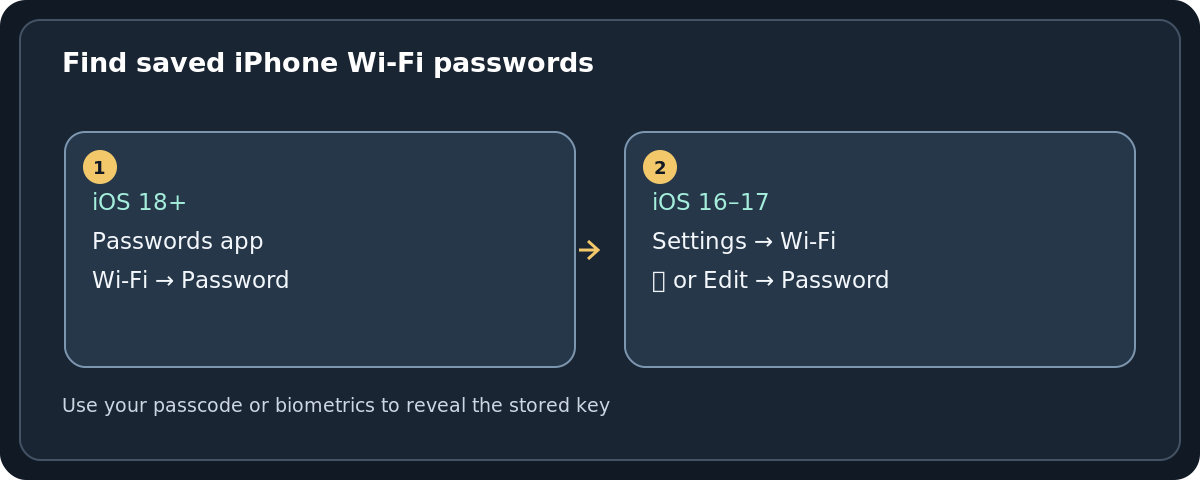
If you do not see the Passwords app, check the iOS version in Settings → General → About. A phone running iOS 17 or earlier should use the next method instead. Names and icon positions may vary with language and software updates.
See the password of the currently connected Wi-Fi on iOS 16 or 17
- Open Settings and tap Wi-Fi.
- Under the currently connected network, tap the blue ⓘ information button.
- Tap the obscured Password field.
- Approve the prompt using your passcode or biometrics. The value becomes visible and can be copied where supported.
- Confirm you are viewing the network you intended, then leave the settings page.
This Settings route is also documented by Apple for supported iOS releases newer than 17, but the Passwords app is often more convenient when you are searching through several networks.
Find the password of a network you used before
iOS 18+: In Passwords → Wi-Fi, select a previously saved network and reveal its Password field. You do not have to travel back to that network’s location.
iOS 16–17: Open Settings → Wi-Fi, tap Edit at the top, authenticate, and browse the networks the phone remembers. Choose the ⓘ next to a saved, password-protected network and tap its Password field. Do not tap Forget This Network while looking for the key: that action can remove the saved connection.
Share access without typing out the password
If a friend has a compatible nearby Apple device, you can often use Apple’s direct Wi-Fi password-sharing prompt instead of exposing the passphrase. Both devices should have Wi-Fi and Bluetooth enabled, be close together, and meet Apple’s contact and account prerequisites; the device sharing must be unlocked and already connected. Let the friend choose your network, then approve Share Password if the prompt appears. If it does not appear, use the manual password method rather than repeatedly toggling unrelated privacy settings.
Some newer iOS versions also let you display a network QR code for another phone to scan. The code conveys access to the network, so show it only to people you trust and avoid uploading it publicly.
If Password is missing or you cannot reveal it
My iPhone has iOS 15 or earlier
Apple’s built-in on-device reveal feature began with iOS 16. If your iPhone cannot update, use an authorized router management app, ask the network owner, or retrieve the password from another device that has an approved viewing method. Do not install apps promising to magically uncover Wi-Fi passwords without appropriate access.
The saved network does not appear
Make sure the iPhone previously joined that exact SSID and retained its settings. A network removed with Forget This Network might no longer appear. Wi-Fi passwords can also be synced across eligible Apple devices when iCloud Keychain is configured, but syncing is not a promise that every historical network will be available.
My Face ID or Touch ID is unavailable
Use your own iPhone passcode when the system offers it. If device authentication fails, resolve that normal iPhone access problem; the Wi-Fi password screen is intentionally protected and there is no legitimate bypass procedure in this guide.
The revealed password is rejected elsewhere
Confirm the exact SSID, then verify whether the router password changed after the iPhone last connected. Guest Wi-Fi credentials may be different. Try typing carefully instead of copying invisible spaces, and ask the router administrator if the stored value is outdated.
Frequently asked questions
Can I view an old Wi-Fi password while away from that location?
Yes, if it remains saved. Use Passwords → Wi-Fi on iOS 18+ or Settings → Wi-Fi → Edit on iOS 16–17.
Does the password appear in Settings → Passwords?
The Passwords app was introduced in iOS 18. On iOS 16–17, access Wi-Fi passwords from Wi-Fi settings; do not confuse them with website passwords.
Can I see a password without my passcode or biometrics?
No supported iPhone password-reveal flow skips device authentication. This helps protect saved network credentials if someone handles your phone.
Does viewing or copying the key change my home network?
No. It only reads an existing saved value. To change the actual Wi-Fi password for everyone, sign in to your router’s wireless settings.
Sources and further reading
- Apple Support: Find your saved Wi-Fi passwords on iPhone or iPad (checked 2026-10-27).
- Apple Support: Find and share your Wi-Fi password on iPhone (checked 2026-10-27).
Use the checklists as you go, and confirm the result before moving on to a more involved repair.