How to Find Your Wi-Fi Password on Windows
Recover a network password already stored on Windows 11 or Windows 10 without changing router settings.
Quick answer: On a recent Windows 11 PC that has connected to your Wi-Fi, open Settings → Network & internet → Wi-Fi → Properties for the current network, then choose Show next to Wi-Fi network password. For an older saved network, use Wi-Fi → Manage known networks, select the network and choose Show if your Windows build offers it. On Windows 10, open Network and Sharing Center → your Wi-Fi connection → Wireless Properties → Security → Show characters.
This shows a password already saved on that computer. It does not tell you the password for an unrelated network or guarantee access to a workplace-managed connection. Only reveal credentials for a network that belongs to you or that you are authorized to use.
Find the password in Windows 11 Settings
- Connect the PC to the Wi-Fi network, if possible. If it is not currently connected but the network was saved before, skip to the saved-network method below.
- Open Start → Settings, then choose Network & internet → Wi-Fi. On some Settings layouts, choose the connected network’s Properties from the network status page.
- Open Properties for the correct Wi-Fi network. Look for Wi-Fi network password and select Show.
- Read or copy the displayed network password privately. If a QR code is offered, a supported second device may scan it instead of typing the characters.
- When done, close the password view so someone nearby cannot see it.
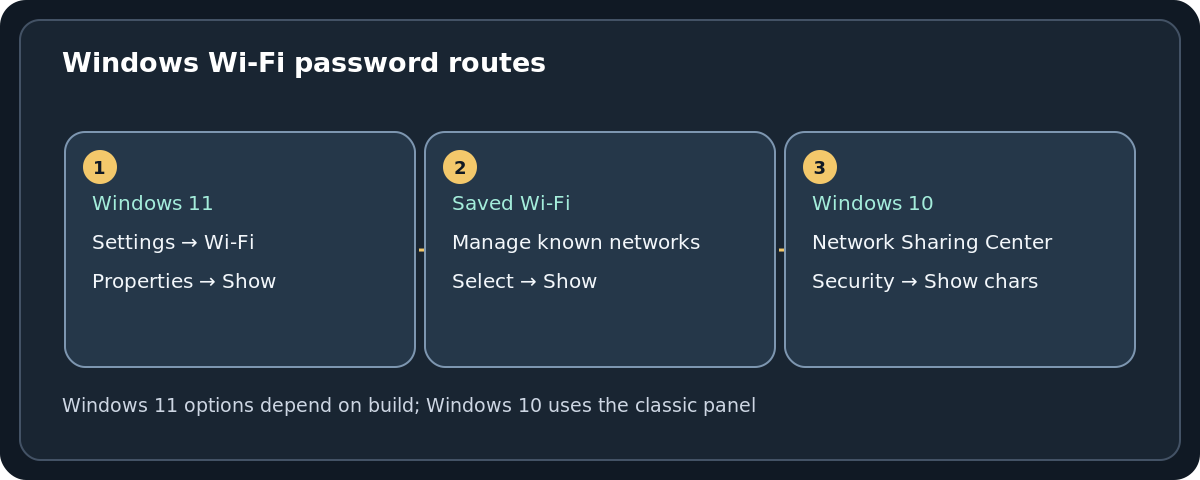
Tip: Windows 11 interface labels can change with updates. If the expected field is absent, do not assume your Wi-Fi password has changed. Try the saved-network or Windows 10-style route below, or check the router’s authorized administrator.
Find a password from a network you joined previously
- Open Settings → Network & internet → Wi-Fi → Manage known networks.
- Choose the exact saved name (SSID). Check the spelling carefully when several homes or offices have similar names.
- On Windows 11 builds offering the feature, select Show beside Wi-Fi network password.
- If there is no Show control, the current interface or policy may not expose that password. Do not delete the saved network simply to try again: deleting it can remove the credential you are trying to recover.
A saved profile is not necessarily a usable password: open public hotspots can have no Wi-Fi passphrase, enterprise networks can use usernames, certificates or centrally managed authentication, and a router owner may have changed the password since the last successful connection.
Use the Windows 10 Control Panel method
- On Windows 10, open Settings → Network & Internet → Status → Network and Sharing Center. You can also search Windows for Network and Sharing Center.
- Beside Connections, click your active Wi-Fi network name. This opens the Wi-Fi Status window.
- Choose Wireless Properties, select the Security tab, then check Show characters.
- The field called Network security key contains the saved wireless password, provided the connection uses a conventional shared key and Windows permits viewing it.
Microsoft documents this route for Windows 10. You may also encounter parts of the classic interface on some Windows 11 installations, but prefer the modern Settings route if it is available.
What if the PC is connected by Ethernet?
A wired connection does not by itself mean the computer has a saved wireless profile. Check Manage known networks; if the Wi-Fi network is not listed there, Windows may have nothing to display. If you own the router, inspect its official app or management page or check the printed factory Wi-Fi details only if you have not changed them. A printed default password can be outdated after setup.
Fix common password-finding problems
There is no Wi-Fi password or Show button
Verify that you opened a Wi-Fi profile rather than Ethernet, VPN or mobile hotspot settings. Check whether you are on Windows 10 or 11. Managed work or school PCs may restrict access; ask your IT administrator rather than attempting to bypass policies. Open or enterprise Wi-Fi networks may not have a single reusable password.
The saved password does not connect another phone
Check the SSID, capital letters, punctuation and similar-looking characters such as zero and capital O. A router may have separate guest and main networks or different names for separate bands. The saved credential may also be stale because someone changed the router password. If the new device says incorrect password, confirm the current value with the network owner.
I see a QR code but my other device cannot scan it
Choose manual entry. QR sharing depends on the receiving device and camera software; it is not required for joining Wi-Fi. A QR code that supplies network credentials is sensitive, so do not post a photo of it publicly.
I do not know the router administrator password
The router login is different from the Wi-Fi connection password. Do not factory-reset a shared or ISP-managed router merely to retrieve a saved credential; that can erase internet settings and disconnect everyone. Contact the authorized administrator or provider for the correct access path.
Privacy: treat the revealed key like a real password
Anyone who receives the working Wi-Fi password may be able to join your network while within range. Avoid including it in screenshots, tickets or public chat. If you believe an untrusted person already has it, change the router’s Wi-Fi password and update your trusted devices; changing it only in a Windows saved profile does not secure the router.
Frequently asked questions
Can Windows show a password for a network I am not connected to?
On supported Windows 11 versions, yes, if the network is still saved: check Manage known networks. A computer cannot recover a Wi-Fi password it never saved.
Does this work for Windows 10 and Windows 11?
Yes, but the documented routes differ. Windows 11 supports a Show control in newer Settings interfaces; Windows 10 uses Network and Sharing Center → Wireless Properties → Security.
Is the Wi-Fi password my router login password?
No. The Wi-Fi key joins the wireless network; router administrator credentials change device settings. They should be separate and managed securely.
Will viewing the password disconnect my Wi-Fi?
No. Revealing a saved credential is a read-only action. Changing the router’s actual password is different and normally requires reconnecting devices.
Sources and further reading
- Microsoft Support: Connect to a Wi-Fi network in Windows (checked 2026-10-27).
- Microsoft Support: Inside this update (checked 2026-10-27).
- US Federal Trade Commission: How To Secure Your Home Wi-Fi Network (checked 2026-10-27).
Use the checklists as you go, and confirm the result before moving on to a more involved repair.