How to Fix Windows 11 Wi-Fi Connected but No Internet
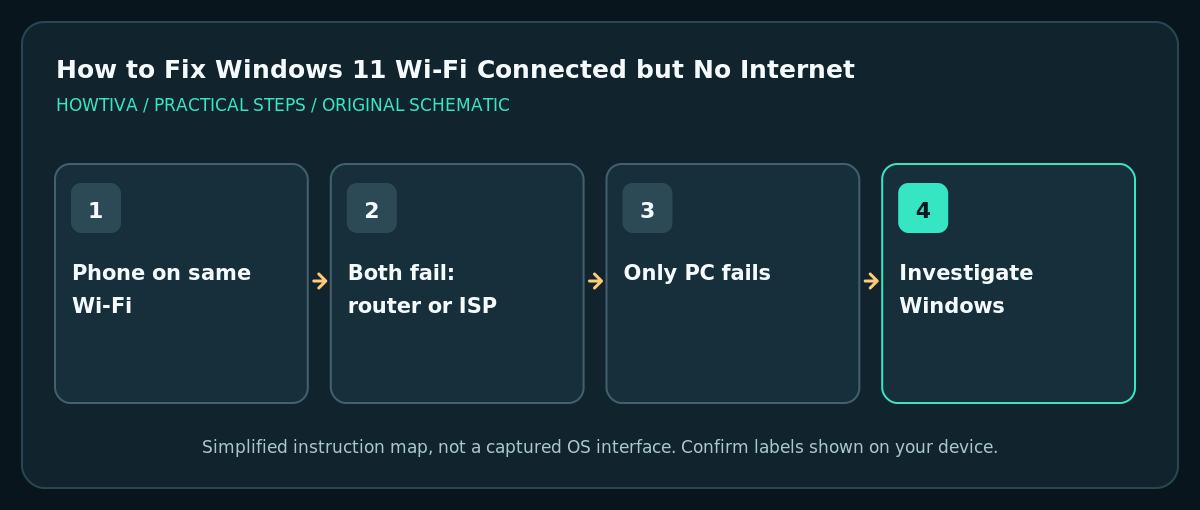
Check whether another device on the same Wi-Fi can reach a website. If none can, troubleshoot the router or ISP; if only your Windows 11 PC fails, check the sign-in portal, toggle Wi-Fi, restart Windows, and run the Network and Internet troubleshooter before changing advanced settings.
Quick answer: Check whether another device on the same Wi-Fi can reach a website. If none can, troubleshoot the router or ISP; if only your Windows 11 PC fails, check the sign-in portal, toggle Wi-Fi, restart Windows, and run the Network and Internet troubleshooter before changing advanced settings.
“Connected, no internet” means the computer can communicate with a local network but has not verified usable internet access. The cause might be the router, the ISP, a captive-portal sign-in, Windows DNS resolution, a VPN, or a device-specific driver. A short comparison test prevents unnecessary resets.
Isolate the failing part of the connection
- Connect a phone to the same Wi-Fi name, turn off its mobile data temporarily, and test a normal website. Do not judge using cellular data; that would test a different connection.
- If both devices fail, check router power and service status and ask others before restarting shared equipment. A router restart can cut off everyone working or streaming.
- If only the PC fails, open Settings > Network & internet > Wi-Fi. Confirm Wi-Fi is on, airplane mode is off and the network name is the intended one rather than an old guest hotspot.
- Open a standard browser window and try a non-sensitive ordinary website. In a hotel, airport or campus network, a captive portal may require agreeing to terms before internet access works. Never enter payment or account credentials into a suspicious login page.
- If the problem began just after installing a VPN, check its connection status and approved settings. On a managed device, avoid disabling required security software without administrator guidance.
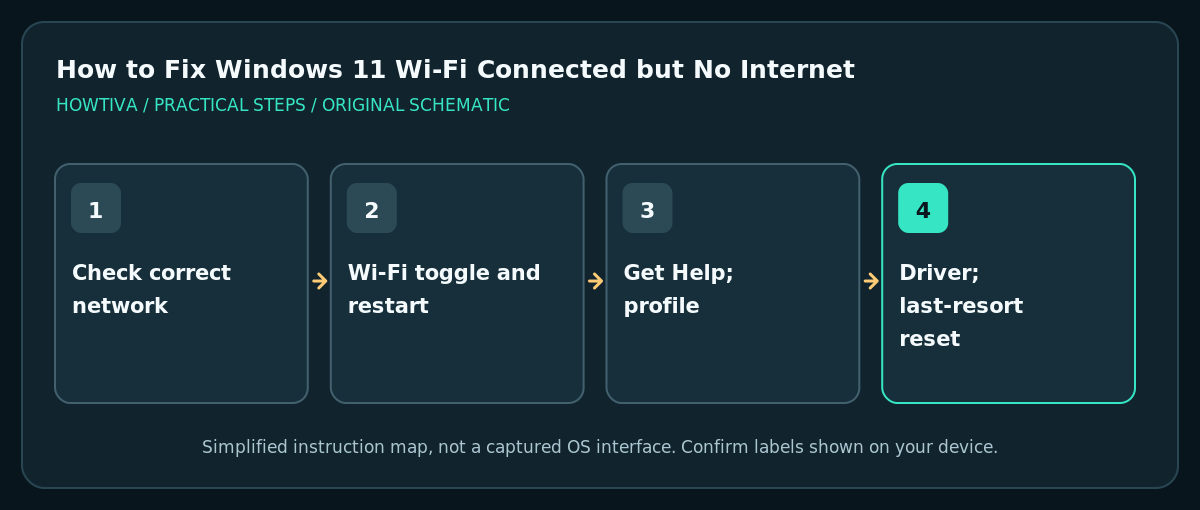
Fix the connection, least disruptive first
- Turn Wi-Fi off and back on in Windows Quick Settings or the Wi-Fi section of Settings. Wait for it to reconnect, then retry a browser and one unrelated service.
- Restart Windows from Start > Power > Restart, after saving your work. If other devices also lack internet and you own the router, follow the router vendor’s safe restart instructions.
- Use Windows’ Get Help network troubleshooter. Microsoft documents network troubleshooting through its built-in support workflow; follow the on-screen diagnosis instead of running unreviewed repair scripts.
- If this particular saved network appears corrupt, open Settings > Network & internet > Wi-Fi > Manage known networks, select the correct network and choose Forget. Reconnect with the valid password; do not forget a corporate connection if you lack the credentials.
- Check Windows Update and the PC manufacturer’s current network-adapter driver only if the basic checks have not worked. Prefer approved drivers to random download sites.
- Use a network reset only as a last step. It removes and reinstalls adapters and can require reconfiguring VPNs or virtual switches; see the separate guide before doing so.
Check DNS versus complete connectivity loss
A DNS problem can cause familiar website names to fail while the local connection still works. If this pattern is suspected, open Command Prompt and run ipconfig /all to inspect the active adapter, gateway and DNS information; avoid sharing the full output publicly because it includes device/network details. Microsoft documents ipconfig /flushdns for clearing Windows’ cached DNS entries, but it does not repair a failed internet connection or an ISP outage.
If you choose to test ping with a known host, remember that many hosts block ICMP; a timed-out ping alone is not proof that the internet is down. A browser, router status page and another device provide better context together.
Common symptoms and what they mean
Only one website fails: its server, DNS records, filtering policy, browser extension or local cache may be responsible. Do not reset your entire network for one site.
Other phones work but laptop fails: inspect the PC’s saved network profile, driver, VPN and proxy configuration. If company-managed, ask IT for correct proxy settings rather than guessing.
It connects then drops repeatedly: test closer to the access point, remove interference, and check router/adapter firmware from its vendor. Signal quality and internet quality are different issues.
A yellow warning stays even though sites work: Windows’ internet-detection mechanism may be restricted by the network. Confirm multiple real services before concluding that access has failed.
When to contact your ISP or IT
Contact the ISP when every device fails on the same network, the router shows a broadband fault or the service has an outage. Contact IT for managed Wi-Fi authentication, proxy settings, captive portals or VPN rules. Describe exactly which devices and networks work; this is more useful than saying only that Wi-Fi is broken.
Frequently asked questions
Does “connected” guarantee internet access?
No. A successful radio connection to the router does not prove the router can reach internet services.
Should I change DNS to a public resolver?
Not as a first step. Work or school networks may require their own DNS and security policies. Diagnose the scope of the fault before overriding DNS.
Will forgetting the network remove personal files?
No; it removes that saved Wi-Fi profile, so you may need to re-enter the password or enterprise setup details.
Sources & Further Reading
- Microsoft — Fix Wi-Fi connection issues in Windows — Wi-Fi diagnosis, connection restart, forget network, network reset.
- Microsoft — Essential network settings and tasks — Network settings and profiles.
- Microsoft Learn — ipconfig command — DNS cache and adapter configuration inspections.
Use the checklists as you go, and confirm the result before moving on to a more involved repair.