How to Flush DNS Cache on Windows
Open Command Prompt as administrator and run ipconfig /flushdns. Look for the confirmation that Windows successfully flushed the DNS Resolver Cache, then retry the website or app.
Quick answer: Open Command Prompt as administrator and run ipconfig /flushdns. Look for the confirmation that Windows successfully flushed the DNS Resolver Cache, then retry the website or app. This does not erase browsing history, change your router settings or guarantee that every DNS issue is fixed.
The DNS resolver cache temporarily remembers answers to domain-name lookups. An outdated or negative cached response can sometimes make a domain appear unavailable even after its DNS records change. Microsoft documents ipconfig /flushdns for clearing this Windows client cache during troubleshooting. It is a targeted step, not a replacement for diagnosing a disconnected network, broken router or remote DNS server.
Clear the Windows DNS resolver cache
- Before changing anything, note the failing domain and whether other websites work. If all internet traffic is failing or Wi-Fi shows disconnected, resolve the connection first; cache clearing probably will not repair that.
- Open Start, type Command Prompt, then choose Run as administrator if available and approved by your device policy. Confirm the User Account Control dialog for a legitimate command prompt; do not elevate an unfamiliar terminal application.
- Enter
ipconfig /flushdnsexactly and press Enter. Use a space afteripconfigand a slash beforeflushdns. Do not paste compound commands or scripts from untrusted troubleshooting pages. - Wait for the success message indicating that the DNS Resolver Cache was flushed. If an error appears, record its exact wording rather than assuming success.
- Retry the problem site or application. If a browser still shows an old page, separately refresh or inspect its own caches; Windows DNS flushing is not the same as clearing browser cookies, history or every browser-level DNS cache.

What the command actually does
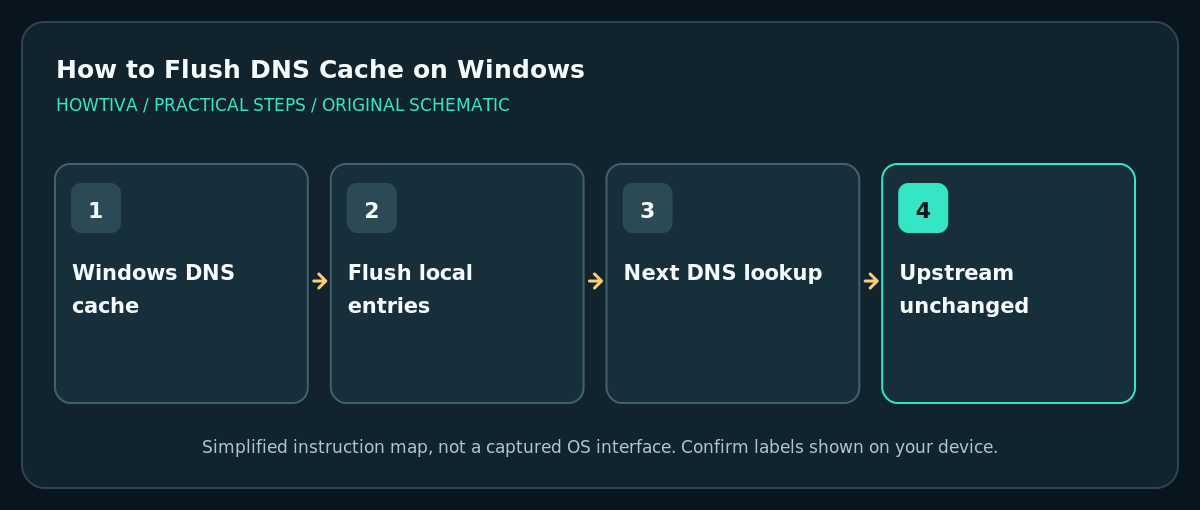
ipconfig /flushdns discards entries cached by the Windows DNS client resolver, including some negative cache responses. Windows will need to resolve relevant names again when applications request them. The command does not change which DNS servers are configured, reboot the router, renew your DHCP lease, reset IP addresses or change records at the domain’s authoritative DNS provider. New queries can return the same answer if the upstream source still serves it.
When this step is useful—and when it is not
It is most relevant when a domain changed addresses, an outdated cached failure is suspected, or Microsoft-style DNS client troubleshooting indicates a stale local response. It is much less relevant when every application says the internet connection is down, when the DNS provider is unreachable, or when a website is genuinely offline. Test another domain and another device before escalating.
Additional read-only checks
To view basic adapter information, enter ipconfig. The related ipconfig /displaydns command displays cached resolver entries and can help identify a negative or outdated answer, although contents may be extensive. Microsoft also documents nslookup for testing queries against DNS; it can help distinguish lookup behavior from browser-side problems. Do not change configured DNS servers casually on a work network.
Troubleshooting
The command is not recognized
Confirm you are in Windows Command Prompt or a terminal capable of running system commands, and that you entered ipconfig /flushdns with the correct spelling. Avoid downloading an ipconfig executable from a website; Windows supplies the utility.
Access is denied or policy prevents elevation
Use the authorised administrative path or contact IT on a managed device. Do not disable endpoint protection or change Group Policy to run a simple network diagnostic.
Flushing succeeded but the website still fails
The problem may be upstream DNS, cached browser data, an application-specific DNS resolver, a VPN, proxy, filtering software or the website itself. Compare another network or device; inspect Windows DNS configuration and ask your provider or administrator if needed.
I want to change which DNS server Windows uses
That is a separate operation in network adapter TCP/IP settings. Flushing the local cache leaves the server selection alone. Make DNS changes only with reliable settings and a plan to revert them.
Internet stops working immediately after the command
Flushing should not normally disconnect the network. Check Wi-Fi/Ethernet connectivity, DNS server reachability and proxy/VPN status; correlation does not prove the cache command caused a separate outage.
Frequently asked questions
Does flushing DNS erase my saved passwords, cookies or browser history?
No. It clears the Windows DNS client resolver cache, not personal browser content. Individual browsers may additionally keep their own caches.
Will a DNS flush change my IP address?
No. ipconfig /flushdns is different from /release and /renew, which affect DHCP configuration.
Should I flush DNS every day?
Usually not. Windows manages the cache automatically. Use this command as a focused troubleshooting step for a plausible stale-name-resolution problem.
Sources & Further Reading
- Microsoft Learn — ipconfig command — /flushdns clears DNS resolver cache; /displaydns read-only and /renew are distinct.
- Microsoft Learn — Troubleshooting DNS clients — Cached negative response and nslookup/flush troubleshooting.
- Microsoft — Fix Wi-Fi connection issues in Windows — Administrator Command Prompt and DNS flush in connectivity troubleshooting.
Use the checklists as you go, and confirm the result before moving on to a more involved repair.