How to Free Up Disk Space on Windows 11
Go to Settings > System > Storage > Cleanup recommendations, review suggested categories and delete only items you recognize. Then configure Storage Sense if you want recurring cleanup of selected temporary files.
Quick answer: Go to Settings > System > Storage > Cleanup recommendations, review suggested categories and delete only items you recognize. Then configure Storage Sense if you want recurring cleanup of selected temporary files.
Low storage can interfere with Windows updates and everyday work. Before deleting anything, record your available space and decide what must be kept. The safest order is to review Microsoft’s recommendations, remove known unnecessary files, uninstall unused apps and move valuable media to another drive.
Check what is filling the drive
- Open Settings with Windows + I and select System > Storage.
- Note the used and available space on your system drive, typically C:.
- Expand categories such as Installed apps, Temporary files, and System & reserved. Their sizes may update after Windows finishes scanning.
- If the problem is another drive, use Advanced storage settings > Storage used on other drives to review that device.
- Do not treat a high “System & reserved” number as permission to remove arbitrary Windows files.
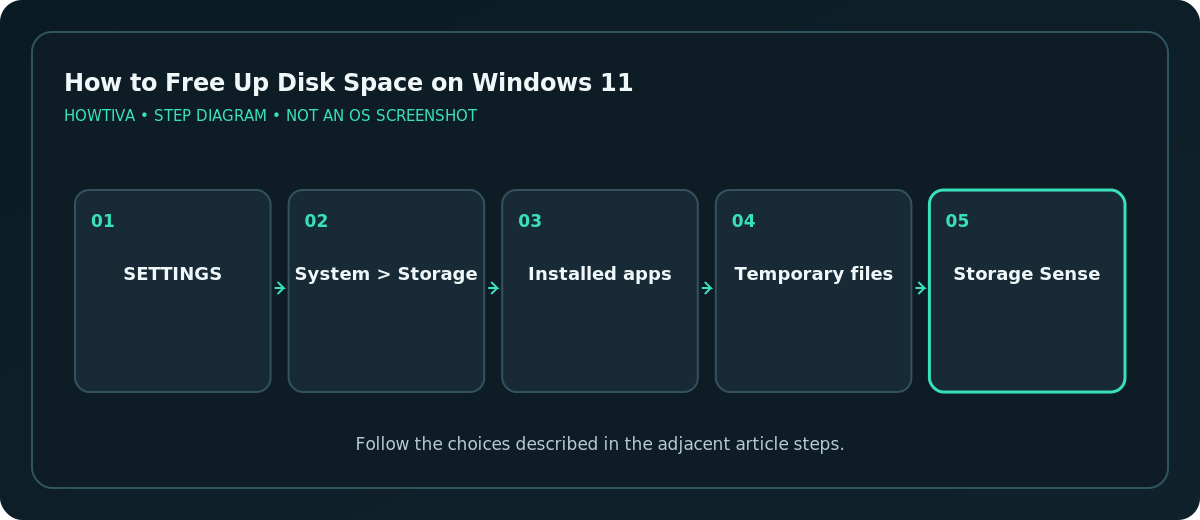
A large storage category tells you where to investigate; it does not mean all its contents are disposable.
Review Cleanup recommendations
- Under System > Storage, choose Cleanup recommendations.
- Examine Temporary files, Large or unused files, Files synced to the cloud, and Unused apps if these are shown.
- Read the description of every selected item. Confirm that files slated for deletion are not important downloads, personal documents or backup material.
- Select the specific items you recognize and choose the relevant Clean up action.
- Recheck Storage afterward so you can assess what actually changed.
Recovery warning: If Previous Windows installation(s) or Windows.old is offered, removing it can eliminate the option to return to your previous Windows version. Microsoft specifically warns this cannot be undone. Keep it if rollback matters to you.
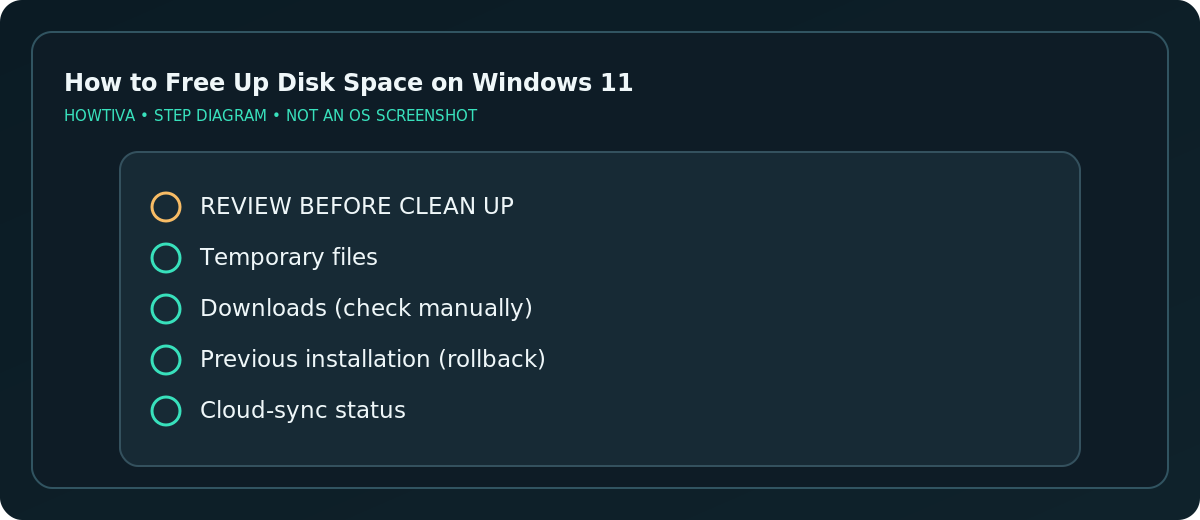
Configure Storage Sense carefully
Open Settings > System > Storage > Storage Sense. Storage Sense can remove selected temporary files and clean the Recycle Bin according to your rules. The feature primarily manages the system drive, not every external or internal volume automatically. Review its frequency and the option governing files in Downloads before enabling any automatic removal. Microsoft notes that Downloads is not cleaned by default unless you configure that behavior.
OneDrive’s option for making inactive cloud content online-only is different from deleting files. Online-only files normally remain accessible through the cloud when you have connectivity, while files marked Always keep on this device are exempt from that automated conversion. Avoid changing synchronization settings when you are offline or unsure where your only copy resides.
Recover space without deleting important work
Use Settings > Apps > Installed apps to uninstall software you no longer need. Sort or review apps based on size and how frequently you use them, but remember that size reports are not always available. For large personal videos and old project archives, move copies to a reputable external drive and verify they open before deleting local copies. Empty the Recycle Bin only after checking it contains nothing important.
You can also use Disk Cleanup for additional Windows maintenance where available. Prefer documented tools to registry cleaners or unknown “one-click speed boost” apps; some third-party cleaners delete more than expected or introduce other risks.
Troubleshooting a drive that stays full
- Available space barely changes: A large file may be stored elsewhere, the Recycle Bin may still contain it, or Windows may still be calculating storage.
- A Windows update requires more room: Use Microsoft’s update storage guidance and consider a supported external drive during the update if Windows offers it.
- Temp space keeps growing: Investigate app caches or the Microsoft Store issue using Microsoft’s documented troubleshooting, rather than indiscriminately deleting protected folders.
- You see cloud icons in File Explorer: Confirm whether a file is locally downloaded before assuming its full reported size is on disk.
- The drive fills again rapidly: Examine downloads, media exports, sync loops or unusually growing app data, and scan for malware if there is evidence of suspicious activity.
Frequently asked questions
Does Storage Sense delete my Downloads automatically?
By default, Microsoft says Downloads are not managed unless you enable and configure that option. Always review the setting yourself.
Can cleanup remove my ability to roll back Windows?
Yes. Deleting the previous Windows installation removes those rollback files. Keep them if returning to the earlier version matters.
Is it safe to delete Windows or Program Files manually?
No. Use Windows storage tools and app uninstallers rather than removing random operating-system or installed-program directories.
Sources & Further Reading
- Microsoft — Free up drive space in Windows — Cleanup, Windows.old rollback and large personal files.
- Microsoft — Manage drive space with Storage Sense — Defaults, Download rules and cloud status.
- Microsoft — Storage settings in Windows — Storage categories and other drives.
Use the checklists as you go, and confirm the result before moving on to a more involved repair.