How to Make Text Easier to Read on Windows
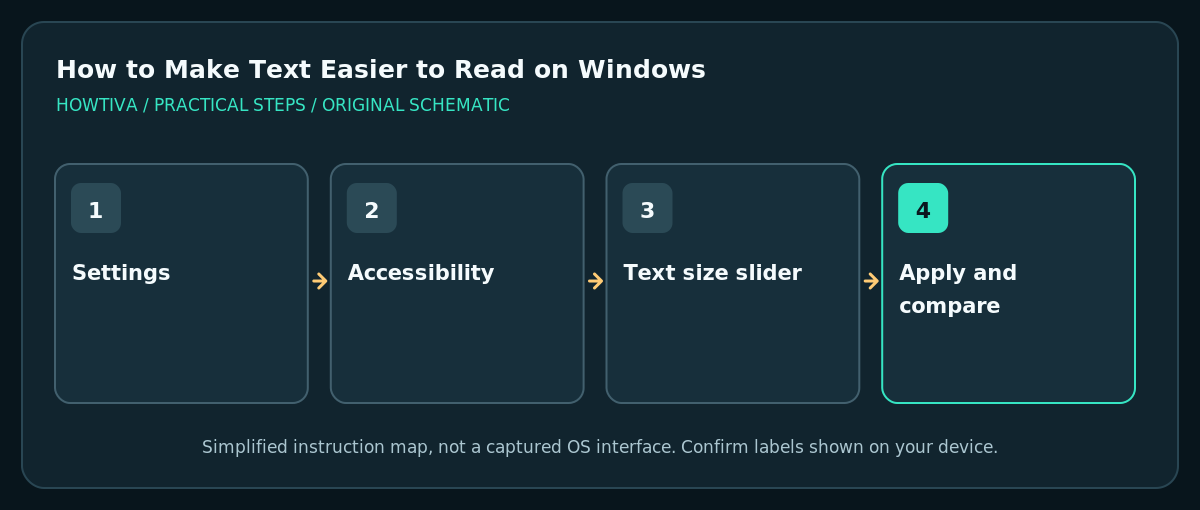
On Windows 11, open Settings > Accessibility > Text size, increase the slider and select Apply. For larger buttons and interface elements too, use Settings > System > Display > Scale.
Quick answer: On Windows 11, open Settings > Accessibility > Text size, increase the slider and select Apply. For larger buttons and interface elements too, use Settings > System > Display > Scale. If letters are difficult to distinguish, also consider Contrast themes, Magnifier and display brightness rather than enlarging text alone.
Readability problems can come from small fonts, tiny menus, low contrast or a display running at a poorly matched scale. Windows offers separate controls so that you can change one factor at a time. Microsoft advises increasing text size for text alone, while changing Display Scale enlarges more of the interface. Avoid custom scaling until you have tested recommended presets.
Make text larger without resizing every window
- Save your open work, particularly if you plan to change broader display settings. Then choose Start > Settings > Accessibility > Text size.
- Move the Text size slider to the right while watching the preview. Use a moderate change first; the best setting depends on monitor size, viewing distance and personal preference.
- Select Apply. Open a normal browser, File Explorer and the app where reading is difficult to check the result. Some apps have their own font settings or may not follow every Windows text-size preference.
- If only a website is difficult to read, use its browser’s zoom instead of enlarging Windows text everywhere. Browser zoom typically affects the page rather than every system control.
- To undo the change, revisit Text size, reduce the slider and apply again. Do not assume that changing resolution is necessary to restore small text.
Make icons, menus and other items larger
Open Settings > System > Display and review Scale under Scale & layout. Choose a supported recommended scaling value or another offered preset rather than entering a custom percentage first. Display Scale can enlarge UI elements and affect window layout more broadly than Text size. On multiple monitors, Windows may have different scale choices for different screens; select the intended monitor before making a change.
If a program becomes clipped after a scaling change, try a recommended preset and restart the affected program. Legacy apps may require sign-out/in or application-specific display compatibility steps, but arbitrary registry edits are not a safe first fix.
Improve clarity with contrast and display settings
If size is acceptable but letters merge into the background, inspect Settings > Accessibility > Contrast themes and preview an appropriate option. Contrast themes can change many interface colors; test your actual applications before keeping a strong theme. Microsoft also documents visual accessibility choices such as Magnifier. Magnifier is useful for temporary enlargement of a small region without changing the normal display size.
A dim display in a bright room can be difficult to read, but increasing brightness without considering glare may not help. Position the monitor comfortably and use display controls to match ambient lighting. Font smoothing or sharpness options vary by monitor and graphics software; do not claim that one universal setting will correct every screen.
Choose the right control for the problem
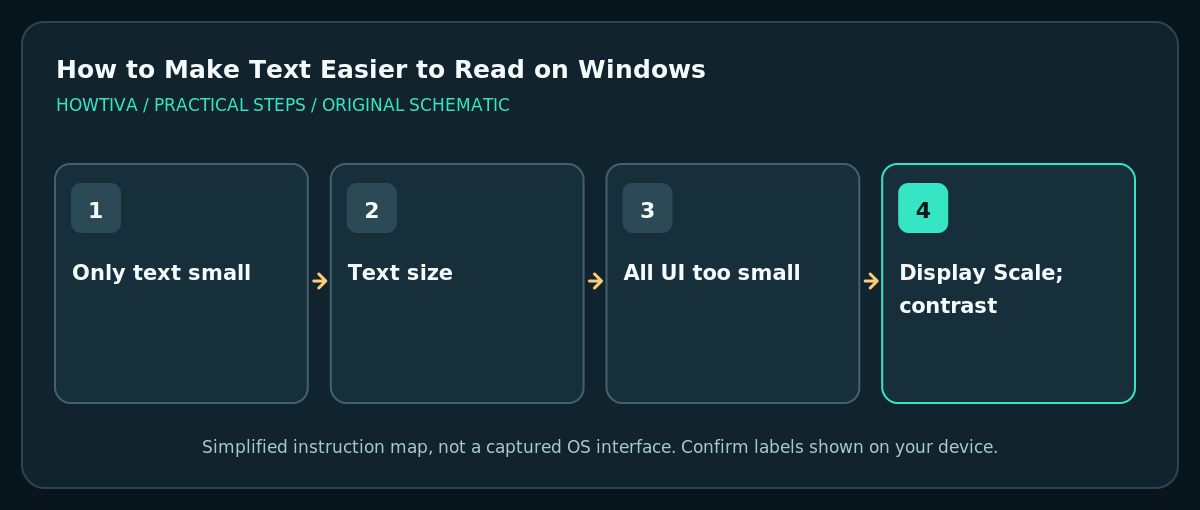
- Text size: labels and supported system text are too small, while buttons are otherwise comfortable.
- Display Scale: icons, menus, buttons and multiple UI elements are too small together.
- Magnifier: occasional small details need temporary enlargement.
- Contrast themes: text/background separation is the main difficulty.
- Application zoom: just one website, document or program needs a larger view.
Troubleshooting
Text did not change in one application: it may use an independent rendering engine or font controls. Check that app’s own accessibility and zoom preferences.
Windows controls no longer fit the screen: reduce Display Scale one step or use the recommended option. Restart the affected program if required.
One monitor looks different: review the display chosen at the top of Settings > System > Display. Scaling and resolution support can differ between external monitors.
Settings are restricted: on a managed PC, your organization may enforce some presentation or policy settings. Seek support rather than altering system policies.
Frequently asked questions
Does Text size change screen resolution?
No. It changes supported text sizing. Screen resolution is a separate Display setting.
Is Windows Magnifier always on?
No. You can enable it when needed. Its keyboard controls and behavior are documented by Microsoft.
Should I install a custom font package to improve readability?
Not before trying Windows’ built-in accessibility settings. Third-party font and “tweak” installers add unnecessary risk for a basic size or contrast issue.
Sources & Further Reading
- Microsoft — Make Windows easier to see — Windows 11 text size, display scaling, visual accessibility.
- Microsoft — Make input devices easier to use — Accessibility settings and pointer/text cursor are separate controls.
Use the checklists as you go, and confirm the result before moving on to a more involved repair.