How to Review Devices Signed In to Your Apple Account
Open Settings or System Settings, tap your name and inspect device entries; account.apple.com also provides a Devices page.
Quick answer: On an iPhone or iPad, open Settings → [your name], then scroll to the device list and select a device to view its details. On a Mac, open System Settings → [your name]. You can also sign in at account.apple.com → Devices. Remove a device you no longer own or recognize only after checking that you retain another trusted way to access your Apple Account.
Apple’s device list shows devices signed in to your Apple Account and details that may include model, serial number, OS version and whether the device is trusted for verification codes. The list is not the same as the media-purchase-associated devices list, which has separate rules and purposes.
Review devices from an iPhone or iPad
- On an Apple device already signed in to the account, open Settings.
- Tap your name at the top. Scroll down below account settings to the list of devices.
- Select a device to view its information. Review the model and any details available; Apple says displayed fields differ by device type.
- If you recognize the device and still use it, generally leave it listed. A trusted device may receive Apple Account verification codes.
- If the device is no longer yours, lost or genuinely unfamiliar, choose Remove from Account, read the warning and confirm only when appropriate.
- Return to the list and check what remains. If you are responding to unauthorized activity, change the Apple Account password and review trusted phone numbers and account security.
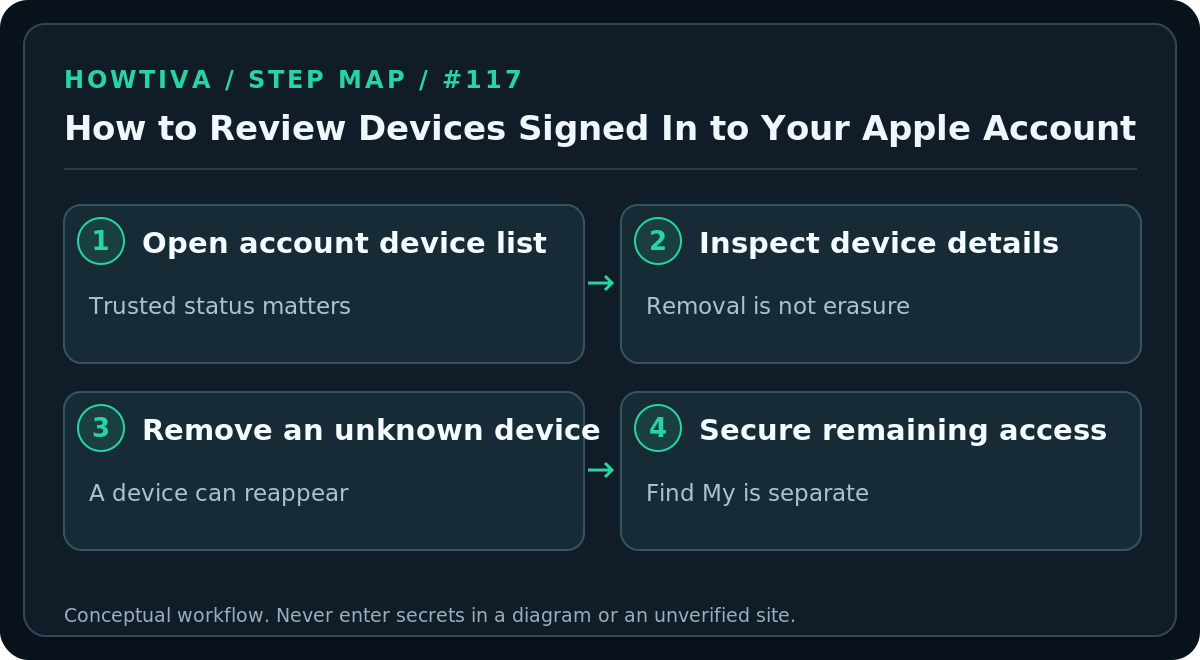
Removing a device from the list cuts off its access to iCloud, Find My and other Apple services and prevents it from displaying two-factor verification codes. It does not remove data that was already copied to the device, and it is not a substitute for Find My actions if the device is lost.
Review devices on a Mac or the web
On a Mac, choose Apple menu → System Settings → [your name] and scroll down to device entries. Select one to inspect details or use Remove from Account if appropriate. For Windows, Android or any computer with a browser, enter https://account.apple.com/ yourself, sign in, choose Devices, and select a device. Apple may ask you to authenticate or select View Details before showing the full list.
If you use iCloud for Windows, Apple also documents an Account Details view that shows devices associated with the signed-in Apple Account. The precise information available can differ by device type.
What if a removed device comes back?
Apple warns that a device still signed in to its Apple Account may reappear after it connects to the internet. When you own and can safely access the device, sign out of iCloud and the relevant Apple services on that device—or erase it as part of a proper transfer or disposal process—to keep it permanently removed. Do not erase a device without first checking backups and ownership.
A device on the list might be an older phone in a drawer, a family member’s device you authorized, or a computer you signed into previously. Compare serial numbers and usage history where possible before deciding it is an intruder. Never ask someone else to relay verification codes to help you check a device.
If your iPhone, iPad or Mac is lost
Use Find My through your own authorized access to locate the device, enable Lost Mode when applicable, or decide whether remote erasure is necessary. Remote removal from an account list and Find My actions solve different problems. Follow Apple’s current device-specific lost-device guidance before making irreversible choices; cellular service suspension and payment-card protections may also matter.
If you fear account compromise, use a device and network you trust to change the password and verify the trusted phone numbers. Keep at least one functioning trusted device or recovery option available, especially if you are about to remove multiple entries.
Troubleshooting
- No device list appears: Confirm you are signed in to the correct Apple Account. On the website, authenticate or use View Details where shown.
- Device name is unfamiliar but model looks right: The device might have been renamed. Compare identifying details rather than relying only on its nickname.
- A removed device reappears: It may still be signed into Apple services; fully sign out or erase the device through the supported procedure if you own it.
- You need to manage media purchase associations: Use Apple’s separate instructions for devices associated with Apple Music and Apple TV purchases; the account sign-in list is not identical.
- The device is owned by an employer or school: Managed Apple Accounts and mobile device management may restrict options. Contact the authorized administrator.
FAQ
Can I see whether a device is trusted? Apple says the detailed view can indicate whether a device is trusted for verification codes; availability depends on the device type.
Will Remove from Account factory-reset it? No. It removes Apple Account association/access as described; wiping is a separate operation.
Should I remove an old trusted phone before setting up a new one? First ensure the replacement has successfully signed in and your recovery methods work, to reduce the chance of lockout.
Sources & Further Reading
- Apple Account device list — iOS, macOS and account.apple.com device list and removal; reappearance caveat.
- Apple media purchase associated devices — different media device association inventory.
- Apple recovery key — trusted device and recovery key risk.
Use the checklists as you go, and confirm the result before moving on to a more involved repair.