How to Secure a Lost Phone Remotely
If you lose an iPhone, use Find My on another trusted Apple device or open icloud.com/find, select the missing phone and enable Lost Mode.
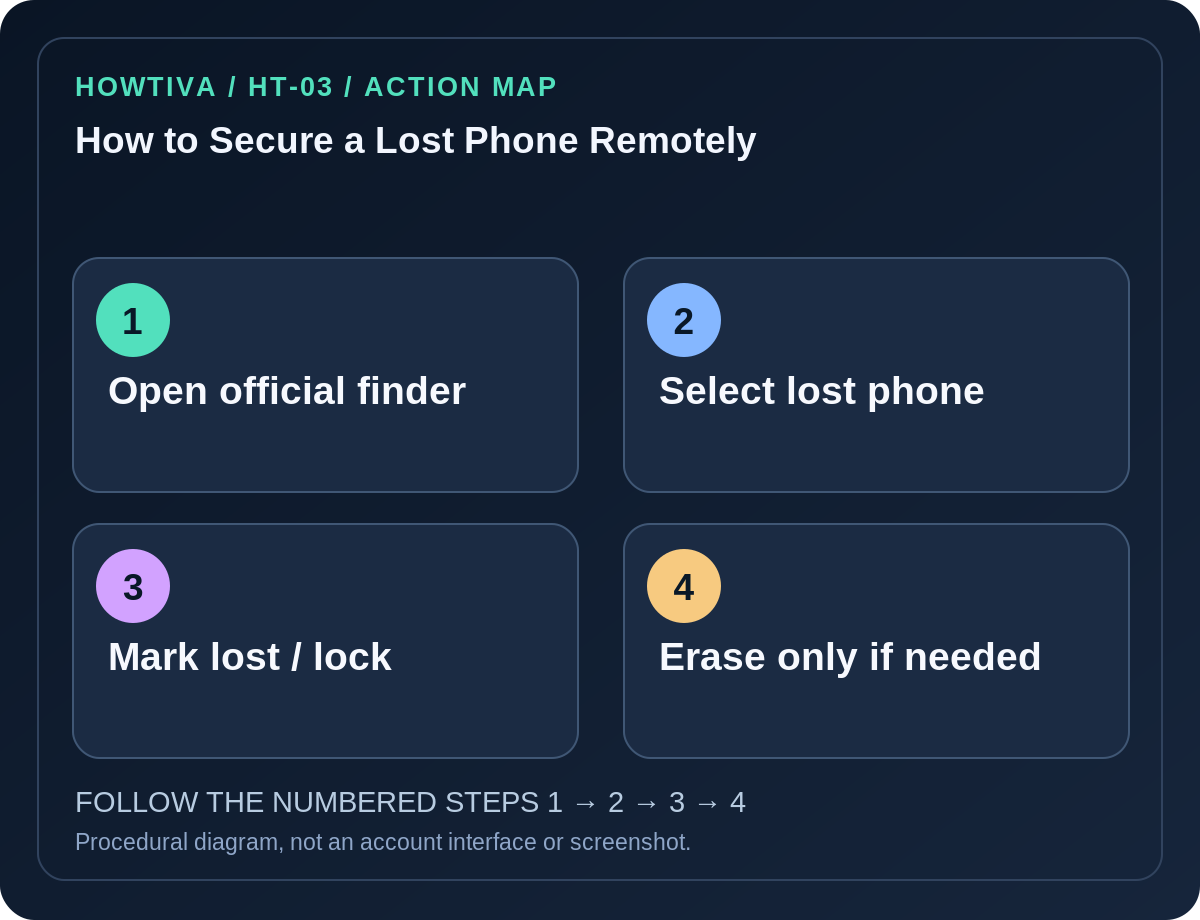
Quick answer: If you lose an iPhone, use Find My on another trusted Apple device or open icloud.com/find, select the missing phone and enable Lost Mode. If you lose an Android phone, open Google’s Find Hub from another device or the official web service, select the phone and choose Mark as lost. These services must have been set up on the missing device, and remote commands may wait for connectivity. Do not remotely erase as your first action unless immediate data protection outweighs any chance of recovery.
A missing phone is both a physical loss and a security incident because it may contain messages, authenticator apps, photos, payment access and signed-in accounts. Act from a trusted second device. Never approach someone suspected of theft just because a map pin appears.
First five minutes: contain the risk
- Use another device to call your missing phone or check whether it was left in a safe location. If theft is likely, prioritize personal safety over retrieving it.
- Open the official service by typing the address yourself, not from a text claiming the phone has been located.
- Choose the correct device from your account’s list and record its last-known status or location for a possible report.
- Use Mark as lost or Lost Mode to lock it and show a safe contact method if supported. Avoid displaying your home address or sensitive personal data in the lost-screen message.
- Contact your mobile carrier to suspend or protect the SIM/eSIM and discuss fraudulent number transfers. Notify relevant financial services if payment tokens or exposed credentials may be at risk.
iPhone: use Find My and Lost Mode
- Go to
icloud.com/findor the Find My app on a trusted Apple device. Apple says you can use the Find Devices area on the web without a two-factor code in certain lost-device scenarios; follow Apple’s actual sign-in prompts. - Select All Devices and choose the lost iPhone or iPad. You may be able to play a sound or view available location information.
- Select Mark as Lost / Lost Mode and follow the on-screen instructions. Apple says Lost Mode locks the phone using its passcode and suspends Apple Pay payment cards and passes.
- If the device is offline, an action may be delayed until the phone connects. Do not interpret a pending action as proof that the phone is already locked.
- If you decide it is permanently lost, Apple offers Erase This Device. Erase is irreversible; Apple specifically advises not removing the phone from Find My or your Apple Account, since doing so can disable Activation Lock and help a thief resell it. Insurance claims may require keeping it listed.
Prerequisite: If Find My was not enabled before the phone was lost, Apple says remote Lost Mode and remote erase cannot be initiated through Find My.
Android: use Find Hub
- On a second phone, use the Google Find Hub app (a guest sign-in mode may be offered) or open the official Find Hub website.
- Sign in to the Google Account connected to the missing Android phone and select the device from the list.
- Use Play sound to search nearby. For security, choose Mark as lost; this locks the device using its existing PIN, pattern or password and can show a contact message.
- Understand that finding and locking normally rely on suitable setup, device power, account association and connectivity. The service may show a last known location instead of a live position.
- If recovery is not realistic and the data risk is severe, open the device’s settings in Find Hub and consider Factory reset. Google’s warning is important: the erase can permanently remove device data, may not remove everything on an SD card, and makes the phone unavailable in Find Hub afterward.
Samsung alternative: Eligible Galaxy phones may also support SmartThings Find / Find My Mobile, if a Samsung Account and the necessary device settings were enabled. Features and wording vary by model and market; use Samsung’s own instructions rather than assuming every Galaxy can be managed remotely.
Choose locking before erasing, when possible
Remote erase protects local information but can also destroy unsynced photos, recordings, locally stored authenticator secrets and files. Before choosing it, consider whether you have recent backups and accessible account recovery methods. You may lose the ability to locate the device after Android erasure. Apple’s Find My behavior differs: leave Activation Lock in place by retaining the device in the account.
After securing the device
Review primary account sign-in activity, carrier access, payment cards, banking accounts and any authenticator recovery material. Change exposed credentials from a clean device. Report the device to the carrier and, where appropriate, law enforcement. Preserve device serial/IMEI and proof of purchase in a safe place, but do not publish them. Verify that important apps can be restored safely on a replacement phone before wiping backups.
Frequent problems
- The phone isn’t listed: Find My/Find Hub might not have been enabled, the wrong account might be selected, or the phone may be unsupported. Use the carrier and account-security fallbacks.
- Device is offline: Commands may remain pending; location often reflects an older observation. Check status later without assuming current coordinates.
- The phone’s last location looks like a private address: Do not confront occupants. Provide details to local authorities.
- Someone texts asking for an Apple verification code to ‘release’ the phone: Ignore it. Apple warns that such requests are scams; never remove Activation Lock for a stranger.
Frequently asked questions
Can I lock it with only a phone number? Not through the Google or Apple account services described here. You generally need the associated account and prior setup.
Will a factory reset also erase cloud backups? The official remote erase targets the device; keep your independent cloud backups protected, but check provider-specific behavior before acting.
Should I sign the stolen iPhone out of my Apple Account immediately? Apple advises keeping a lost iPhone in Find My to preserve Activation Lock, even after remote erase. Secure the account and follow Apple’s claim guidance.
Sources & Further Reading
- How to find your lost iPhone or iPad — Apple.
- Find, secure, or erase a lost Android device — Google Android.
- SmartThings Find help — Samsung.
Use the checklists as you go, and confirm the result before moving on to a more involved repair.