How to Sign Out of Google on Other Devices
Go to google.com/devices, select the device or session and choose Sign out; review every session with that device name.
Quick answer: Visit google.com/devices directly, sign in to your Google Account, and review Your devices / Manage all devices. Select a device or session you no longer use and choose Sign out. If several sessions have the same device name, review and sign out of each unwanted session. If you suspect someone else has access, also change your password and review account security.
Google may show a device or an individual session from a browser or app. A listed device is not always evidence of an ongoing live connection; recently signed-out sessions can still appear in history. Decide what to remove by examining its details, not just its name.
Sign out remotely from another phone, computer or browser
- On a trusted device, go straight to https://google.com/devices or to myaccount.google.com.
- Open Security & sign-in. Under Your devices, select Manage all devices if you started from the account dashboard.
- Read the list of recently used devices and sessions. Select an entry to see available details such as type and last activity.
- Identify the entry for the phone or computer you sold, lost, borrowed or no longer recognize. Check the displayed account before taking action if you have multiple Google accounts.
- Select Sign out and confirm if prompted. For entries with the same device name, inspect every session and sign out of all relevant sessions to revoke Google sign-in access from that device.
- Refresh the page and look for a Signed out indication. If it still appears in the list, remember Google shows recently used devices as well as current sessions; the history entry may not vanish immediately.
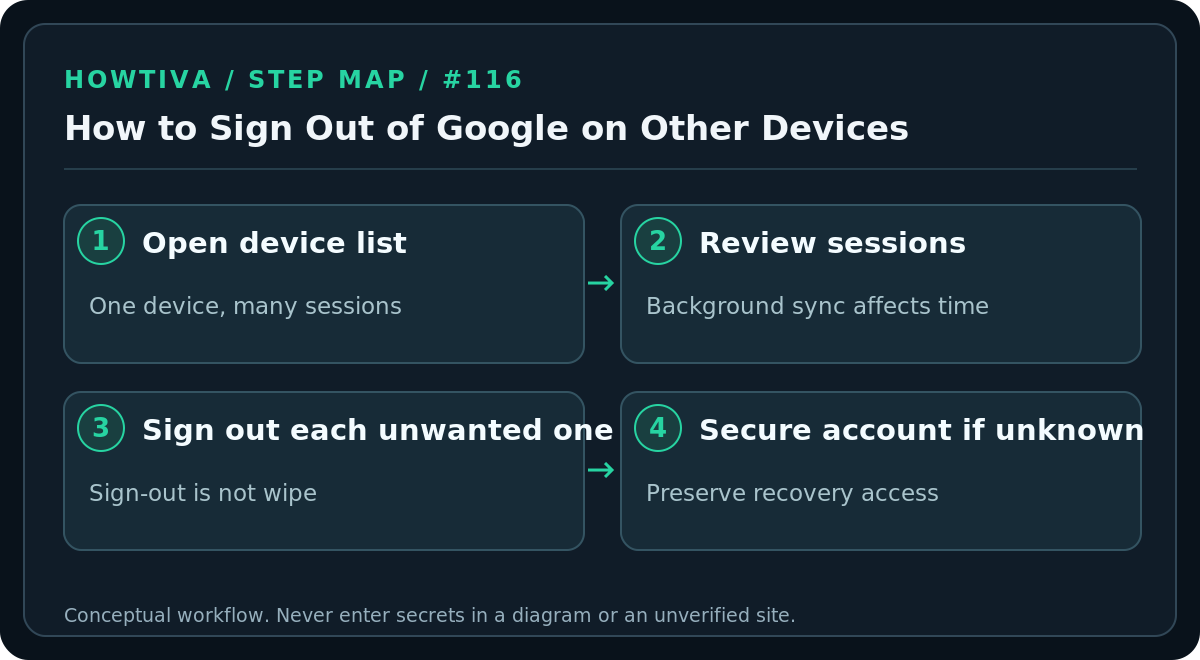
If you used a public or shared computer, signing out is important even if the browser was closed. If you can access the device safely, also remove saved passwords and local profiles using the relevant browser instructions. A remote sign-out is not the same as wiping a stolen phone or deleting locally downloaded copies of your files.
Understand sessions, locations and activity times
Google explains that one physical device can create more than one session: a browser sign-in, an app, a new verification prompt or an incognito session may produce separate records. This is why a familiar device name can appear several times. Signing out of only one entry may leave others active.
The last activity time is based on communication between Google’s systems and a session. Background synchronization can update it even when you have not touched the device. Location is approximate and can differ due to travel or network routing. A surprising time or nearby city is a prompt to investigate, not conclusive proof of an intruder.
If you see an unknown device
Open Google’s Security Checkup or follow the unfamiliar-activity guidance in your Google Account. Review whether any new recovery phone or email was added, check third-party connections and Google security alerts, and change your password from a trusted device if you believe the account was accessed without permission. Enable or review 2-Step Verification and passkeys. Do not approve an unexpected sign-in request or share a code with someone claiming to be Google Support.
If Google sends a “Did you just sign in?” prompt for activity you did not initiate, Google’s official instructions say to indicate that it was not you and follow the offered security steps. For a work or school Google Workspace account, your organization’s admin may be able to assist with managed sessions or devices; contact them through the known helpdesk.
A missing or stolen phone needs additional steps
Signing out limits access to Google services, but it does not retrieve the device, stop all offline use of downloaded data, or necessarily block access to unrelated apps. Use the device maker’s official lost-device service where available; consider carrier and payment-card protections, and follow applicable local reporting procedures. Review your saved passwords if the lost device was unlocked or poorly protected.
Before removing your only trusted device or security key, ensure you have another reliable sign-in and recovery method. Otherwise you may lock yourself out while trying to secure an account.
Troubleshooting
- The same model is listed multiple times: It may represent several sessions. Expand and sign out of each session whose access you want to revoke.
- An entry remains after sign-out: Look for its status. Historical signed-out devices can remain in the list for a period; don’t interpret visibility alone as failure.
- Your browser session disappears too: You may have selected the currently active session. Sign back in securely, then re-check the other entries.
- The account has several Gmail addresses: Switch to the correct Google account before deciding that a device is unfamiliar.
- A user asks you to remotely sign out their account: Do not request their password or codes. Have them perform the steps on their own trusted device.
FAQ
Does remote Google sign-out erase photos or files already downloaded? No. It controls account access, not local erasure of every file.
Is signing out enough after a suspected takeover? Not always. Change credentials and review recovery methods, connected apps and security alerts as well.
Can I do this without my lost phone? Yes, if you can sign in through a different trusted device and satisfy Google’s authentication requirements.
Sources & Further Reading
- Google devices and sessions — sign out on Manage all devices; multiple sessions; activity time interpretation.
- Google unfamiliar account activity — security prompts and immediate response.
- Google account information on devices — remote sign-out of devices you no longer possess.
Use the checklists as you go, and confirm the result before moving on to a more involved repair.