How to Split Your Screen on Windows 11
Arrange two or more windows on Windows 11 using Snap Assist and layouts. Learn shortcuts, resizing and what to check when Snap does not work.
Quick answer: On Windows 11, open two windows, select the first, and press Windows + Left Arrow. It snaps to the left half of the screen. Choose the second window from Snap Assist to fill the right side. You can also hover over a window’s maximize button or press Windows + Z to pick a Snap layout.
Windows calls this feature Snap. It works best with standard resizable app windows and may look different on smaller laptop screens, ultrawide monitors, or displays with different scaling. The precise set of layouts depends on available screen space; some apps have minimum width requirements and may not fit a narrow column.
Split the screen into two halves using the keyboard
- Open both apps you want—for example, a browser with instructions and a document you are editing.
- Click the first app’s title bar or content so that its window is active.
- Press Windows logo key + Left Arrow. The window should resize and move to the left side.
- When Snap Assist appears, select the second app from the available thumbnails to place it on the right. If no suggestions appear, click the other window and press Windows + Right Arrow.
- Grab the vertical divider between the snapped windows and drag it to adjust the proportion, within the limits each app supports.
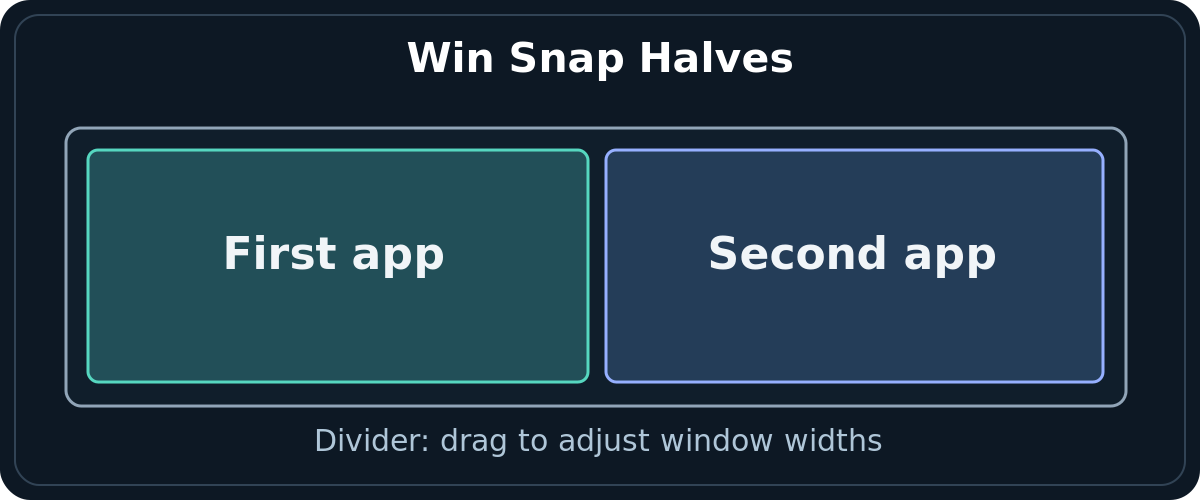
If you are writing while reading a PDF, put the PDF on one side and the notes app on the other. You do not have to keep switching with Alt + Tab. If a window refuses to become exactly half the screen, its minimum size or an unusual display scaling arrangement may be the reason.
Split Windows 11 with the mouse
- Place the mouse pointer on the first window’s title bar.
- Drag the window to the left or right edge until Windows shows a translucent docking preview.
- Release the mouse to snap that window into place.
- Choose another app from Snap Assist, or drag a second app toward the opposite edge.
Use this method when you cannot remember shortcuts. It also lets you snap a window to a corner for a quarter-screen arrangement on a display with enough space. On some updates, dragging a window toward the top of the screen offers a Snap bar with suggested layouts rather than simply maximizing the window; follow the preview you see.
Choose a two-, three-, or four-window Snap layout
Hover over the maximize/restore button in an ordinary resizable window, or press Windows + Z with that window focused. A layout panel should appear if Snap layouts are enabled. Choose a layout that fits your task, then select the area where the current window belongs. Windows can suggest your other open apps for the remaining positions.

For example, a wide main column plus a narrower notes column may work better than equal halves on a large monitor. On a small laptop, only some layout patterns may appear. A three-column arrangement is not a guarantee on every screen, and a phone-sized narrow app may refuse to become as small as a layout slot.
Tip: Use Windows + Left/Right Arrow for quick halves. Use Windows + Z when you want deliberate control over more complex layouts. Both are built-in Windows 11 features, so no third-party window manager is required for ordinary split-screen work.
Adjust the divider and switch between window groups
Move the pointer to the boundary between snapped windows until it changes to a resize indicator, then drag the dividing line. Windows can resize neighboring snapped windows together to use the available space. If one window stops shrinking, it may have reached the minimum size defined by the app. Try a simpler two-window arrangement instead of insisting on three tiny panes.
A set of snapped apps may appear as a Snap group when you hover over a related taskbar icon or use Task View, depending on your Windows settings. This can help you restore a work arrangement after opening another application. Snap groups are window arrangements; they are not a substitute for saving your work inside each app.
Turn on Snap if none of the shortcuts work
- Open Start → Settings → System → Multitasking.
- Find Snap windows and switch it On.
- Expand the Snap windows section to review options such as showing suggestions after snapping a window, showing layouts on maximize hover, and showing the layout bar when dragging to the top.
- Return to an ordinary resizable app and try Windows + Left Arrow or Windows + Z again.
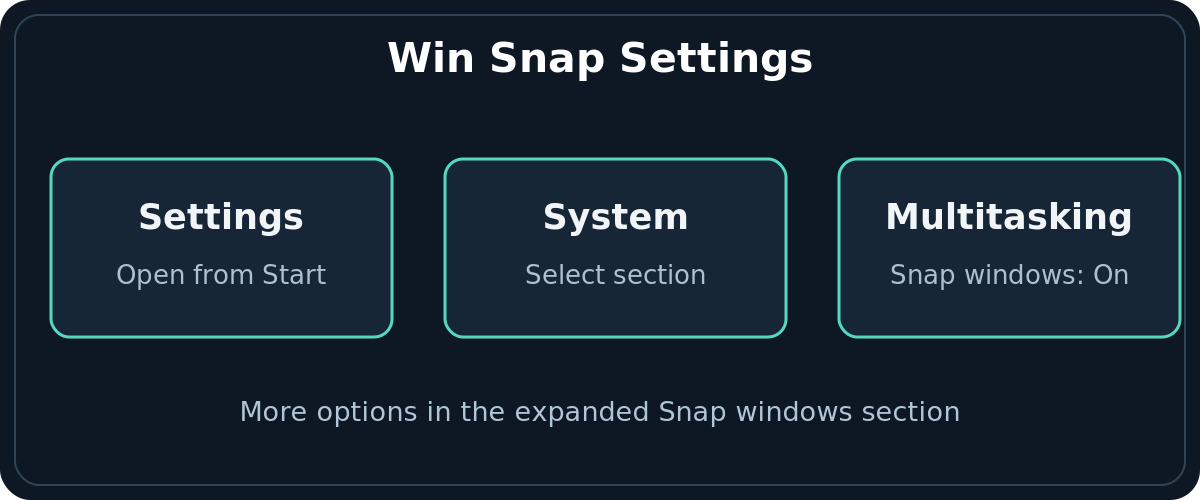
Some organizations manage these settings centrally. If the toggle is unavailable or repeatedly reverts, check with the device administrator rather than installing an unknown layout utility. Also check whether the application is already in exclusive full-screen mode, where normal desktop snapping may not behave as expected.
Troubleshoot missing layouts and windows that will not snap
Windows + Z does nothing
Make sure a normal app window is selected and Snap windows is enabled under Settings → System → Multitasking. Some apps do not expose standard maximize controls, and managed environments may disable the feature. Try File Explorer or a browser window to see whether Snap works elsewhere.
The maximize-button layout panel is missing
Windows supports individual options for showing Snap layouts on hover. Expand Snap windows in Multitasking and enable the option for the maximize button if you want that behavior. You can still use keyboard arrows or drag to the edge when this hover shortcut is disabled.
There is no second app in Snap Assist
Open a second window first. If it still is not suggested, focus it manually and snap it to the other side with Windows + Right Arrow or by dragging. Check the setting that controls whether Windows shows what can snap next to the first window.
The windows overlap or the resize divider will not move
Check that both apps are snapped, not merely placed near each other. Some programs enforce a minimum width, particularly on small screens or with enlarged text and display scaling. Restore one window and try equal halves rather than a narrow multi-column preset.
The layout looks different on my second monitor
Microsoft says the available layouts depend on display size. A large external monitor may offer more choices than a laptop screen. Focus a window on the intended display, snap it there, and verify which layout patterns that monitor actually supports.
A game or video is running full screen
Exclusive full-screen applications may not behave like standard desktop windows. Switch to a resizable windowed mode if the app supports it, then use Snap. Do not assume the Windows settings toggle can force every game or protected player into a split layout.
Practical split-screen ideas
For research, put your source document on one side and your draft on the other. For troubleshooting, keep a support article next to Settings. For spreadsheet work, give the table a larger slot and notes a smaller one where the screen permits it. On a narrow laptop, choose simple halves over four equally small windows to keep controls usable.
Snap saves clicks, but it does not automatically synchronize text across apps, prevent distractions, or save unsaved documents. Check your taskbar and task view after rearranging windows, and use each app’s normal save command when done.
Frequently asked questions
What is the shortcut to split screen on Windows 11?
Use Windows + Left Arrow for the left half or Windows + Right Arrow for the right half. Press Windows + Z to choose a Snap layout.
Can Windows 11 show three or four apps at once?
Often, yes, through Snap layouts, depending on your display’s size and each app’s minimum window dimensions. Not every layout is available on every screen.
How do I turn off split screen?
Maximize or restore the snapped apps as normal, or turn Snap windows off in Settings → System → Multitasking if you want to disable Windows snapping more generally.
Sources and further reading
Use the checklists as you go, and confirm the result before moving on to a more involved repair.