How to Stop Pop-Ups in Chrome
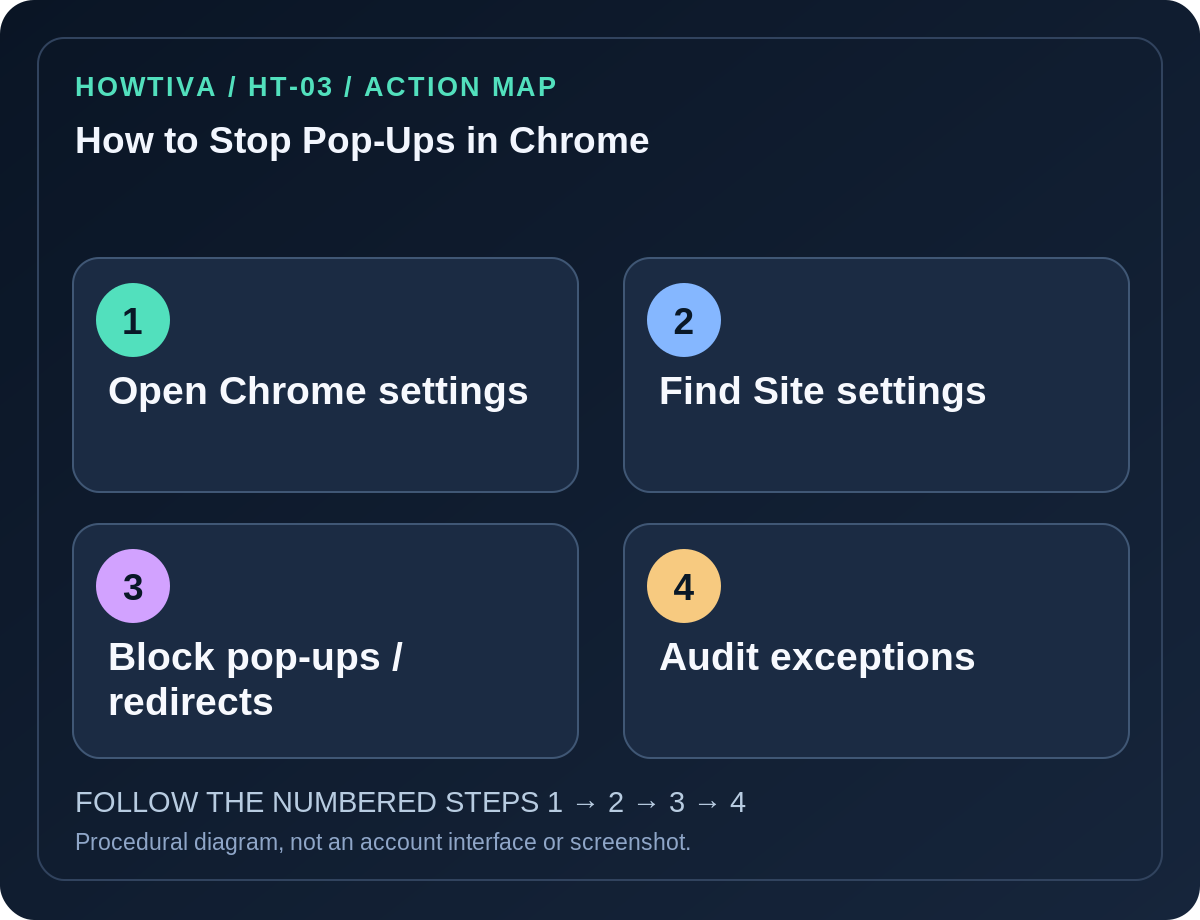
In Chrome on a computer, open Settings → Privacy and security → Site settings → Pop-ups and redirects and select the option that doesn't allow sites to send pop-ups or use redirects.
Quick answer: In Chrome on a computer, open Settings → Privacy and security → Site settings → Pop-ups and redirects and select the option that doesn’t allow sites to send pop-ups or use redirects. Chrome blocks many unwanted pop-ups by default. On Android, open Chrome → Settings → Site settings → Pop-ups and redirects and turn the permission off or select the blocking setting available on your version.
Pop-up windows, browser notifications, page overlays and unsolicited new tabs are not all the same problem. The Pop-ups and redirects control handles one category. If the annoyance is a desktop alert from a website, use Notifications instead. If the browser’s homepage or search provider is repeatedly hijacked, investigate extensions and unwanted software.
Chrome on Windows, macOS or Linux: block pop-ups
- Open Chrome in the profile where pop-ups appear.
- Select the three-dot More menu → Settings.
- Open Privacy and security → Site settings.
- Find and open Pop-ups and redirects. Google documents this as the default control for automatic pop-up windows.
- Choose the blocking default: Don’t allow sites to send pop-ups or use redirects, or the equivalent wording in your version.
- Review Allowed to send pop-ups and use redirects. Remove or block old site exceptions you don’t recognize.
- Return to the website that triggered the issue; test only with a site you trust. Do not open pop-ups that request a credit card or pretend to be antivirus software.
Android: turn off pop-ups and redirects
In Chrome on Android, select More → Settings → Site settings → Pop-ups and redirects. Switch the setting off or choose the blocking option. The Android menu is not the same as desktop Chrome’s Privacy and security page, and phone manufacturers may change navigation labels around system-level notifications.
On iPhone and iPad, Chrome’s controls may differ from Android and desktop. Consult the version-specific Chrome Help page rather than copying Android’s exact buttons; if you are using Safari, follow Safari’s separate pop-up blocking instructions.
Allow only the pop-up you actually need
A trusted bank, university or ticketing site may need a new window for a login or document. When Chrome blocks it, a blocked-pop-up indicator can appear in the address bar. On a site you have independently verified, you may open a single blocked link or allow pop-ups for that particular domain. Do not disable the blocker across all sites just to use one service.
After using the permitted workflow, revisit Pop-ups and redirects and remove a temporary allow-list entry if it is no longer needed. A fake pop-up can imitate an account login; check the full domain before entering a password or approving a payment.
If pop-ups continue despite the setting
Website notifications: Review Settings → Privacy and security → Site settings → Notifications. A site with existing notification permission can display alerts independently of the pop-up blocker.
In-page overlays: A cookie banner, newsletter signup or embedded ad shown inside a page may not be classified as a separate browser pop-up window. Chrome’s pop-up control does not promise to hide all page content.
Redirect loops and adware: Google lists repeated new tabs, home-page changes, unwanted toolbars and search-provider hijacking as symptoms that can involve unwanted software. Update Chrome, audit extensions and inspect unexpected installed applications before attempting a broad browser reset. Never download a ‘repair utility’ advertised by the suspicious pop-up.
Troubleshooting
- The setting is already blocking: Check allowed exceptions, notification permissions, a second Chrome profile and extensions.
- A legitimate site does not complete checkout: Permit pop-ups only for that verified site temporarily, then remove the exception.
- The control is managed by your organization: Contact the authorized administrator; avoid bypass instructions.
- A warning claims your files are infected: Closing the tab is usually safer than following its buttons. Use your actual operating-system security interface for any scan.
Frequently asked questions
Does blocking pop-ups block all ads? No. Inline advertising and some overlays remain possible.
Does this disable browser notifications? No; they have their own permission category.
Will deleting Chrome browsing history fix a malicious extension? Not by itself. Review extensions and unwanted programs separately.
Sources & Further Reading
- Block or allow pop-ups in Chrome — Google Chrome Help.
- Block or allow pop-ups in Chrome — Android — Google Chrome Help.
- Use notifications to get alerts — Google Chrome Help.
- Remove unwanted ads, pop-ups & malware — Google Chrome Help.
Use the checklists as you go, and confirm the result before moving on to a more involved repair.