How to Stop Pop-Ups in Safari
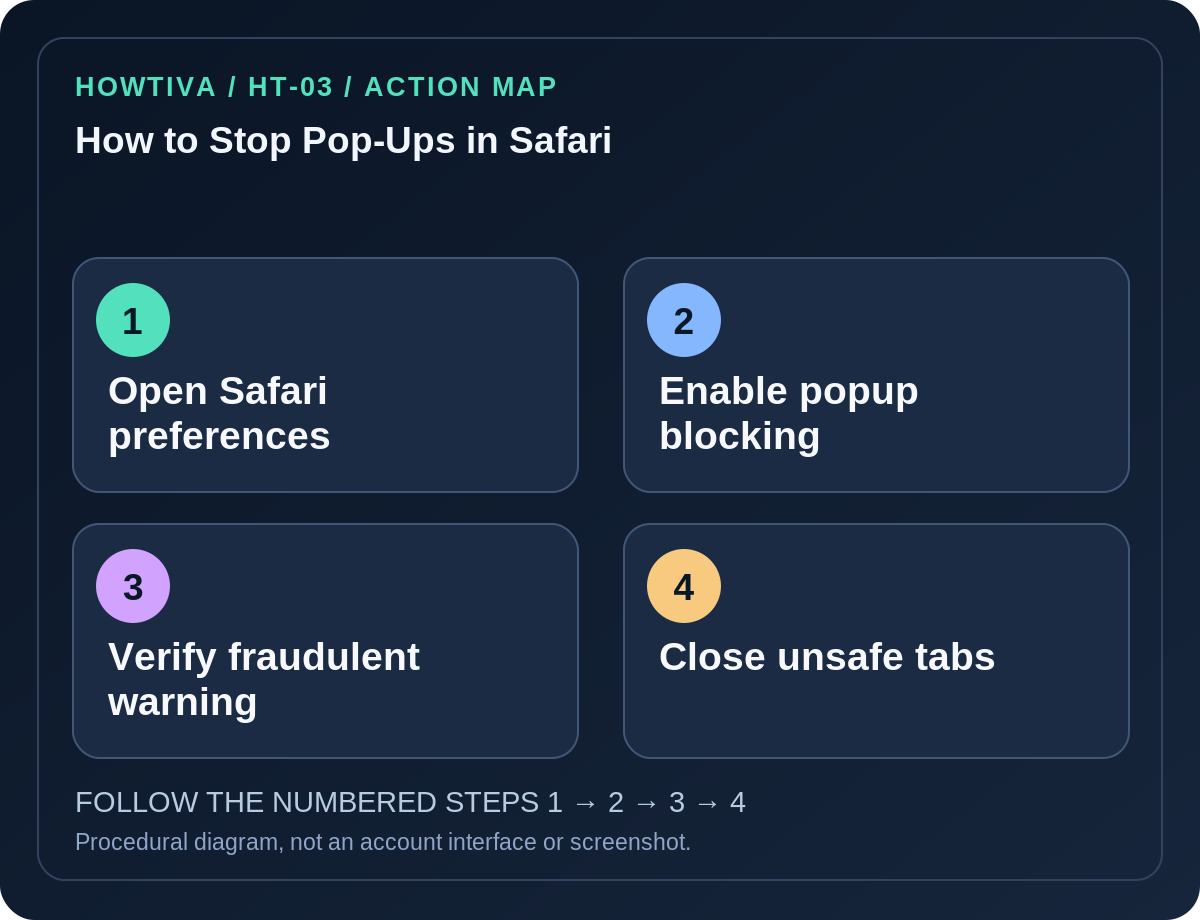
On a current iPhone or iPad, go to Settings → Apps → Safari and switch Block Pop-ups on. Also keep Fraudulent Website Warning enabled.
Quick answer: On a current iPhone or iPad, go to Settings → Apps → Safari and switch Block Pop-ups on. Also keep Fraudulent Website Warning enabled. On Mac, open Safari → Settings → Websites → Pop-up Windows and configure the default policy and any website-specific exceptions. Apple’s January 2026 guidance confirms these paths for supported versions.
Pop-ups can appear as new windows, tabs or overlays. Some simulate Apple security warnings, prize announcements or software-update prompts to persuade you to provide payment information. A web page’s warning is not proof that your Apple device is infected, and its call-back number is not a trustworthy support contact.
iPhone or iPad: turn on the Safari pop-up blocker
- Close or leave the suspicious page without interacting with its fake security buttons. If the address bar isn’t visible, tap the top of the screen or switch tabs.
- Open the Settings app on your device.
- Select Apps → Safari on current iOS and iPadOS releases. Older supported versions may show Safari directly in Settings.
- Locate Block Pop-ups and turn it on.
- Keep Fraudulent Website Warning enabled unless you have a specific, informed reason to change it.
- Return to Safari and load a known, trusted page. Do not test the blocker by deliberately revisiting a dangerous site.
Mac: block all pop-up windows or use exceptions
- Open the Safari app on the Mac, then choose Safari → Settings from the menu bar (older releases may label this Preferences).
- Choose the Websites tab and select Pop-up Windows in the sidebar, if present.
- For When visiting other websites, choose Block or Block and Notify, depending on the choices available. This provides a baseline for new sites.
- If an essential trusted website needs pop-ups, use the per-site control shown in the Websites tab rather than permitting them everywhere.
- Check the Security tab to enable the fraudulent website warning.
- Revisit the settings afterward to remove exceptions you no longer need. The exact options can vary with macOS and Safari versions.
What to do when a fake virus alert traps a tab
Do not press the ad’s Close, Call, Download, Allow or Scan buttons if the page looks fraudulent. Some ads draw a fake ‘X’ on the website. On iPhone or iPad, switch to another tab or use Safari’s own tab controls to close the suspicious page. On Mac, quit Safari and reopen it while holding Shift to prevent automatically reopening the previous session when needed; this is an Apple-documented technique.
Update iOS, iPadOS or macOS from the official system settings. If you installed an unknown application due to the warning, inspect the installed app and Safari extensions; seek trusted security assistance if necessary. The browser’s built-in blocker cannot remove a separately installed adware program.
Why the blocker seems ineffective
- Inline overlays: A page can place a modal dialog inside its own content. That may not be blocked as a pop-up window.
- Website notifications: On Mac, a website may have notification permission. Check macOS and Safari website notification permissions separately.
- Previously allowed site: On Mac, review Safari’s per-site pop-up rule and the default for other websites.
- Safari managed by a school or employer: Some security settings may be controlled by policy. Contact the responsible admin.
- You are actually browsing in Chrome or another app: Safari settings do not change that browser’s separate controls.
Alternatives and risk reduction
Use Safari’s built-in blocker together with the fraudulent website warning. Avoid downloads from ads or unknown sites and obtain updates through Apple Settings or the vendor’s verified site. If you want to use a legitimate form that opens a new window, grant a narrow, temporary exception to that verified site on Mac.
Frequently asked questions
Will Safari’s setting remove all advertising? No. It is focused on certain pop-up behavior, not every advertisement.
Is ‘Allow pop-ups’ required for every login? No. Only certain websites rely on that mechanism; use narrow exceptions if necessary.
Can a pop-up really detect an iPhone virus? Treat such claims as untrusted website content, not a verified device diagnosis.
Sources & Further Reading
- Block pop-up ads and windows in Safari — Apple Support.
Use the checklists as you go, and confirm the result before moving on to a more involved repair.