How to Screen Record on Windows 11
Use Snipping Tool or Xbox Game Bar to record Windows 11. Choose the right method, confirm audio and find the saved clip.
Quick answer: On Windows 11, press Windows + Shift + R to open Snipping Tool’s video capture overlay. Drag around the area you want, choose Start, demonstrate the steps, and choose Stop. Review the clip and save it. For recording a supported game or app window, Windows + Alt + R can start and stop a recording with Xbox Game Bar instead.
Windows 11 includes more than one recorder, and they are not interchangeable. Snipping Tool is suited to capturing a chosen area of your desktop; Xbox Game Bar is designed around a game or app. Audio controls, window-selection features, and file-saving options depend on the installed app version. The instructions below distinguish confirmed defaults from optional capabilities.
Record part of your screen with Snipping Tool
- Prepare the windows you need. Close passwords, notifications, personal accounts, and any information you should not share.
- Press Windows + Shift + R, or search for Snipping Tool in Start, select Record, and then New.
- Drag to select the rectangular region you want in the video. Make the box large enough for captions and cursor movement but small enough to avoid unrelated windows.
- Before recording, inspect any available microphone or PC audio controls. If audio matters, record a short sample and play it back rather than relying on the icon alone.
- Select Start. Perform the action at a readable pace. Use the on-screen controls to Stop when finished; some versions also provide Pause.
- Review the result in Snipping Tool, then use its Save control to store the clip where you can find it. The app may also offer Edit in Clipchamp for trimming, captions, or other post-production.
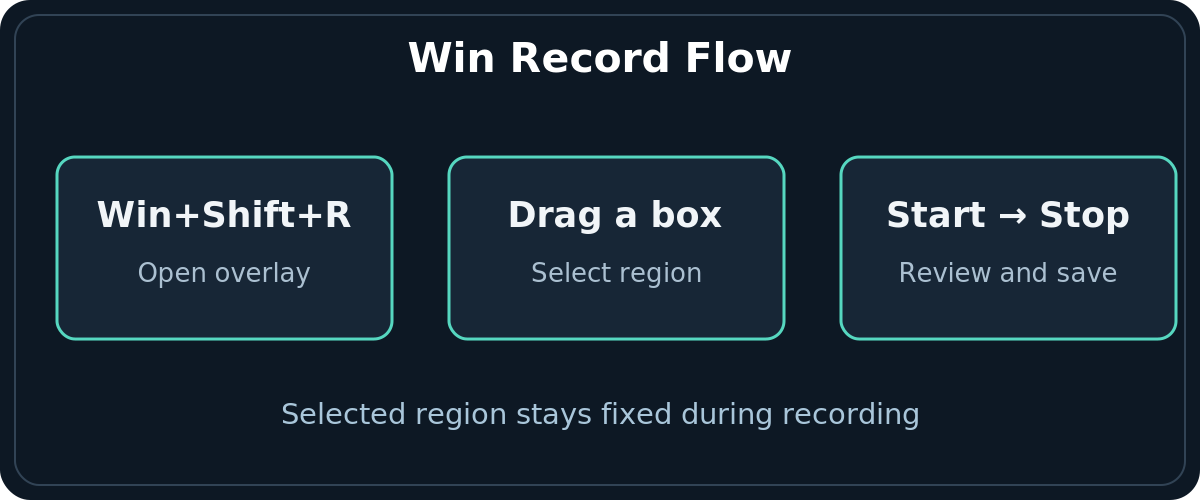
Snipping Tool’s common recording method uses a fixed rectangular region, not a camera that follows a moving window around the desktop. Microsoft has introduced additional window-recording modes in some newer builds; do not assume your particular release includes those controls. If you move a window outside the selected rectangle, that content may be cut off or another window may cover the area.
Record your voice or computer sound
Recent Snipping Tool versions support optional microphone and PC-audio recording settings. These options were introduced in app updates and may not appear on older installs or managed machines. Open the recorder’s available audio controls, select the source you need, and check any microphone permission prompts. Make a five-second test in a safe window; play the actual saved video to confirm the voice and computer sound are present at useful levels.
If you cannot see an audio toggle, update Snipping Tool through Microsoft Store where allowed and inspect its settings. Do not assume that recording the picture automatically captures meeting audio, streamed media, or all application sound.
Use Xbox Game Bar for a game or supported app
- Open the game or application you want to record, so that it is the active window.
- Press Windows + G to open Xbox Game Bar. Check whether the capture controls are available for that app.
- Press Windows + Alt + R to start recording. Use the same shortcut to stop. Windows + Alt + M toggles microphone capture while recording where supported.
- Open File Explorer → Videos → Captures to find the recording, usually saved as an MP4 with the game or app name and a timestamp.
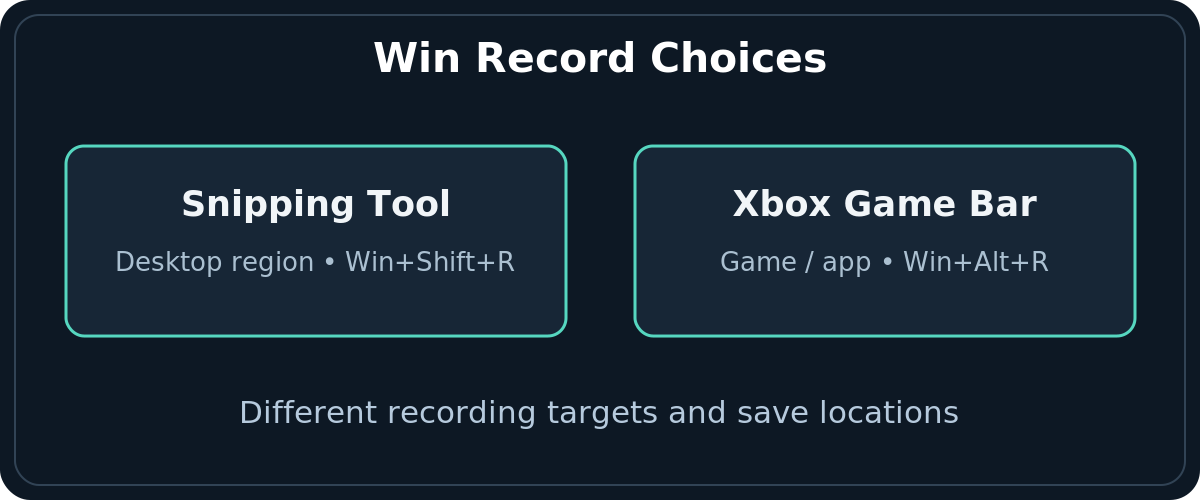
Game Bar is useful for gameplay and activity in a supported app. It is not a dependable tool for recording every part of the Windows desktop, File Explorer, or transitions among several unrelated windows. If your goal is a walkthrough of system settings or dragging between applications, Snipping Tool’s selected-region capture is usually the simpler first choice. If a capture control is unavailable, try an app that the tool supports or use the alternate workflow instead of forcing it.
Find, play, and edit a Windows screen recording
For a Game Bar clip, go to Videos → Captures. For a Snipping Tool recording, use the location chosen when saving; do not assume it will always appear in Captures. You can inspect the clip in a video player before sending it. If it needs a title or subtitles, Microsoft documents an Edit in Clipchamp path from Snipping Tool; available Clipchamp features can depend on edition and account type.
Check three things before you share: the recording contains the beginning and ending you intended, the spoken audio is intelligible, and the frame does not expose emails, tokens, customer data, or browser tabs. A screen recording preserves motion and timing but does not make visible information private simply because it is in a video.
Troubleshoot recordings that stop, fail, or have no sound
Windows + Shift + R doesn’t open a recorder
Launch Snipping Tool from Start and look for the Record mode. If Record is absent, check Windows 11 updates and Snipping Tool updates in Microsoft Store. The recorder was introduced for Windows 11; it is not a universal feature of older Windows installations. Corporate device policies can also limit app functionality.
I can record a rectangle, but not a single moving window
The basic Snipping Tool method records the chosen screen region. Reposition the target app before pressing Start and avoid moving it during the clip. Some newer versions offer a window mode, but Microsoft’s original announcement for it specified staged Insider release and a fixed region once capture begins. Treat its presence as version-dependent, not guaranteed.
My video has no microphone audio
Check the recording controls and Windows Settings → Privacy & security → Microphone permissions. Confirm the input device is connected and not muted. Use a brief test and play it back. If only system audio is missing, look separately for a PC-audio option; microphone and computer sound are distinct sources.
Game Bar says a feature isn’t available
Switch to a supported game or app before starting the shortcut. Game Bar capture is not intended for every surface, and administrator restrictions may apply. Try Snipping Tool for a fixed selection of your desktop, rather than assuming the Windows installation is defective.
The capture is cut off or unexpectedly reveals another window
A recorder’s selected region stays on the screen even if you move the application behind it. Restart with a larger or better-positioned capture region and close unrelated windows. Do not record passwords, access tokens, or payment information even for an internal tutorial.
I stopped recording and cannot find the file
Check the app you used. Game Bar defaults to Videos → Captures; with Snipping Tool, return to the video preview and use Save or search the destination you chose. If a recording never reached the preview or no file was saved, make another short test rather than guessing a filename.
Choose the right tool for your task
Use Snipping Tool for a two-minute how-to showing a dialog, website, or several clicks inside a selected region. Use Xbox Game Bar for supported app/game captures, particularly when its game-focused controls are convenient. Use Clipchamp or another appropriate editor if you need trimming, annotations, captions, a webcam, or more elaborate production. Whichever path you select, verify any required audio before recording a long demonstration.
Frequently asked questions
Can Windows 11 record without installing OBS?
Yes. Snipping Tool and Xbox Game Bar provide built-in ways to capture video on supported Windows 11 setups. They have different coverage and controls.
Where does Windows 11 save screen recordings?
Xbox Game Bar ordinarily saves MP4 clips in Videos → Captures. Snipping Tool allows you to save from its preview, so check the location you selected.
Can I capture a Zoom or streaming-video window?
Only if the application and rights settings permit it. Some content is protected or subject to consent and privacy requirements. Do not attempt to bypass a restriction or record a private conversation without appropriate permission.
Sources and further reading
Use the checklists as you go, and confirm the result before moving on to a more involved repair.