How to Update Windows 11 Safely
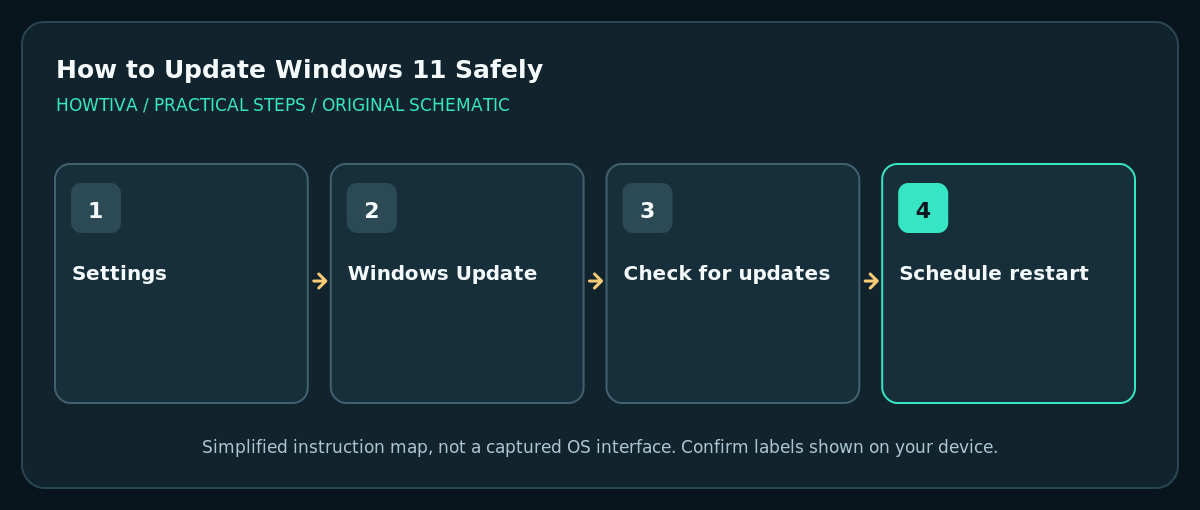
Save your work, back up important files, connect reliable power and internet, then open Start > Settings > Windows Update > Check for updates.
Quick answer: Save your work, back up important files, connect reliable power and internet, then open Start > Settings > Windows Update > Check for updates. Install the appropriate updates and restart only when you can afford to interrupt active work.
Windows 11 receives security fixes, reliability changes, drivers and feature releases. The safest routine is to check your data is recoverable, use Windows Update rather than unknown download pages and plan for one or more restarts. Menus can differ between Windows builds and managed work or school PCs.
Before you check for updates
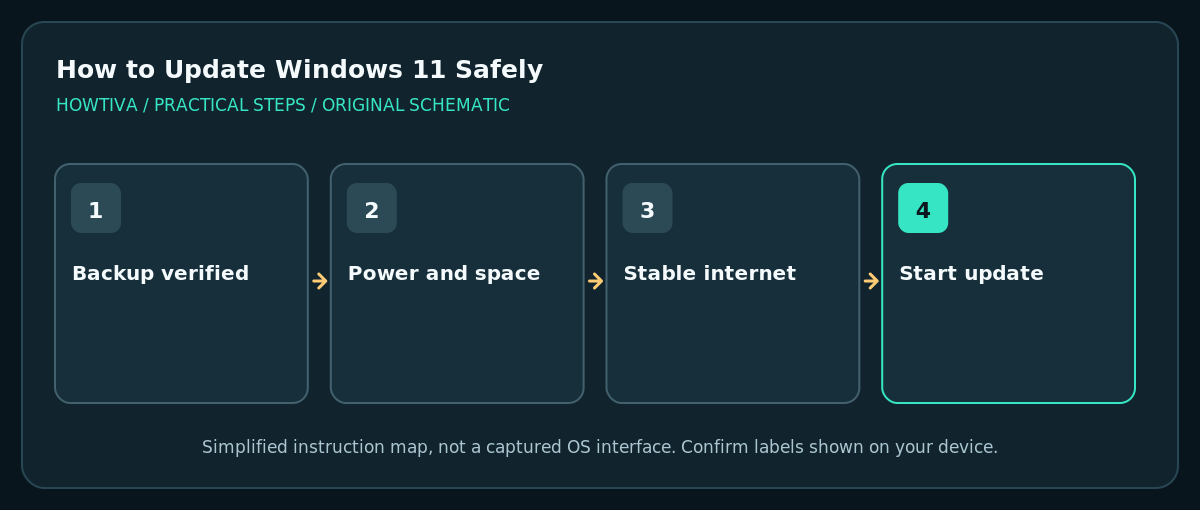
- Save and close critical work. Finish important file uploads or exports before starting an update. A pending restart can interrupt applications.
- Verify a backup. Confirm that your most important documents exist on a separate disk or trusted backup service and can be opened. A restore point is not a replacement for file backup.
- Connect power and stable internet. Plug in a laptop when possible. Avoid initiating large updates on metered or unreliable connections unless necessary.
- Leave usable free storage. Windows may need space for downloaded and temporary installation files. If the drive is nearly full, review Storage settings and remove only files you know you do not need.
- Check if the computer is managed. Organization policies may control when updates arrive or when restart options become available. Follow your administrator’s process.
Install updates using Windows Update
- Open Start > Settings > Windows Update.
- Select Check for updates. If Windows is already downloading or installing updates, read the existing status rather than repeatedly clicking.
- Review what Windows offers. Most regular security and quality updates are appropriate to install. A separately offered optional preview or optional driver update is not automatically necessary to solve every problem.
- Select Download & install only when the screen offers that action and you understand the update category. Follow on-screen prompts.
- When asked, schedule the restart or select a suitable restart time. You may have to wait through several restarts and progress screens; do not force shutdown merely because progress appears temporarily unchanged.
- After signing in, return to Settings > Windows Update and review the status or Update history. Check that your key apps and devices work as expected.
Avoid unexpected restarts
Under Windows Update, look for a Schedule the restart option when a restart is pending. Configure active hours to reflect when you use the PC. These controls reduce interruptions but cannot guarantee that an update never needs a restart. Windows Update may also show a Pause updates control; pausing is temporary and delays important patches, so reserve it for a specific deadline or troubleshooting need.
What if a major feature update appears?
A feature upgrade may change interface behavior, storage requirements and compatibility. First check that specialized software, business VPNs, security programs and hardware drivers support the release. The OS may offer a feature release gradually instead of to all devices at once. Do not use unofficial installers to force an upgrade on unsupported hardware.
Troubleshooting when Windows Update fails
Update says Restart required but nothing happens
Save open work and use the restart button shown in Windows Update. Ensure the machine is not waiting for an app to close or an administrator’s approval. A normal Restart is different from just closing the laptop lid.
Download is slow or stuck
Check internet connectivity, available space and whether another download is monopolizing bandwidth. Leave the PC connected to power. If a specific error code appears, record it exactly and consult Microsoft Support for that code rather than deleting system update folders manually.
An update causes a problem
Document the change and affected software. Review Settings > Windows Update > Update history and the supported recovery options. Uninstalling an update or restoring system settings may be possible in some cases; confirm what will change first and preserve data. On a work PC, contact IT before rollback.
‘Some settings are managed by your organization’
This often means an administrator controls update policy. Do not bypass device management or workplace security controls to get an update faster.
Frequently asked questions
Will Windows Update erase my documents?
Ordinary updates are designed to preserve personal files, but no upgrade is risk-free. Confirm an independent backup before updating.
Should I install every optional driver update?
Not necessarily. If hardware works correctly, prefer drivers delivered as part of normal supported updates or the device manufacturer’s verified instructions.
Is a restore point enough before updating?
No. System Restore mainly rolls back system changes, not deleted personal documents. Keep a separate file backup.
Sources & Further Reading
- Microsoft — Windows Update FAQ — Check for updates, power, pause and restart scheduling.
- Microsoft — Pause updates in Windows — Pausing is temporary, not disabling security updates.
- Microsoft — Recovery options in Windows — How System Restore differs from personal file recovery.
Use the checklists as you go, and confirm the result before moving on to a more involved repair.