How to Connect a Second Monitor to Windows
Connect the second monitor to a supported video output on your PC, turn it on and choose its correct input. Press Windows + P and select Extend to use both screens independently.
Quick answer: Connect the second monitor to a supported video output on your PC, turn it on and choose its correct input. Press Windows + P and select Extend to use both screens independently. Then open Settings > System > Display to identify, rearrange and adjust the monitors.
A second display makes room for a document on one screen and a meeting or browser on another. The connection is not just about matching the plug: the computer port must support video, the cable must carry a compatible signal, and the display needs the correct input. These steps focus on Windows 11; Windows 10 has related controls, but exact wording and layout can differ.
Check the hardware before you connect
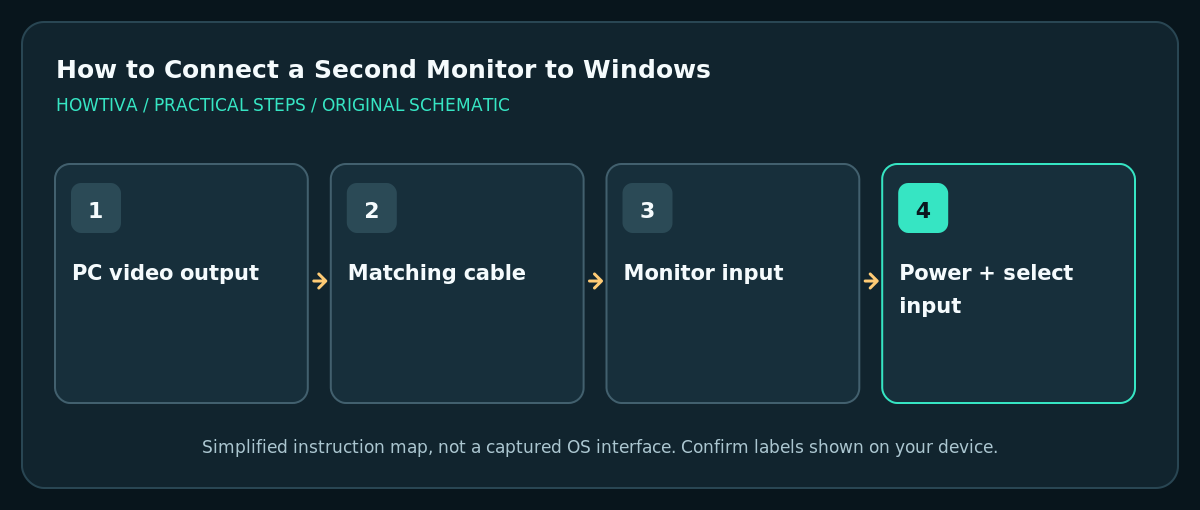
- Identify the video output on the PC and video input on the monitor. HDMI and DisplayPort are common; some USB-C ports support DisplayPort Alt Mode or Thunderbolt video, while others carry data or charging only.
- Consult the laptop or graphics-card manufacturer’s specifications when in doubt. A connector that physically fits does not guarantee it outputs video, especially with low-cost USB-C hubs and adapters.
- Use a suitable video cable or active adapter where required. Turn on the monitor and choose the input that matches the physical port, such as HDMI 1 or DisplayPort. Do not force a connector.
- Connect the cable securely. If you are using a desktop graphics card, plug the monitor into the appropriate active display output, not an unrelated port that may be disabled by the system’s configuration.
Configure the displays in Windows 11
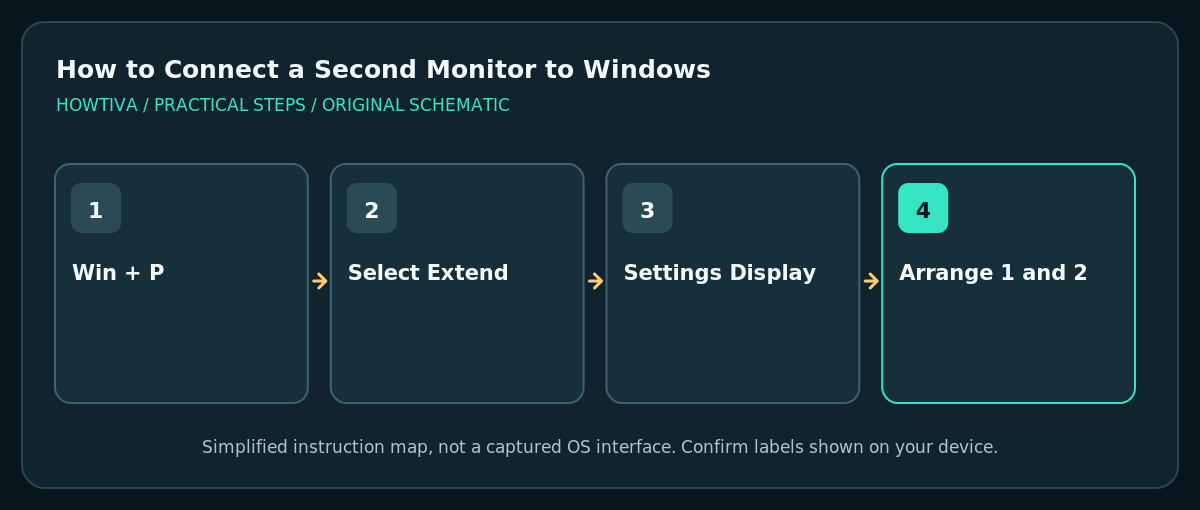
- Press Windows + P to open the projection menu. Choose Extend to create a larger desktop, Duplicate to mirror the same view, or Second screen only for output only on the external display. Use Extend for a typical two-screen workspace.
- Right-click an empty area of the desktop and select Display settings, or open Settings > System > Display. Find the graphic showing numbered rectangles for the connected displays.
- Select Identify so Windows shows which number is assigned to each screen. Drag the numbered rectangles to reflect their real positions—left, right, above or below—then select Apply if prompted.
- Select each display to review Scale, Display resolution and Orientation. Use the recommended resolution where possible. Available refresh rates depend on the screen, cable, adapter and graphics hardware.
- Move the pointer through the shared edge to confirm alignment. Open a harmless app and drag its window between displays; do not use a live presentation as your first test.
Choose the correct mode for your task
Extend gives different workspace content on each screen. Duplicate shows approximately the same image on both, useful for basic presentations but potentially limiting resolution when screens differ. PC screen only turns off output to the external screen without unplugging it. Second screen only keeps work on the external screen. Always check which screen shows private notifications before sharing a meeting screen.
Troubleshooting
The monitor says No Signal
Confirm power, input selection and connection to the right port. Try a cable known to support the display mode and swap to another verified input. If a USB-C adapter is involved, check that the computer actually supports video output through that USB-C port.
The second screen is physically connected but absent in settings
Open Settings > System > Display > Multiple displays > Detect. Reseat the cable, restart the display and check graphics drivers via Windows Update or the manufacturer’s official download. Avoid dubious driver-update utilities.
The mouse moves in the wrong direction
In Display settings, select Identify and drag the numbered rectangles until they match the desk layout. Slight vertical misalignment between rectangles can make the pointer feel stuck at an edge.
The image is blurry or refresh rate is unexpectedly low
Set a resolution supported by the display and check the cable/adapter bandwidth limits. A dock may support fewer pixels or a lower refresh rate than a direct connection. Use manufacturer specifications rather than assuming HDMI or USB-C labels guarantee a speed.
Closing the laptop turns off the external display
Closing a laptop may activate sleep depending on power settings and hardware. Review the manufacturer’s guidance and Windows power settings before changing lid-close behavior; ensure ventilation remains clear.
Frequently asked questions
Is a second monitor the same as extending the screen?
No. A second physical monitor can duplicate, extend or replace the laptop’s display. Windows + P > Extend chooses the larger workspace behavior.
Can any USB-C port run a monitor?
No. It must support compatible video output or use a specifically supported dock technology. Verify the computer model and adapter specifications before buying equipment.
Why does Detect find only one screen?
The connection may not provide a supported video signal, the monitor may be on the wrong input, or drivers/hardware may need attention. Work through cable, port, input and display settings systematically.
Sources & Further Reading
- Microsoft — How to use multiple monitors in Windows — Windows display settings, identify detect and arrangement.
- Microsoft — Troubleshoot external monitor connections in Windows — Secondary check: cabling, drivers and display troubleshooting.
Use the checklists as you go, and confirm the result before moving on to a more involved repair.