How to Clean Up a Windows Downloads Folder
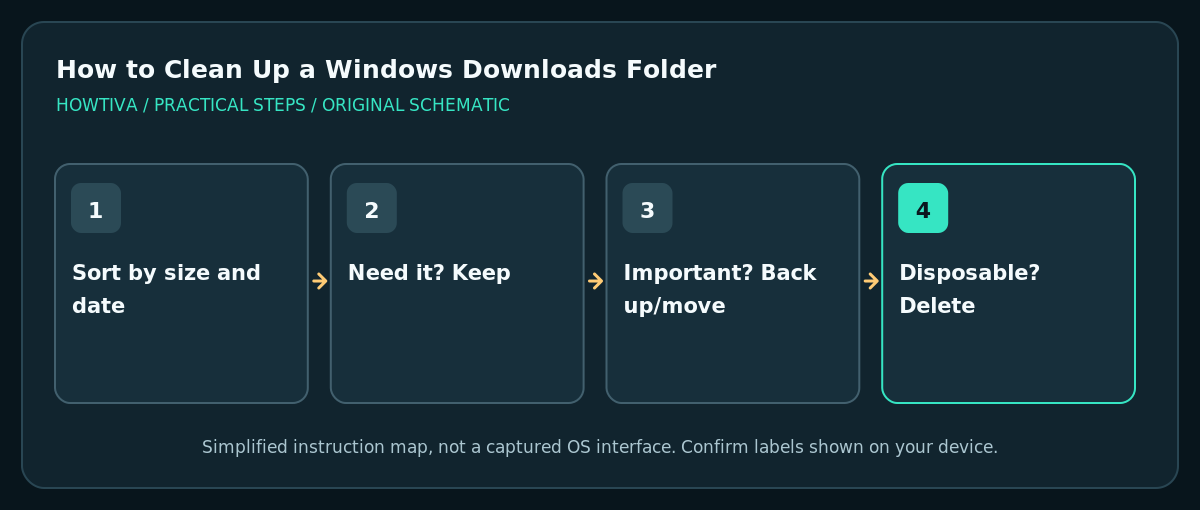
Open File Explorer > Downloads, switch to Details view, sort by date or size, and review files one by one before moving or deleting them.
Quick answer: Open File Explorer > Downloads, switch to Details view, sort by date or size, and review files one by one before moving or deleting them. Put important installers, receipts and work files into named folders or a verified backup first. Do not use Select All > Delete as a shortcut to cleaning.
The Downloads folder often collects installers, attachments, ZIP archives and duplicate transfers. Some are disposable; others are the only available copy of a document. Microsoft recommends reviewing personal files and using Storage Sense carefully. Its default behavior does not automatically touch Downloads: deleting old Downloads files is an option you deliberately configure, not a harmless built-in default.
Make a safe cleanup plan first
- Open File Explorer with Windows + E, then choose Downloads in the navigation pane. If it is not shown, inspect your user profile or your browser’s configured download location; not every browser saves to the default folder.
- Change to View > Details and sort by Date modified or Size. This helps identify large installers, videos and old archives without deleting anything yet.
- Create destination folders such as Documents/Receipts, Documents/Projects or an organized external drive. Confirm those destinations are accessible and, for important records, covered by a backup.
- Open unfamiliar important-looking files in an appropriate trusted application only if you recognize their origin. Do not run unknown EXE, MSI, BAT or script files merely to see what they are.
- If a file is needed by a current project, a tax record, a software reinstall or an offline trip, keep it until you have another verified copy. File names and timestamps do not establish whether a file is disposable.
Sort, move and delete deliberately
- Review the largest items first. A single multi-gigabyte video may free more space than hundreds of small images. Compare filenames with the destination folder to avoid moving a duplicate over the only complete copy.
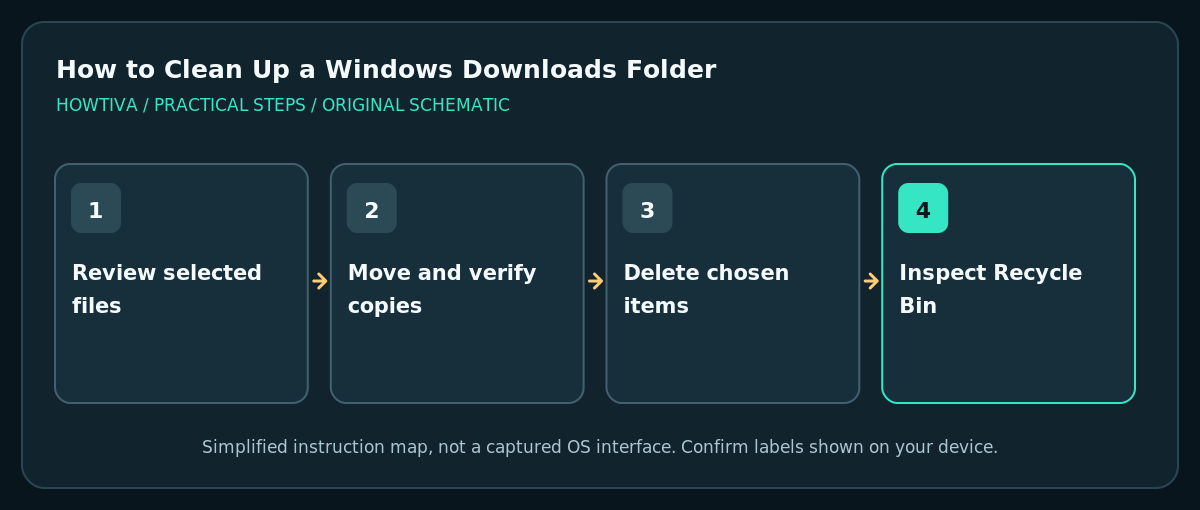
- For files you want to keep, select them and use Cut > Paste or copy them to the destination. Verify that the transfer succeeded by opening the destination and checking a sample file before deleting the original.
- For files you genuinely no longer need, select only the chosen items and choose Delete. Ordinary deletion normally sends local files to Recycle Bin, but this behavior can differ with network shares, removable storage, oversized items or special settings.
- Open Recycle Bin and review its contents before emptying it. Emptying the Bin can make recovery far harder; confirm the files are unneeded and backed up where appropriate.
- Revisit Downloads and sort again by size. Check available space under File Explorer > This PC to see whether the cleanup made a meaningful difference.
Use Storage Sense carefully
Open Settings > System > Storage > Storage Sense. Microsoft’s documentation says the default Storage Sense settings clean selected temporary content and Recycle Bin items, while Downloads and cloud-synced files are not touched unless you configure them to be. Read the Downloads retention option and its age threshold before enabling it. Turning on automatic deletion can remove a file that you meant to keep in Downloads for future use.
If you routinely download work assets, consider keeping automatic Downloads cleanup off and doing a periodic review instead. A retention setting is not a substitute for a backup, and Storage Sense only operates on the system drive as Microsoft describes.
Handle duplicates and cloud folders safely
Do not decide that two files are identical merely because their names end with (1) or (2). Check their size and content first. A newer revision might have a similar name. If Downloads is inside a synchronized OneDrive or another cloud folder, deletion may propagate across devices; verify sync location and provider behavior before bulk cleanup.
A Windows installer might be safe to remove after the application is installed and you have a trusted reinstall source, but offline installers, activation information or licensed software packages may be worth keeping. Treat archived documents differently from temporary setup files.
Troubleshooting cleanup problems
Folder appears empty: check the browser’s download location or search in File Explorer. Avoid deleting similarly named folders while trying to find the correct one.
File says it is in use: close the application using it, save work and retry. Never force-delete a file from a running installation.
Storage barely improved: compare drive free space, confirm items reached Recycle Bin, then consider other major folders using Microsoft’s Storage recommendations. Do not assume Downloads is the largest source.
File was deleted accidentally: check Recycle Bin before emptying it. If it was deleted permanently or cloud-synced, check a verified backup or provider recovery features immediately.
Frequently asked questions
Does clearing Downloads uninstall apps?
Deleting downloaded installer files does not usually uninstall an already-installed application, but some installers or portable programs are designed to run directly from Downloads. Verify before deleting.
Is the Downloads folder itself safe to delete?
Avoid removing the Downloads folder. Clean up selected contents instead; the folder is used by the system and applications as a destination.
Does Storage Sense automatically delete Downloads every month?
Not by default. Microsoft says it does not touch Downloads unless you explicitly configure that behavior.
Sources & Further Reading
- Microsoft — Free up drive space in Windows — Downloads folder, sorting, moving files, Recycle Bin and free space.
- Microsoft — Manage drive space with Storage Sense — Storage Sense default does not touch Downloads without explicit configuration.
Use the checklists as you go, and confirm the result before moving on to a more involved repair.