How to Find Downloaded Files on a Mac
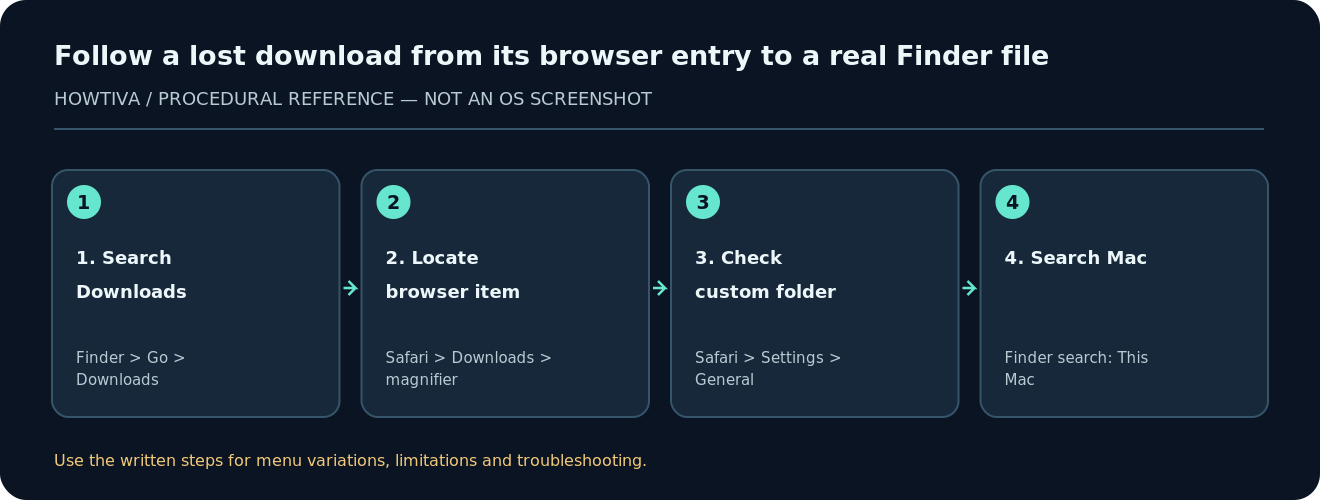
Open Finder, then choose Downloads from the sidebar or select Go > Downloads (shortcut Option–Command–L). If the file is not there, open the browser you used and inspect its Downloads list or selected download location.
Quick answer: Open Finder, then choose Downloads from the sidebar or select Go > Downloads (shortcut Option–Command–L). If the file is not there, open the browser you used and inspect its Downloads list or selected download location. Search the Mac by filename before downloading it again.
On a Mac, a browser’s list of completed downloads is not the same thing as a folder containing the files. You can clear an entry from Safari’s list without necessarily deleting the document from storage. Equally, a download can remain listed after someone moves or deletes the underlying file. Begin with Finder because it shows the actual items on disk, not just download history.
Method 1: Find the file in Finder
- Click the Finder icon in the Dock. If Finder was already open, activate one of its windows.
- In the sidebar, click Downloads. If the sidebar item is missing, use the menu bar: Go > Downloads. The Downloads folder usually belongs to your signed-in user’s home folder.
- Switch to List view if you have many files, then sort by Date Added or Name. Sorting helps locate a recent download even when its name differs from the page where you got it.
- Look for ZIP, DMG, PDF and other formats, not just the format you expected. For instance, a software download might be a DMG disk image rather than an app immediately ready to open.
- Once found, use Quick Look (select a trusted file and press the Space bar) or Get Info to inspect it. Do not launch an unfamiliar installer or script merely to find out what it contains.
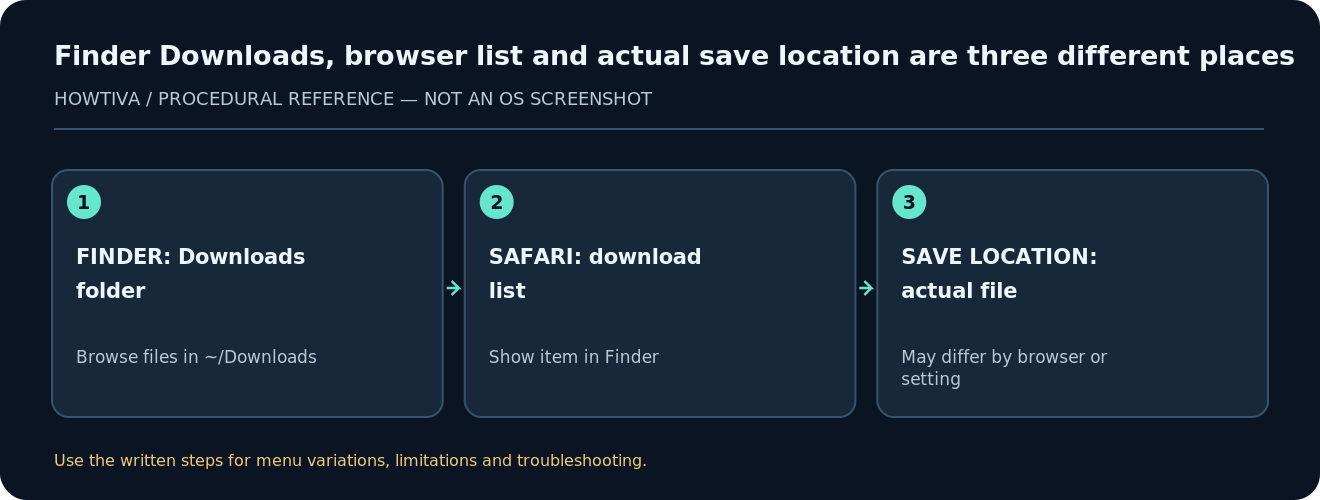
If the Downloads shortcut is missing: Finder’s Go > Downloads route does not rely on the sidebar. You can also use Go > Home and open the Downloads folder there. The exact sidebar choices can change with Finder preferences or organization policies.
Method 2: Trace a download from Safari
- Open Safari. If the download icon is visible near the toolbar, click it to open the list of recently downloaded items.
- Find the item’s name and choose the magnifying glass next to it. Safari opens the downloaded item in Finder when the original file can still be found.
- If the item cannot be located, open Safari > Settings > General and check File download location. This setting controls where subsequent Safari downloads are saved; it does not move items you downloaded earlier.
- If the browser list has been cleared, open Finder and search for a distinctive part of the filename; a cleared list is not a deletion log.
Important difference: Safari’s setting for automatically removing download list items only controls list entries; do not assume it cleans disk storage. Similarly, moving a downloaded file after the fact can make Safari’s Show in Finder shortcut stop working. Apple documents both behaviors in its Safari guide.
Method 3: Locate a file saved by another browser
Chrome, Firefox, Microsoft Edge and other browsers can use different download locations. Open the same browser and look for its Downloads view, typically accessible from its menu. Use any offered Show in folder or equivalent command to open the selected item in Finder. Because browser menus change with updates and extensions, avoid assuming that a Safari-specific menu path works everywhere.
If the browser has an option to ask where to save each file, the item may have been sent to Desktop, Documents, an external drive or another folder. Consult that browser’s download-location setting. Some downloads are saved to an app-managed library rather than the usual Downloads folder; use the app’s own export or share controls when appropriate.
Method 4: Search across the Mac
- Open Finder and press Command–F. Enter part of the filename, a file extension such as
.pdf, or a distinctive word. - If Finder offers a scope choice, select This Mac rather than just the current folder to widen your search.
- Use a search condition such as Kind or Date Modified if there are too many results. Remember that the browser’s date and Finder’s date may reflect different events.
- If the file is on an external drive, make sure that drive is connected and mounted in Finder. If stored in a cloud-synced location, confirm that you are browsing the correct account and folder.
- Open Get Info for any promising result to confirm the full location before renaming, moving or deleting it.
You can also search with Spotlight using Command–Space. Spotlight is fast for known filenames but results may be incomplete while indexing is in progress or when a location is excluded from search. Finder offers more direct control over search location and filters.
Troubleshooting: Download not found
The browser says it completed, but there is no file
Check for a custom save location, then review whether the file was moved, renamed or deleted after download. Try searching by extension, domain-derived filename or a portion of the document name. If your organization manages the Mac, downloaded files may be routed to a managed location. Do not assume a malicious failure without evidence.
The file ends with .download or looks unfinished
A partial Safari download can appear before it finishes. Check the browser’s progress or error status. Avoid treating an incomplete file as a finished document; only resume or download again from a trusted source once you know the transfer has failed.
I can see a ZIP or DMG but not my document
A ZIP may contain the actual files. A DMG may be a container for software. Open only files from trusted sources and follow the publisher’s instructions; do not bypass macOS security warnings just because the icon looks familiar.
The file was deleted
Check Trash first. If it has been emptied, inspect Time Machine or other backups where available. Browser history cannot restore a file deleted from the Mac. A re-download may be easier if the source is legitimate and still available.
Keep future downloads easier to find
Choose one intentional destination for everyday downloads, then move permanent documents into named project folders. Periodically review Downloads, but do not delete old items solely because of their age. For Safari, record the download location under Settings > General and avoid confusing the history list with real file storage.
Frequently asked questions
What is the fastest way to open Downloads on a Mac?
Activate Finder and use Option–Command–L, or choose Go > Downloads.
Does clearing Safari’s Downloads list delete the files?
No. Clearing the browser list is different from removing the stored file. Verify the file in Finder to be certain.
Are downloads always stored in the Downloads folder?
No. Browsers, apps, user selections and organizational policies may direct files elsewhere.
Why doesn’t Safari’s magnifying glass find my file?
The file may have been moved, renamed, deleted or saved to a location that is no longer accessible. Search Finder and inspect the browser’s save setting.
Sources & Further Reading
Use the checklists as you go, and confirm the result before moving on to a more involved repair.