How to Review Microsoft Account Sign-In Activity
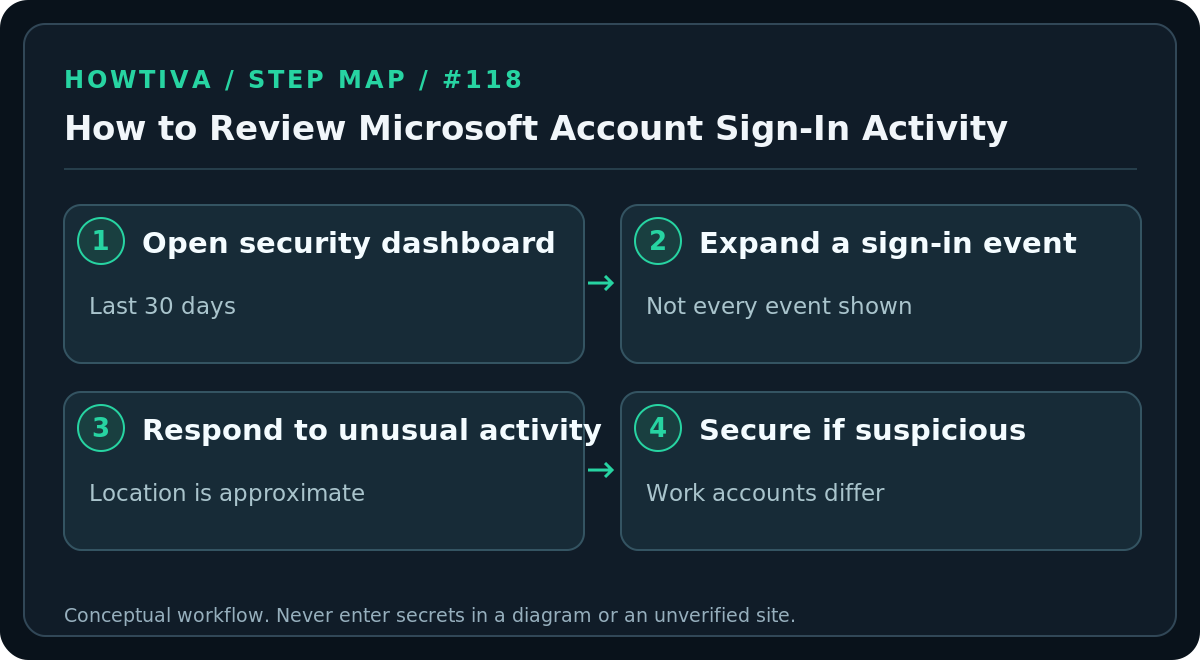
Open your personal Microsoft account security dashboard and review Recent activity; flag unfamiliar unusual events.
Quick answer: For a personal Microsoft account, visit account.microsoft.com/security or open the official Recent activity page from your Microsoft account dashboard. Examine the sign-ins and security events, expand unfamiliar items for details, and use the provided This wasn’t me or Secure your account controls when available. Microsoft’s page usually shows significant events from the last 30 days, not a comprehensive activity log.
Microsoft personal accounts and work or school accounts have different identity systems and admin interfaces. This guide is for a personal account used with services such as Outlook.com, OneDrive or Xbox. For organizational accounts, use your employer’s official identity portal and security desk.
Open the recent sign-in history
- In a browser you trust, type https://account.microsoft.com/security directly and sign in to the personal Microsoft account you intend to check.
- Open Recent activity or Review activity, depending on the wording shown. You can also follow Microsoft’s official support page on recent sign-in activity to navigate to the correct dashboard.
- Review the listed events. Look for successful or unsuccessful sign-ins, security-info changes, account-name changes and other events that Microsoft’s dashboard chooses to show.
- Expand an event to see available information about time, geographic estimate, device or browser, and how the account was accessed.
- Under Unusual activity, Microsoft may offer This was me and This wasn’t me. Choose the truthful response. If you see suspicious activity elsewhere, choose Secure your account where offered and follow Microsoft’s security prompts.
- If the event suggests access by someone else, change the password via the official security dashboard, review your verification methods and check connected devices or sessions.
An unfamiliar failed attempt is not the same as a successful unauthorized sign-in. Accounts can receive attempted sign-ins from strangers, often using credentials circulated in breaches. Judge the result and other evidence before concluding that the account was taken over.
Understand which events Microsoft shows
Microsoft states that the Recent activity view shows activity within the previous 30 days and does not include every action. Repeated sign-ins from the same device and location may appear only once. The list is a security overview, not a complete forensic record. Some fields refer to locations inferred from network information; a nearby city, VPN endpoint or mobile carrier route can look unfamiliar.
In the Unusual activity section, Microsoft specifically requests your feedback using This was me or This wasn’t me. Do not expect those buttons on every item in ordinary Recent activity. If you are not offered an acknowledgment button, use the security settings to protect the account if concerned.
Respond to a sign-in you do not recognize
First check whether the event was actually yours: were you traveling, using a VPN, signing in from a work laptop or adding a new device? If it was not you or you cannot explain an apparently successful sign-in, use Secure your account, set a fresh unique password, review your account’s ways to sign in, and make sure no attacker-controlled email address or phone number was added as a verification method.
If your Outlook.com mailbox may have been accessed, also inspect inbox forwarding and mailbox rules through Outlook’s own security and mail settings. Review subscriptions or payment activity through the relevant official Microsoft products where financial activity is suspected. For a suspicious sign-in alert that arrives by email, avoid its embedded links and navigate to the dashboard independently.
Troubleshooting: common surprises
- You cannot see Recent activity: Check whether the account is personal or work/school. A company-managed account may need organization-specific guidance.
- The location looks wrong: VPNs, mobile networks and IP geolocation can distort locations; cross-check the browser, device, time and sign-in result.
- No event matches a warning message: The dashboard omits some events; verify you are checking the correct account, and treat an unsolicited email as untrusted until verified.
- You see repeated failures from many countries: This can reflect automated guessing. Use a unique password and strong sign-in options, and check for any successful unfamiliar event.
- You cannot access the account to check: Use Microsoft’s official sign-in helper rather than sharing secrets with a third-party “account recovery” service.
Practical follow-up after reviewing the timeline
Record the approximate event time and observable metadata without exposing secrets if you need to discuss it with Microsoft’s support or your workplace security team. Do not publish IP addresses tied to other users, recovery codes or account details in public forums. Secure the email and backup methods tied to the account, and monitor for subsequent official security alerts. Sign-in monitoring supplements rather than replaces MFA or passkeys.
FAQ
Does an unsuccessful sign-in prove someone knows my password? No. Attackers can attempt to sign in using an email address alone; inspect the activity type and outcome.
Can I see years of history here? The documented Recent activity page focuses on about 30 days, not a complete lifetime archive.
Does “This wasn’t me” appear on every event? No. Microsoft documents those specific controls in the Unusual activity section.
Sources & Further Reading
- Microsoft recent activity explained — 30-day period, event types, unusual activity controls, incomplete activity log.
- Microsoft recovery code — personal account security/recovery methods.
Use the checklists as you go, and confirm the result before moving on to a more involved repair.