How to Share Wi-Fi AccessWithout Reading Out a Password
Share Wi-Fi through an Apple password prompt or an Android/iPhone QR code, while protecting network credentials and guest privacy.
Quick answer: On a compatible iPhone, share the current Wi-Fi connection to a nearby iPhone, iPad or Mac using Apple’s Share Password prompt, or show the network’s shareable QR code when supported. On a Google Pixel, open Settings → Network & internet → Internet, select the connected network’s settings and choose Share to display a scannable QR code. The receiver joins without you reading the password aloud—but the QR code or sharing handshake still grants network access.
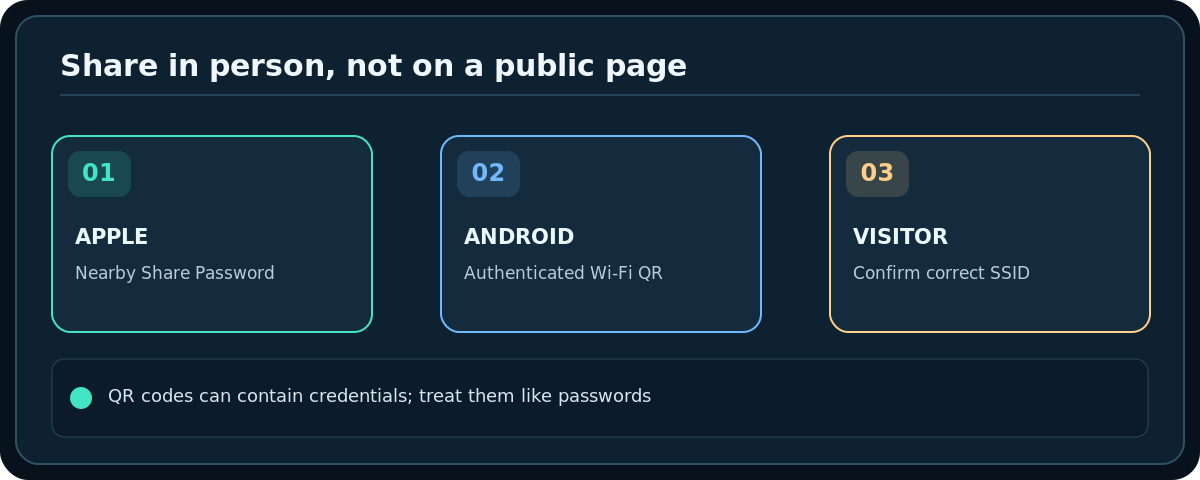
Only share networks that you own or are authorized to invite people to use. QR codes can encode credentials; do not post them on public websites or send a screenshot to an untrusted person. For short-term visitors, a separate guest network is often the more privacy-preserving choice.
Share Wi-Fi automatically between nearby Apple devices
- Verify the sharing iPhone or iPad is unlocked, connected to the intended Wi-Fi network and signed in to an Apple Account.
- Keep both devices close, with Wi-Fi and Bluetooth enabled. Apple’s requirements include having the other person’s Apple Account contact information saved by each person, and Personal Hotspot turned off.
- On the receiving iPhone, iPad or Mac, open Wi-Fi settings and choose the same network name. Wait for a password prompt on the receiving device.
- Watch the already-connected device for the Share Password notification. Tap Share Password, then Done when the flow finishes.
- Confirm the other device actually joined the intended Wi-Fi and can use the internet. If no prompt arrives, check contacts, Wi-Fi/Bluetooth, proximity and OS support; restart and retry if necessary.
Share a network QR code on an iPhone
On supported recent iOS versions, open Apple’s Passwords app, choose Wi-Fi, open the desired saved network and use Show Network QR Code if available. Show the code in person so the visitor’s compatible camera or Wi-Fi scanner can join. UI details and availability vary by OS version; do not assume a particular older iPhone exposes the feature.
A QR image should be treated like a usable credential. Take it off screen after the visitor has joined. Never upload it to a public QR decoding service just to check whether it works. If scanning fails, use an approved manual alternative.
Share a QR code from Google Pixel or other Android phones
- Connect your Pixel to the Wi-Fi that you want to share.
- Open Settings → Network & internet → Internet and tap the settings icon beside the connected network.
- Select Share; unlock or authenticate on the phone if required. Google documents a QR code that another device can scan to join the network.
- Ask the visitor to open their phone’s built-in camera or Wi-Fi QR scanner, point it at the code and confirm the connection request.
- Hide the code after successful access. On supported Pixels you may also find a Share Wi-Fi action in Internet Quick Settings.
On Samsung and other Android phones, the exact menu may instead be Connections → Wi-Fi → connected network → QR code / Share. This path varies by device, carrier and software; consult that manufacturer’s instructions if you do not see it. Do not install an untrusted QR app simply to compensate for a missing built-in function.
Connect Windows or a device with no working scanner
Some current Windows computers support Wi-Fi QR joining through supported camera and Windows features, but you should not assume it on every laptop or build. If scanning is unavailable, the network owner can use the router’s approved sharing feature, connect the device directly, or provide the Wi-Fi password privately. A generated code is not a universal cross-platform guarantee.
For devices such as TVs, printers and smart-home accessories, a QR code shown on your phone may be impossible to scan with the target device. Use that product’s documented setup process instead of forcing an incompatible shortcut.
Verify the right network and protect your privacy
- Confirm the QR code belongs to the SSID you intend to share, especially when main and guest networks have similar names.
- If the visitor only needs internet, prefer the guest SSID with local-network access blocked. Sharing your main Wi-Fi can allow additional access depending on network design.
- Watch the receiving device verify the network name and connect successfully. A connection prompt is not proof that the user is on the right trusted network.
- After the visit, consider rotating a guest password or turning off the guest SSID if your policy requires short-term access.
- Remember that showing a QR code is not encryption magic: a viewer may photograph it and share access further.
Troubleshooting
The Apple Share Password prompt never appears
Check both Apple Accounts and contact records, keep devices close, make sure the current network is selected and turn off Personal Hotspot. Restart both devices if the supported sharing flow remains stuck.
Android shows a QR code but the visitor cannot scan it
Increase brightness, avoid screen glare and try the phone’s native Wi-Fi QR reader. Some cameras scan only website QR codes or need a different scanning action; the receiving device must support joining via QR.
A visitor connects but cannot see the printer or TV
Guest isolation may be operating correctly. Access to the local LAN is separate from having a working internet connection. Do not disable isolation without understanding the new access it grants.
The QR code appears to contain a password
That is expected for many Wi-Fi QR formats. Treat the code as sensitive and delete any unneeded images or printed copies; it is not safe merely because it looks like squares.
Frequently asked questions
Does Wi-Fi QR sharing hide the password permanently?
No. It avoids saying or typing it in some flows but may still make the credential available to the receiving device or someone who captures the code.
Can an iPhone share a Wi-Fi password directly to any Android phone?
Apple’s automatic Share Password flow is intended for compatible Apple devices. Use a supported QR-code option or another authorized method for Android instead.
Can I revoke one person’s access later?
A normal shared WPA password does not provide individual revocation by itself. You may need to change the network password or use a guest network with access controls or separate credentials.
Sources & Further Reading
- Apple — Share Wi-Fi password on iPhone/iPad (accessed 2026-10-27)
- Apple — Find and share Wi-Fi password on iPhone (accessed 2026-10-27)
- Google — Pixel Wi-Fi network sharing (accessed 2026-10-27)
Use the checklists as you go, and confirm the result before moving on to a more involved repair.