How to Set Up Parental Controls on Home Wi-Fi
Set up router parental controls using child device profiles, content filters and downtime schedules with clear coverage limits.
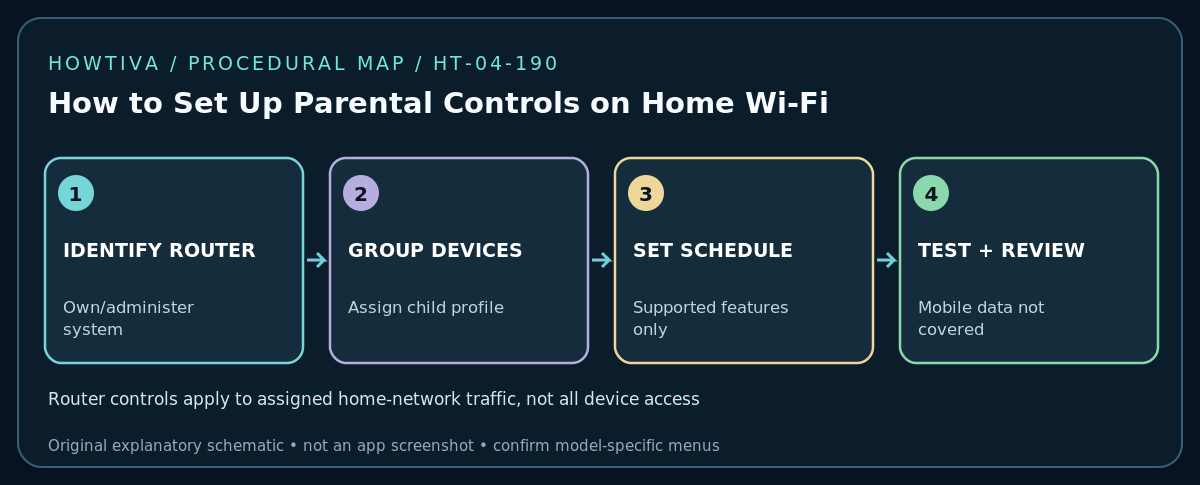
Quick answer: Sign in to the router or mesh system you own and administer, open its Parental Controls / Family Wi-Fi / Family feature, create a profile for the child’s devices, choose age-appropriate website filters or Internet-time schedules that your specific system supports, save the settings and verify them with a supervised test. The router controls only traffic passing through that network; mobile data, other Wi-Fi networks and some device privacy settings can make router-only controls incomplete. Combine network rules with device-level parental controls and clear family expectations.
Before setting controls: identify the router and household needs
First locate the actual gateway or mesh router. A separate ISP modem, Wi-Fi access point or bridged mesh node may not be the device enforcing access rules. Use the router maker’s official app or verified local admin interface, not a web link from an advertisement. Update supported firmware and protect the administrator login with a unique password and multifactor authentication if offered. Record current network and parental settings so you can reverse an error.
Discuss what the rules are for: a bedtime pause, homework period, limiting entertainment sites, or separating younger children’s devices. Agree on emergency communications and safety needs before blocking internet connectivity. If a child’s device is shared with an adult or provides access to a safety camera, smart lock, medical device or emergency service, avoid blanket rules that could disable essential functions.
Step 1: find the parental control feature on your actual model
- TP-Link Deco or compatible routers: TP-Link HomeShield controls appear in the Parental Controls area of the Deco app or Family area of the Tether router app, depending on product. TP-Link notes that advanced features can require a subscription. Features vary by model and firmware.
- Google Nest Wifi Pro / Nest Wifi / Google Wifi: The Google Home app provides Family Wi-Fi groups, Wi-Fi pauses and schedules. Google’s published instructions use Favourites > Wi-Fi > Family Wi-Fi for supported systems.
- ASUS routers: Many models have Parental Controls > Web & Apps Filters / Time Scheduling, sometimes under AiProtection. Some use the ASUS Router app’s Settings > Family. ASUS warns that features and paths vary by model and firmware.
- ISP-managed equipment: Consult the ISP’s own parental-control documentation. Do not assume the ISP gateway offers every feature advertised for consumer routers.
If your interface does not contain a named feature, check the exact model’s manual. Do not invent a secret menu or install third-party firmware to add parental controls. If a paid feature is advertised, confirm the terms before enabling billing.
Step 2: assign the correct devices to a child profile
In the official router app, open the list of connected devices and confirm which phone, tablet, computer or game console belongs to the household member. Use the device’s on-screen Wi-Fi settings and its name to help identify it, not a guessed manufacturer name. Create a child profile or Family Wi-Fi group where supported and assign only the intended devices. Be aware that devices may use private/randomized MAC addresses; Google’s guidance explicitly warns that Family Wi-Fi tracking can fail for such devices. If changes are necessary, review the privacy consequences and make a device-specific choice rather than disabling privacy features across the entire household.
A profile tied to one laptop will not automatically follow a child’s separate phone, console, cellular data or borrowed device. Review the profile each time you replace hardware. On routers that identify devices by network address, reconnecting in a different privacy mode can change which device entry the router sees.
Step 3: set the schedule and content restrictions
Choose a realistic, clearly named routine such as School nights. For a supported Google Nest system, open Google Home > Favourites > Wi-Fi > Family Wi-Fi, create a schedule, pick a group, enter the start/end time and days, then save. On supported ASUS models, use Time Scheduling, pick the appropriate devices and save Apply. On compatible TP-Link models, HomeShield can offer bedtime/offline time, time limits and content filtering. Confirm whether your subscription and hardware expose those controls before promising a specific option.
If content filtering is available, start with a conservative age-appropriate setting and test a few categories. A router’s filter may use website category lists or DNS/security services; it cannot guarantee perfect blocking of all explicit or harmful content. Review whether search and video apps have their own supervised-account, restricted-mode or parental features. Some settings may allow exceptions for schoolwork, and different ages may need different rules.
Step 4: verify and document the result
- Keep an administrator device outside the restricted child group so you can undo mistakes.
- Note the router’s time zone and current time before relying on bedtime restrictions; incorrect clock settings can cause schedules to run at unexpected hours.
- Ask the child to try a harmless test website during the allowed window and confirm it opens. Then test a scheduled pause in a short, supervised maintenance window—not during school or an important call.
- Check whether an allowed educational service still works and whether a blocked category behaves as expected. No real-world performance test is claimed here; these are steps for readers to perform.
- Save a private record of which devices, dates, schedules and subscriptions are configured. Review it occasionally and after a firmware or phone update.
Important limitations and bypass paths
A device with cellular data can use that path when home Wi-Fi is paused. A child can also use a different network, an unassigned device, or certain alternative DNS/VPN configurations. Randomized MAC identifiers may interfere with router profile assignment. Network filters can be incomplete for encrypted traffic and frequently changing domains. None of these points means parental controls are useless; they mean router controls are one layer rather than a substitute for device-specific settings and active family discussion.
If the family uses iPhone/iPad, Apple’s Screen Time provides device-based settings; Google and other operating systems provide different supervised-account controls. These are separate from router filtering. Match settings to the child’s age, privacy, educational needs and local laws. Avoid intrusive monitoring where an openly discussed, proportionate rule would meet the need.
Troubleshooting: device stays online or loses access unexpectedly
A schedule does not activate: Confirm the router clock and time zone, chosen days, profile membership and whether the feature requires a subscription. A child’s phone bypasses the pause: Check cellular connectivity and whether the device used a new private Wi-Fi address—do not assume someone hacked the router. An adult’s device was blocked: Undo the rule from an unaffected administrator device; reassign device profiles carefully. A school website is blocked: Check supported allowlist/exceptions or the app’s own account settings. Parental control menu is missing: Verify your router model, software version and subscribed feature tier through official documentation.
If the network is inaccessible from every device after a configuration change, consult the manufacturer’s recovery steps or your ISP rather than immediately resetting the entire router: resetting can erase Wi-Fi names, passwords and internet configuration.
Frequently asked questions
Can router parental controls completely block inappropriate content?
No. Categorization and filtering have coverage gaps, and devices may use routes outside the home Wi-Fi. Use age-appropriate supervised accounts, device-level controls and education in addition.
Does ‘pause Internet’ turn off Wi-Fi itself?
Not necessarily. On many systems the device may remain connected to the local Wi-Fi but lose Internet access during the rule. The actual implementation is manufacturer-specific; local services may behave differently.
Should I disable Private Wi-Fi Address to make schedules work?
Only after checking the router’s documented limitations and the privacy trade-off for that specific trusted home network. Avoid blanket advice to turn off device privacy features everywhere.
Sources & Further Reading
- TP-Link — Set up Parental Controls with TP-Link HomeShield (For Deco & Router) (checked 2026-10-27).
- ASUS — How to set up Parental Controls?(WebGUI) (checked 2026-10-27).
- Google — Pause the Internet on demand or on a schedule (checked 2026-10-27).
- Google — About Family Wi-Fi (checked 2026-10-27).
Use the checklists as you go, and confirm the result before moving on to a more involved repair.